So, you’ve started blogging on Squarespace, that’s awesome!
And while Squarespace makes blogging pretty darn easy, there are a few little design tricks that can make your posts look so much better.
We love blogging with Squarespace because you’ve got loads of flexibility when it comes to styling your blog, laying out your posts and making everything feel nice and cohesive with the rest of your website.
A few simple changes can make your blog feel way more polished, while also making your posts easier (and nicer!) to read.
So today we’re sharing some of our favorite Squarespace blog design tips to help you make your posts look great, feel on-brand and keep your readers happily scrolling.
1. Start With Your Blog Layout
Before you get too carried away designing individual posts, have a little look at your main blog page first!
This is basically the page people land on when they’re browsing your blog, so it’s worth making sure it feels just as polished and on-brand as the rest of your site.
How to Customize Your Blog Layout
Head to your blog overview page and click Edit in the top left corner
Hover over the section which displays all of your blog posts and click Edit Section in the top left
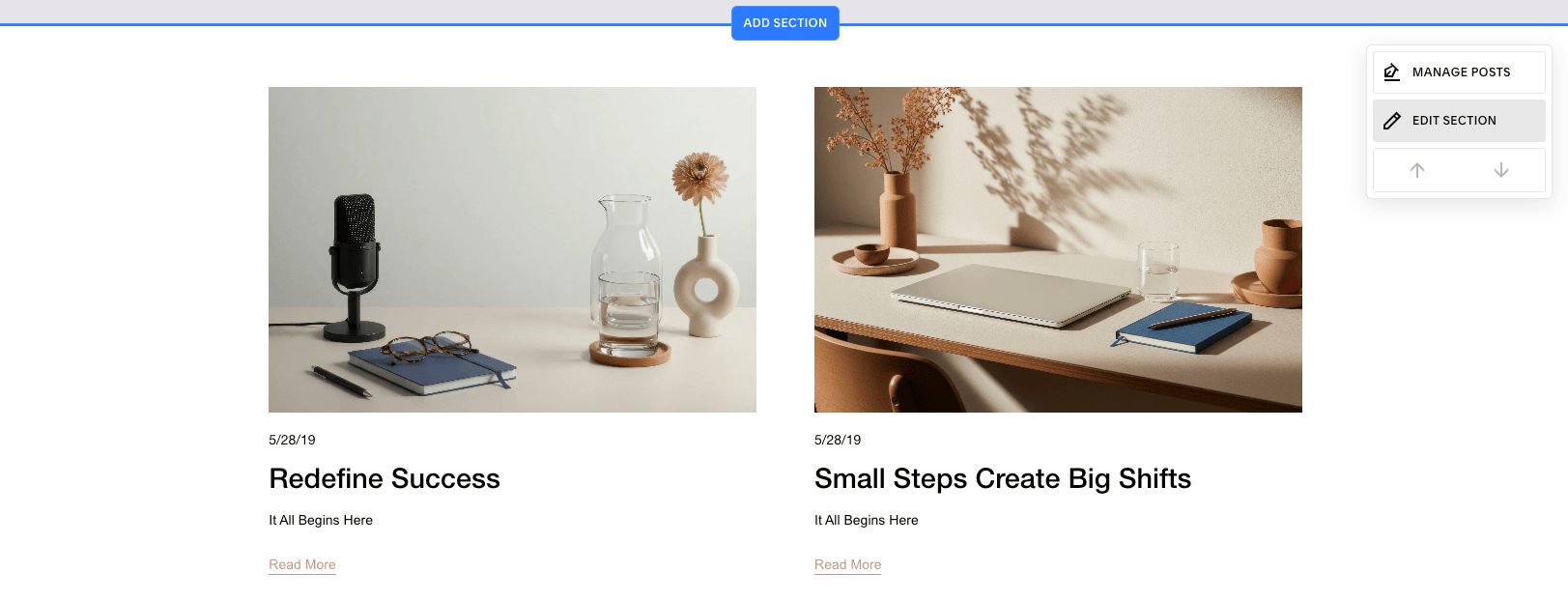
In the pop-up menu, click the Layout dropdown to choose from grid, masonry, single column or side-by-side styles
Then scroll down and tweak things like spacing, featured images, excerpts and post details to get the look you like!
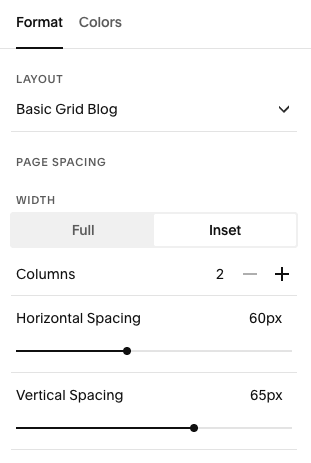
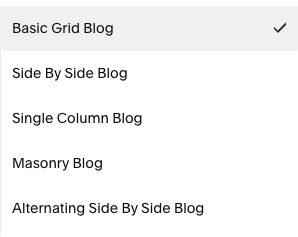
Have a play around with the different layout options and see what works best for the kind of content you’re sharing. A very image-heavy blog might suit a grid or masonry layout, while a more editorial or text-heavy blog might feel nicer in a single-column style.
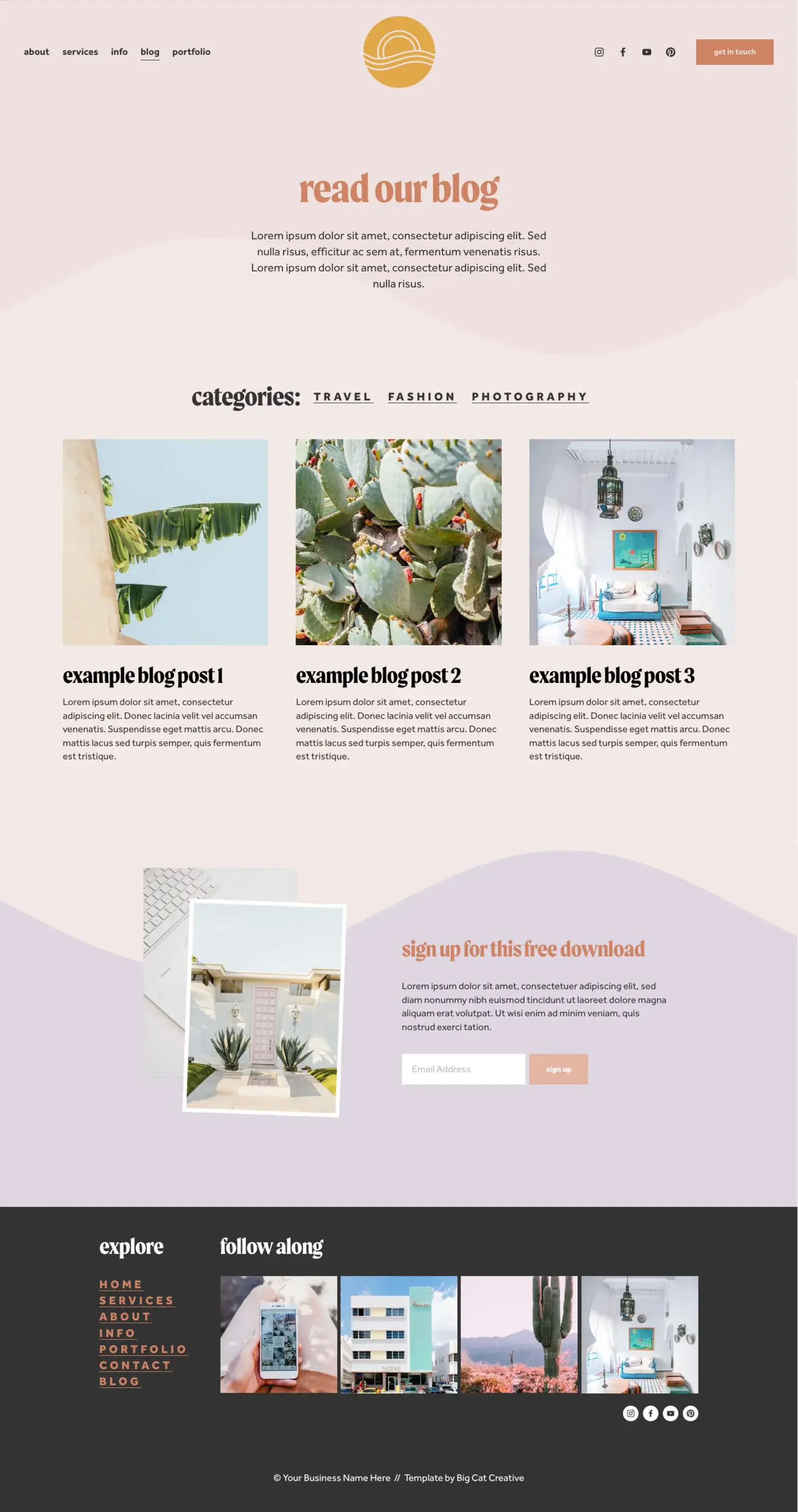
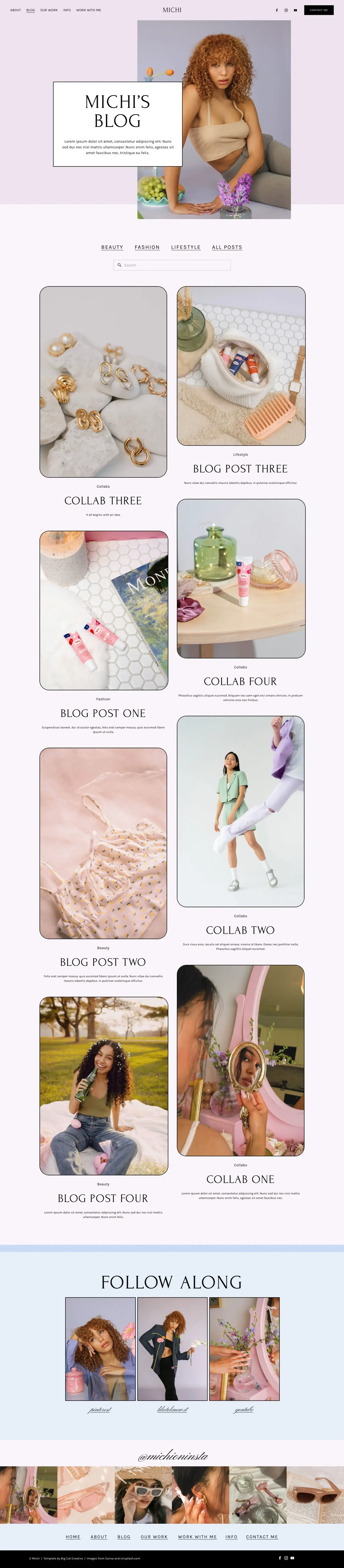
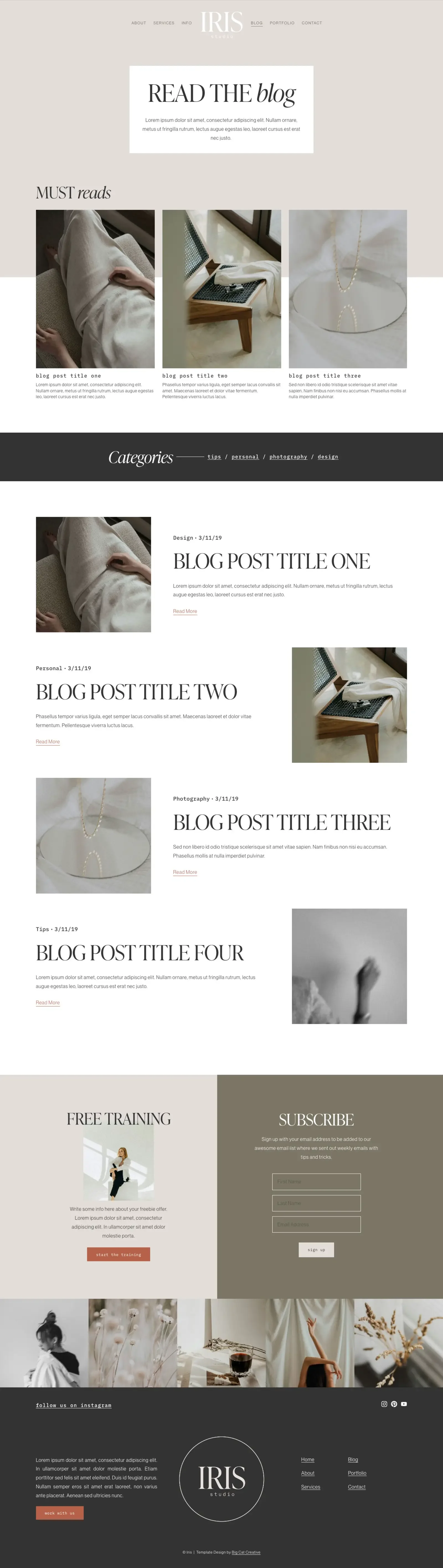
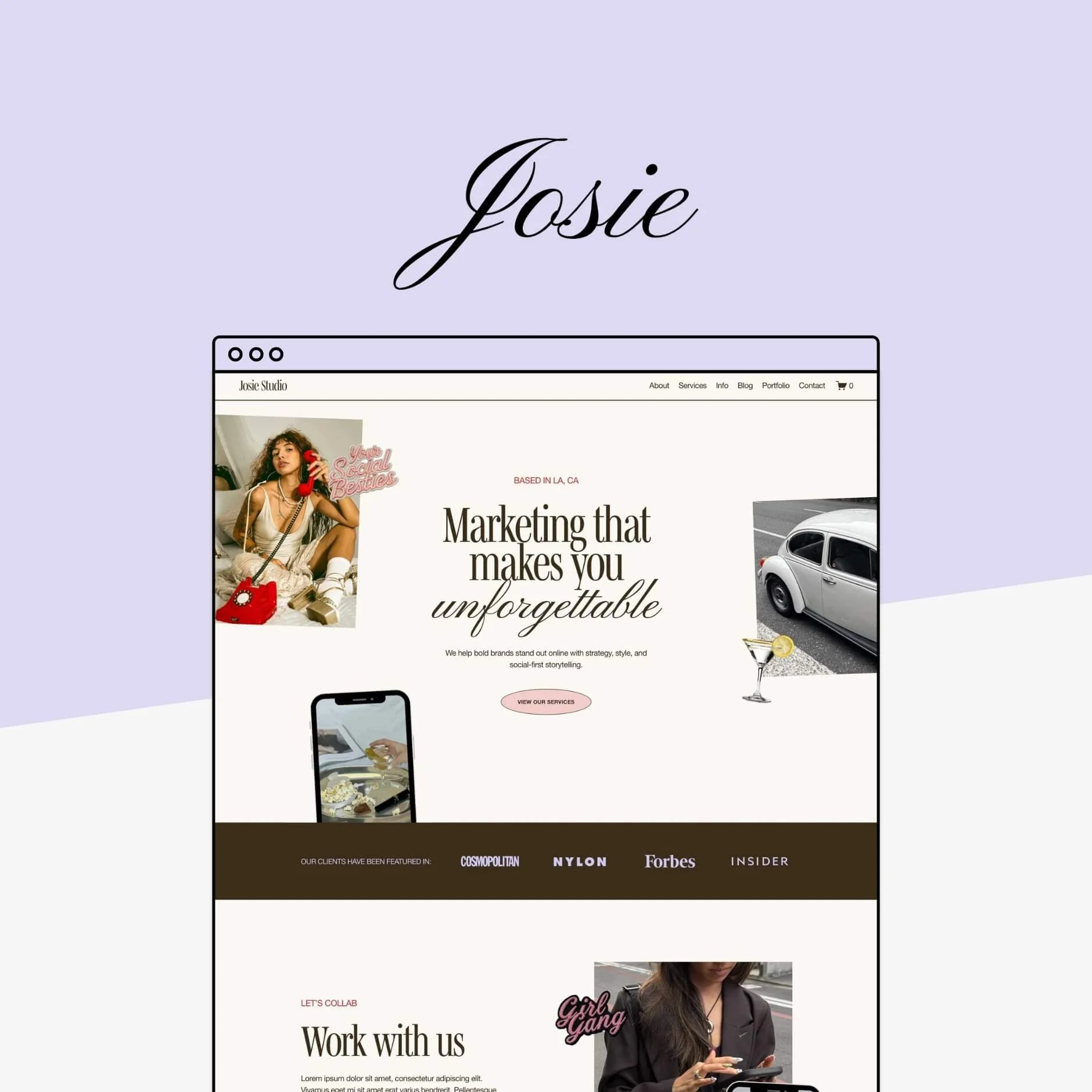
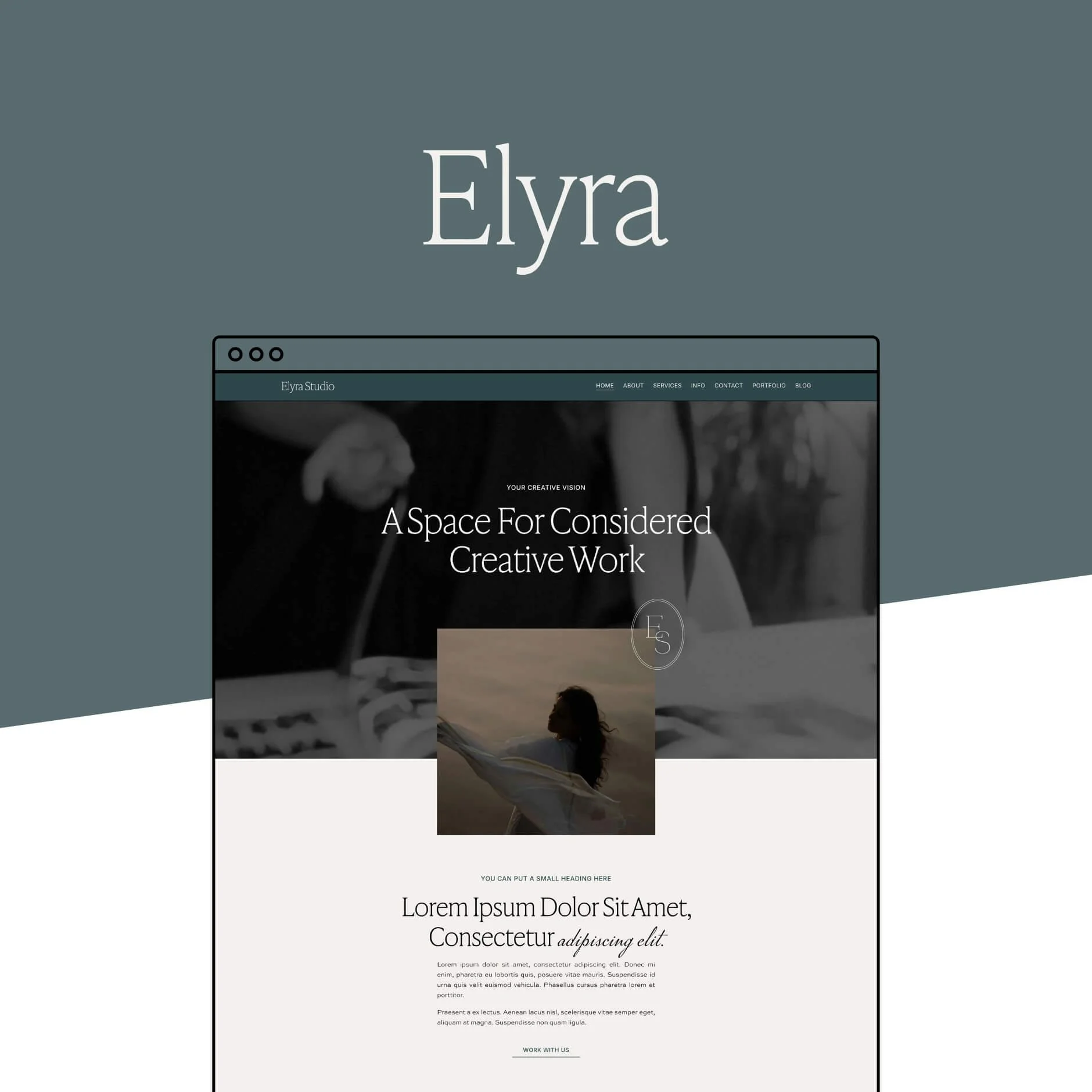
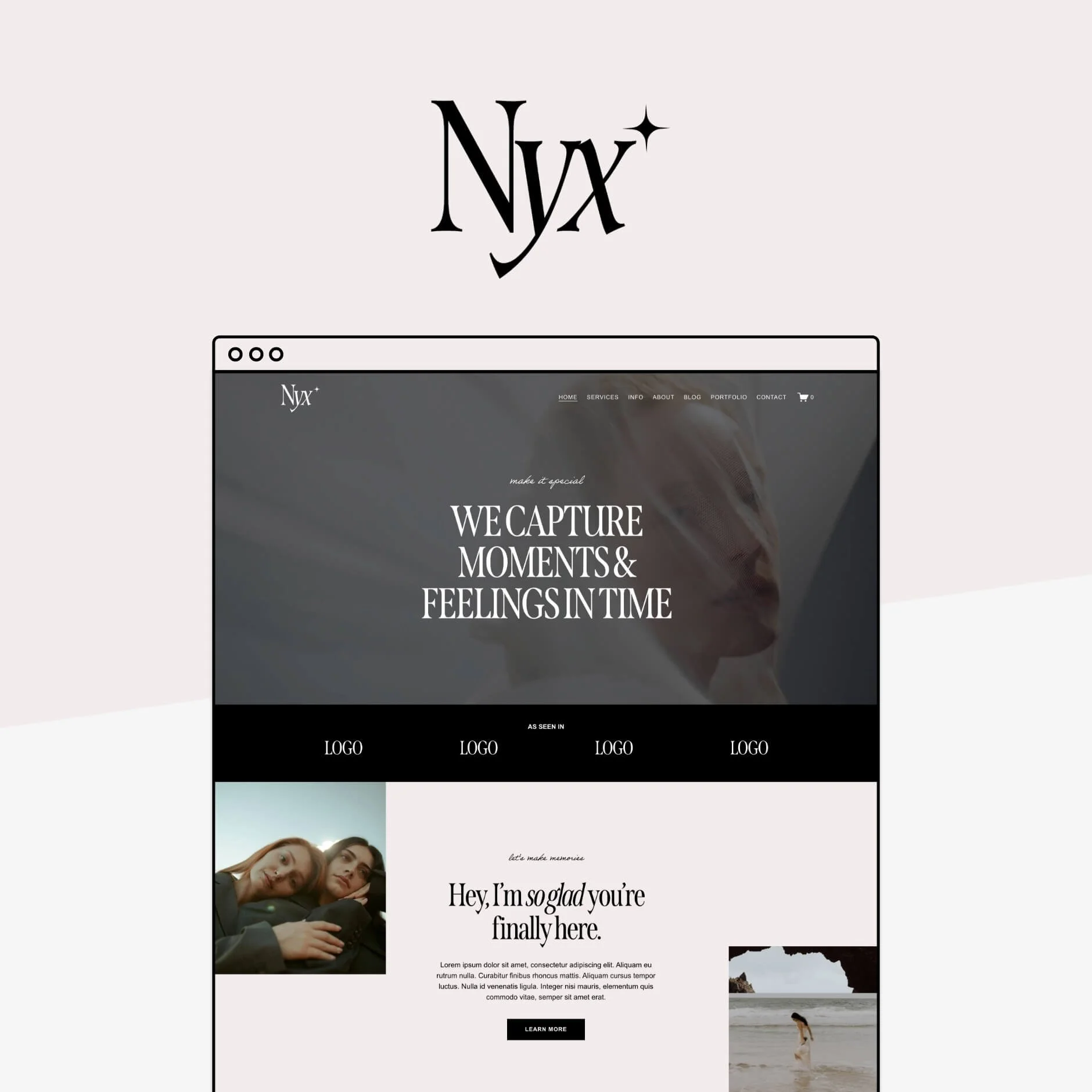
And if you’re using one of our Squarespace Website Templates, you’ve already got a little head start! Every template comes with a blog built-in and styled to match the rest of the website, so you can jump straight into adding your own posts without having to design the whole thing from scratch.
Check out some of our templates’ blog designs below:
2. Keep Your Blog Post Width Comfortable
This is a small one, but it makes a huge difference to how easy your blog posts are to read!
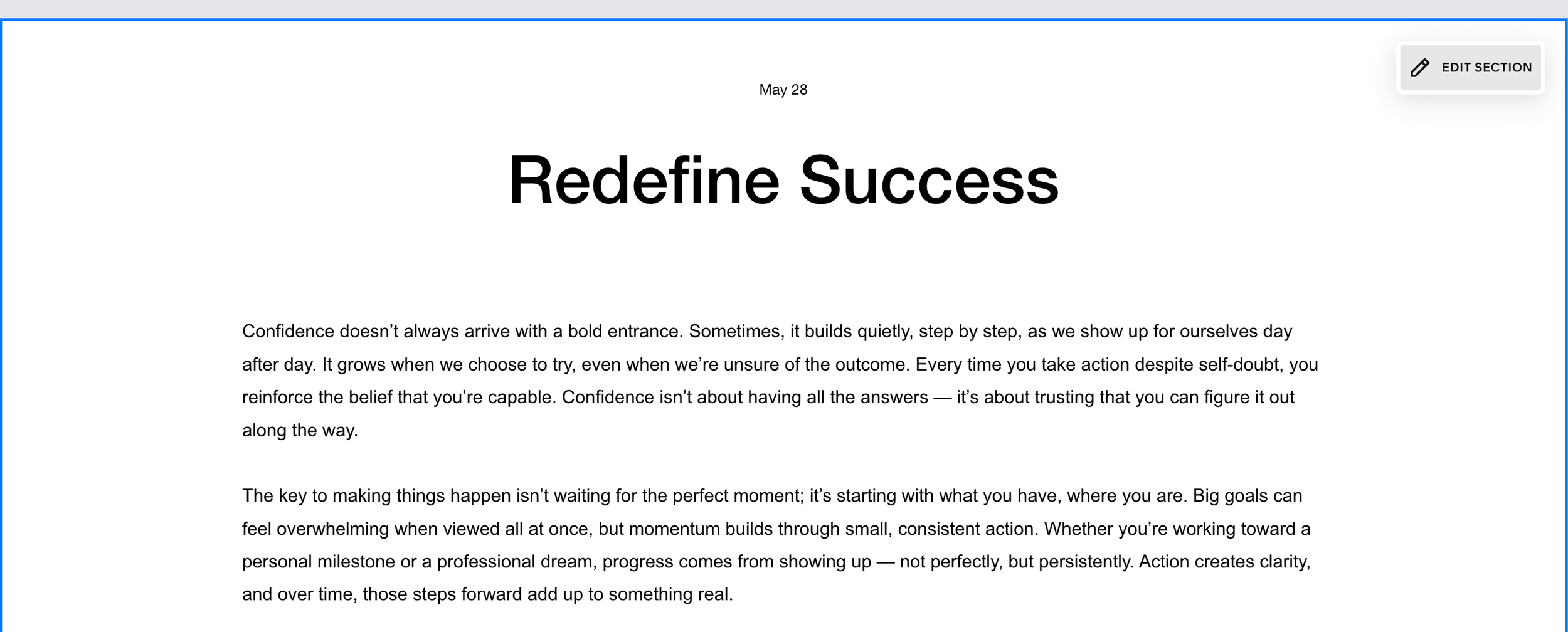
If your paragraphs stretch too far across the screen, your eyes will have to work way harder to follow each line. A slightly narrower text column feels much more comfortable, especially for longer blog posts!
Luckily, Squarespace easily let’s adjust your blog post content width in the blog styling settings, so you don’t need to mess around with spacer blocks like you may have done in older versions of Squarespace.
How to Adjust Your Blog Post Width
Click into any blog post, then click Edit in the top left corner of the editor
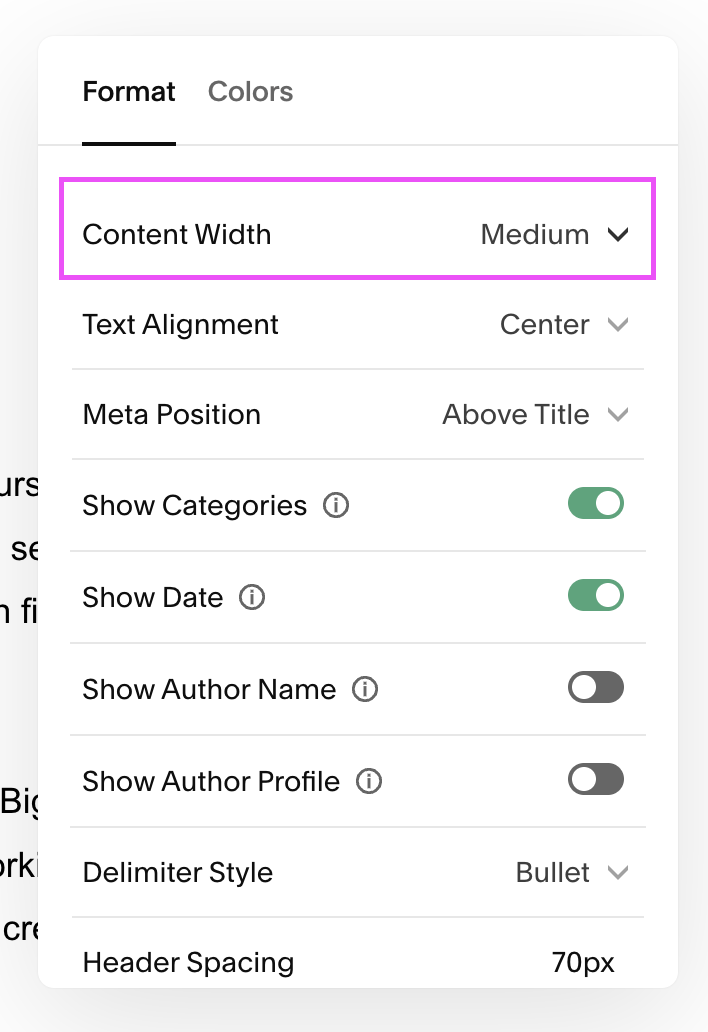
While hovering over the blog post area, click Edit Section in the top right corner
In the pop-up panel, you’ll see the Content Width setting right at the top! Choose from Narrow, Medium, Wide, or go Custom.
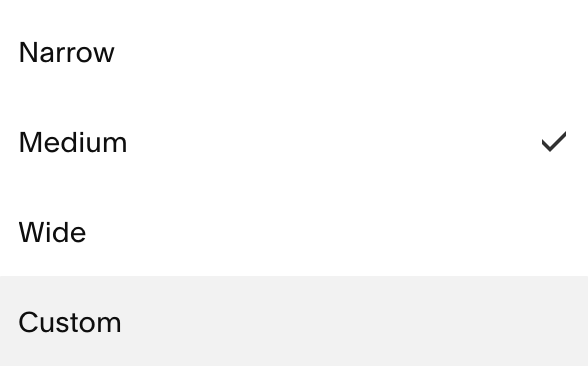
Basically, if your blog looks like one giant wall of text stretching from one side of the screen to the other... bring it in a little. Your readers’ eyeballs will thank you.
3. Use Images to Break up the Page
Blog posts can get pretty text-heavy pretty quickly, so images are a really easy way to break things up and make the whole page feel a little more interesting.
You don’t need to add an image every second paragraph, but sprinkling in a few useful visuals can make a big difference.
That could be:
Photos
Screenshots
Graphics
Mockups
Before and afters
Examples of whatever you’re talking about
Remember to always optimize your images before uploading them!
Use Spacers to Adjust the Size of Your Images
You might already know how to add images to your post:
Click on the blue line that shows up when you hover between blocks
In the pop up, select the Image block and upload your image
When you first upload your image, it will take up the full width of the post and might look quite oversized!
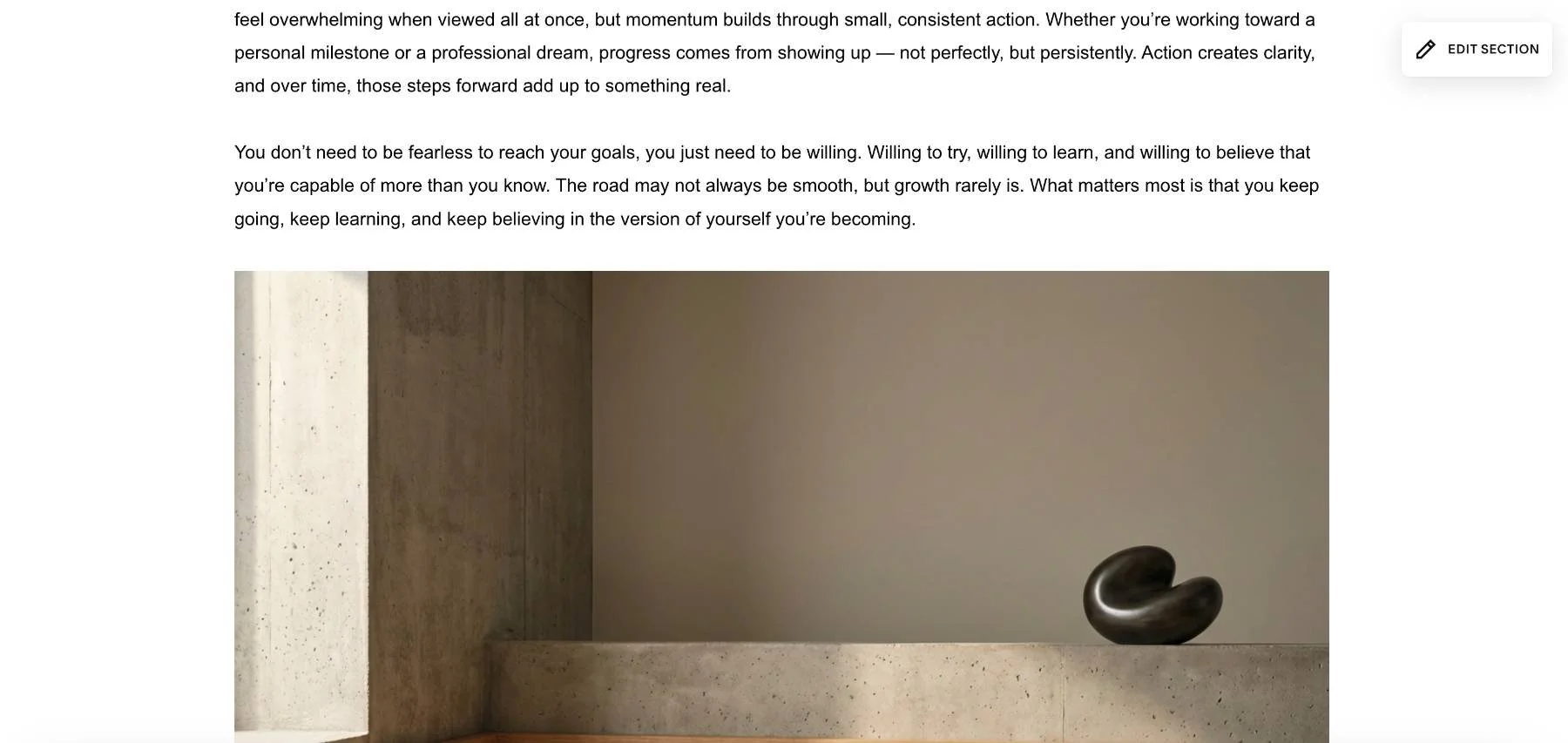
An easy way to fix this is to add Spacer blocks to the left and right of the image block.
Hover above or just below the image and click the + on the blue line to add a new block

In the pop up, select Spacer
Repeat this to add a second Spacer block
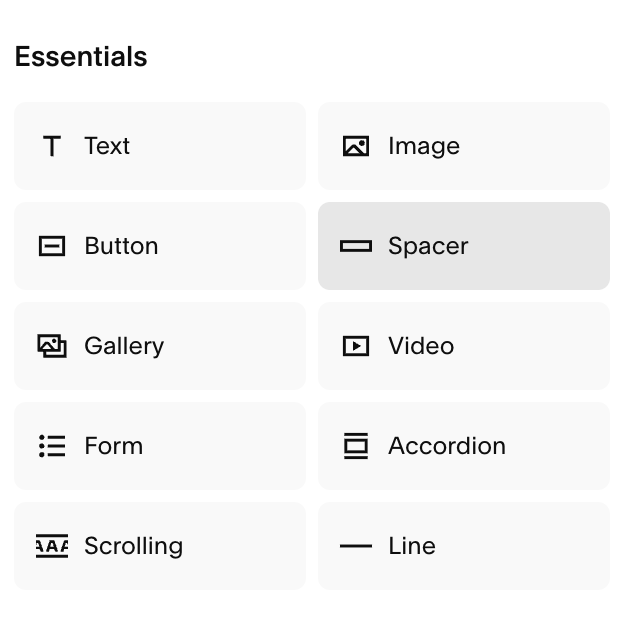
You should now see two spacer blocks:
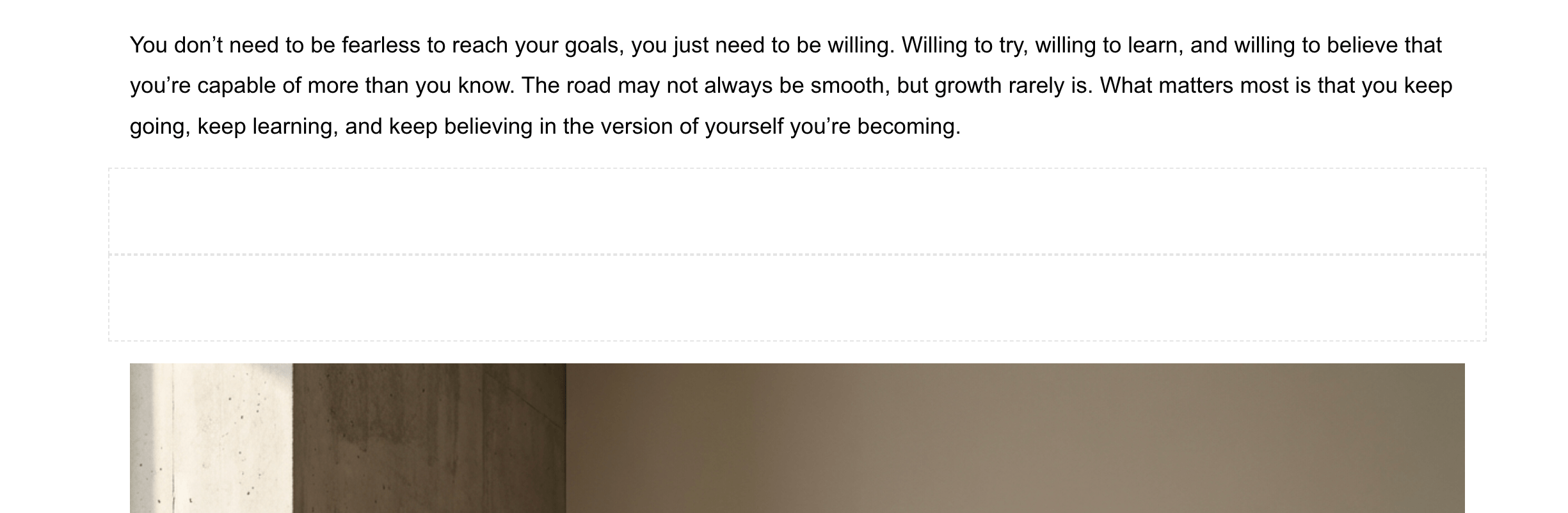
Next, drag and drop one of the spacer blocks to the left side of the image. You should see a blue line just on the side of the image (not on the side of the whole blog post!) to show you where the spacer block will go:
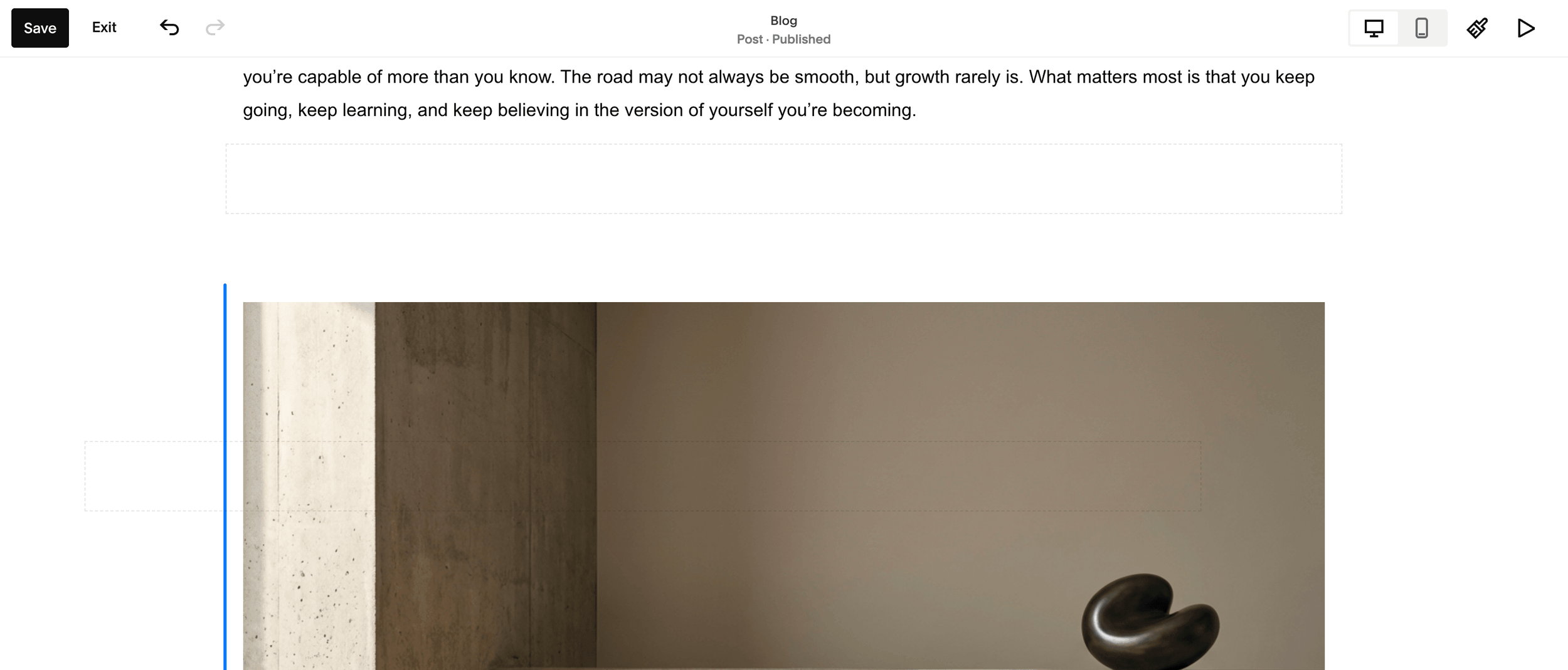
Repeat this on the right side of the image with the second spacer block
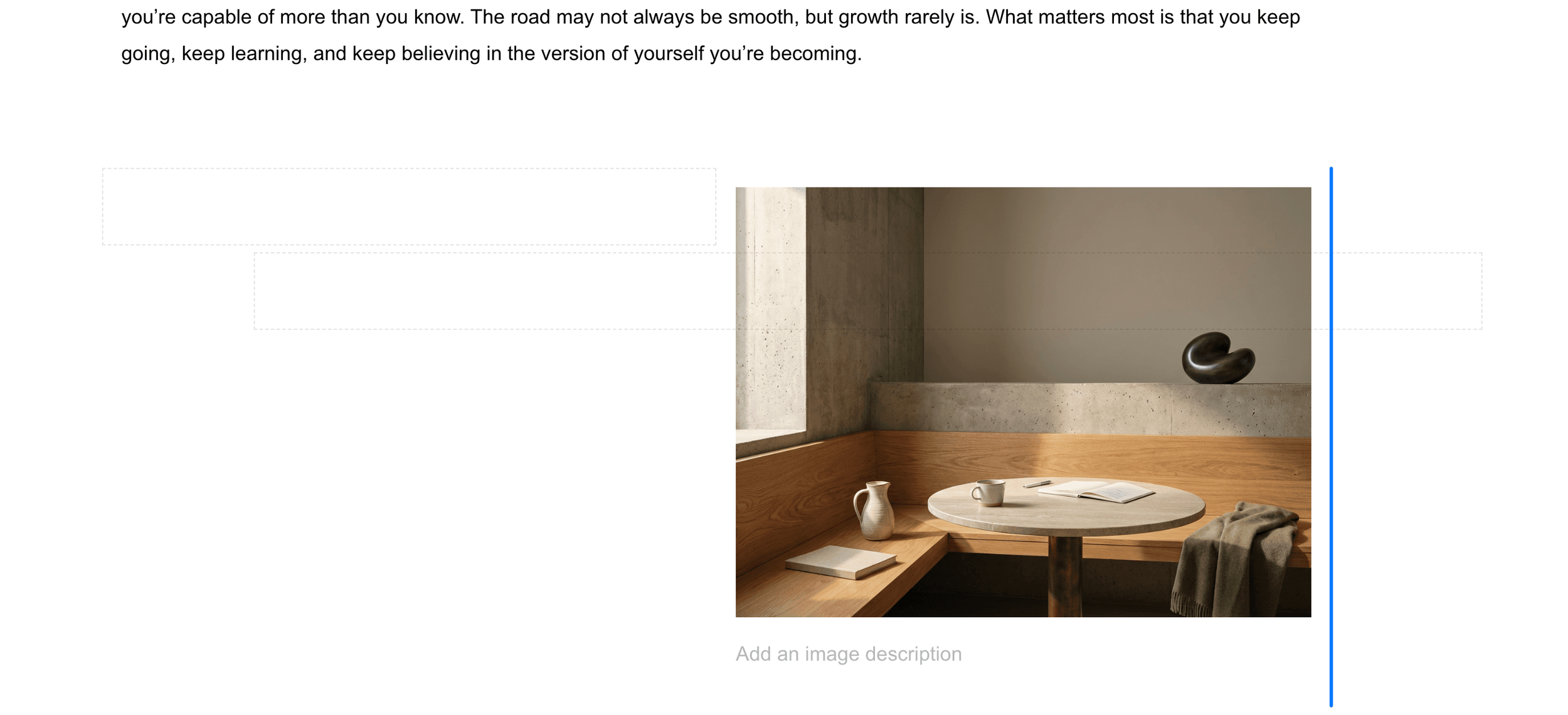
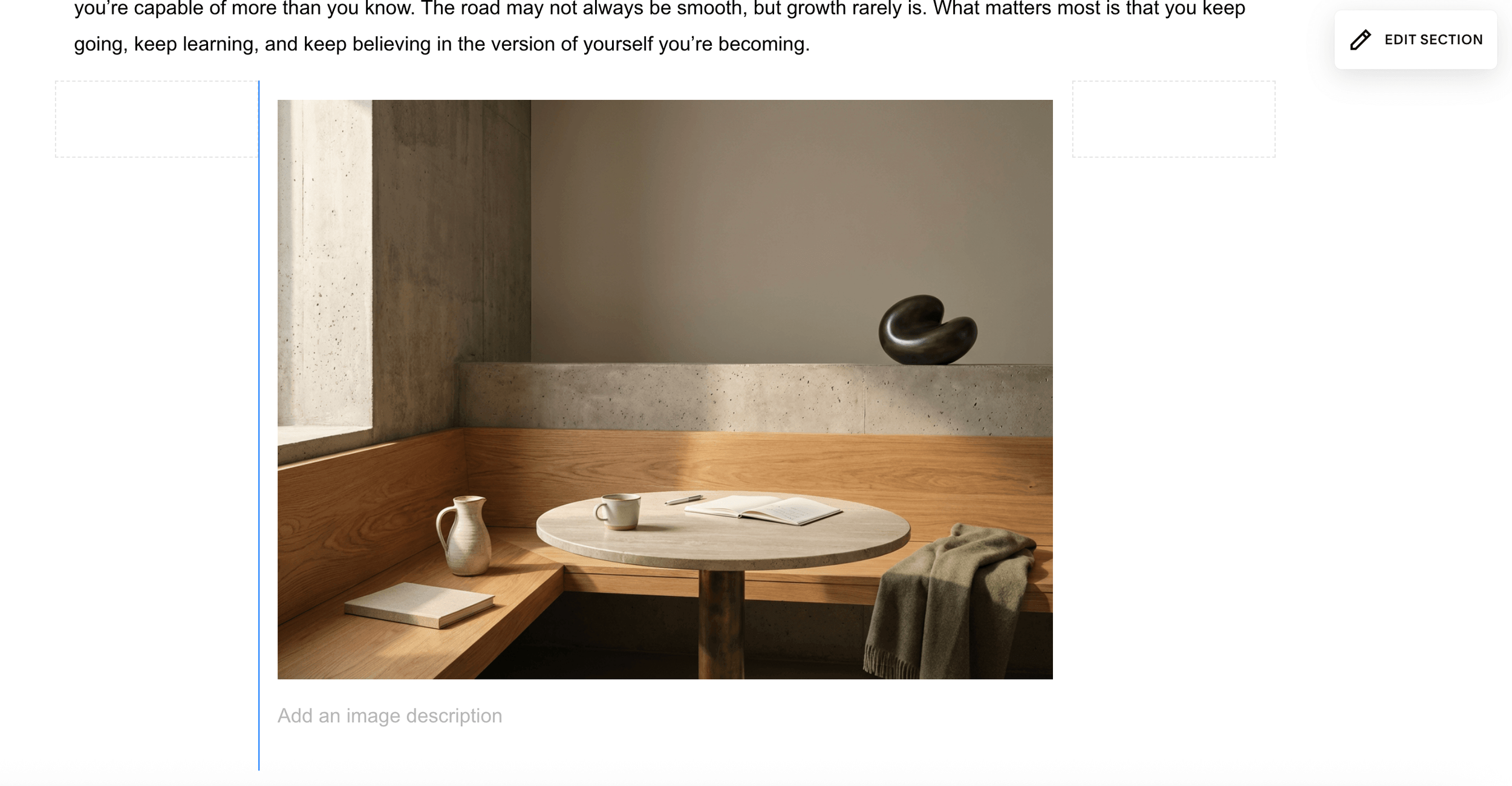
Your image should be looking a whole lot smaller now!
You can also adjust the width further by dragging the sides of the spacer blocks more to the left or right
Crop and Focus Your Images
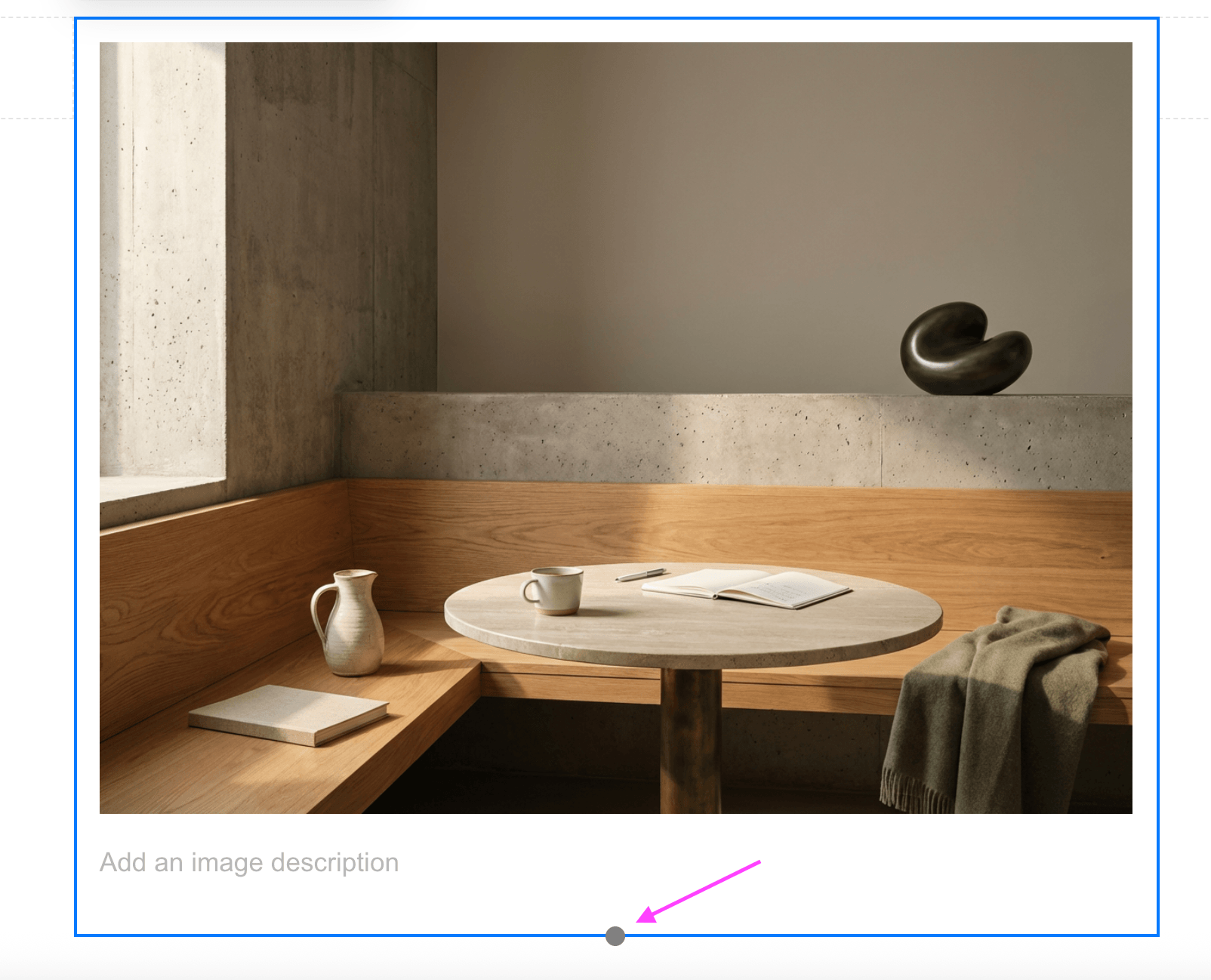
Click on an image block once, then drag the little grey dot at the bottom of the image block up or down to crop it
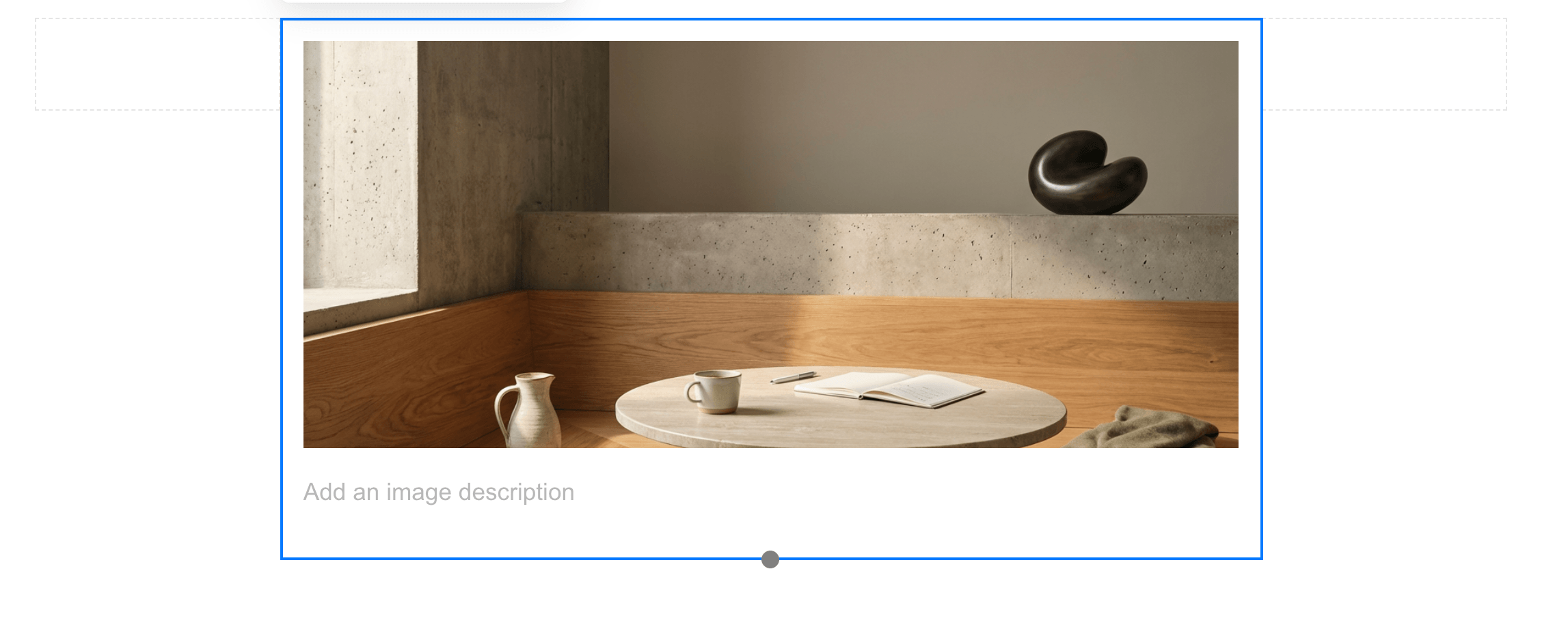
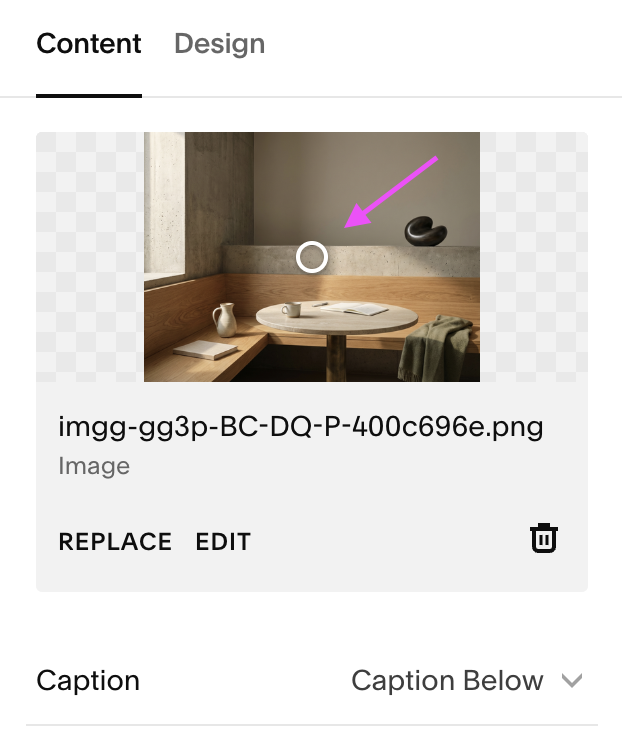
To adjust the focus of your image, double click on the image block to access its settings
Click and drag the image focal point (small white circle) on the preview to adjust where your image focuses
👉 How to resize and crop images in Squarespace Classic Editor
👉 Your Complete Guide to Image Focal Points in Squarespace
Customize Your Image Layouts
Did you know that images in your blog posts have some hidden design settings?
Double click on any image block to access its settings
Head to the Design tab
By default, the image will be set to Inline, however you can click the dropdown and select from a bunch of other options!
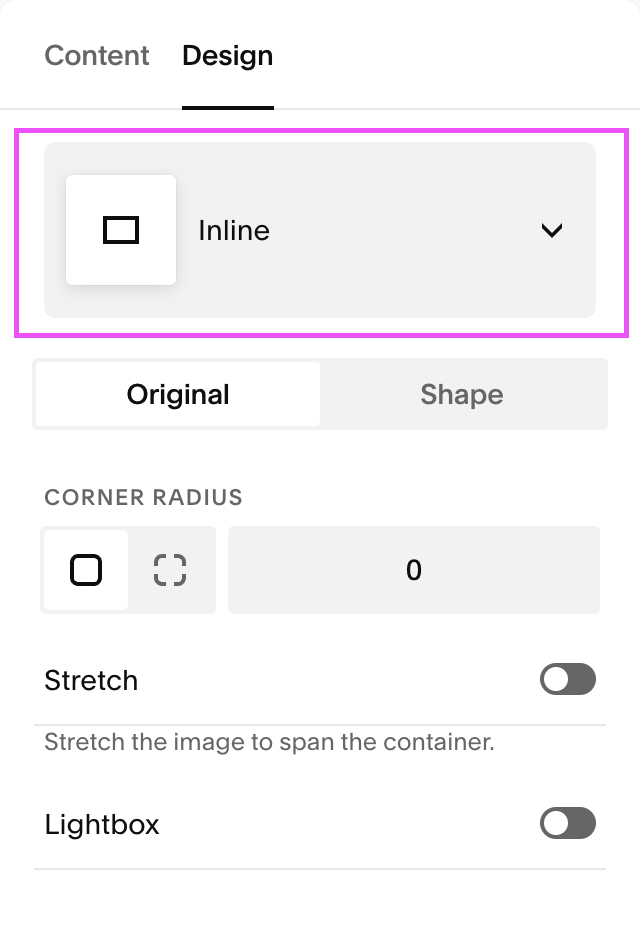
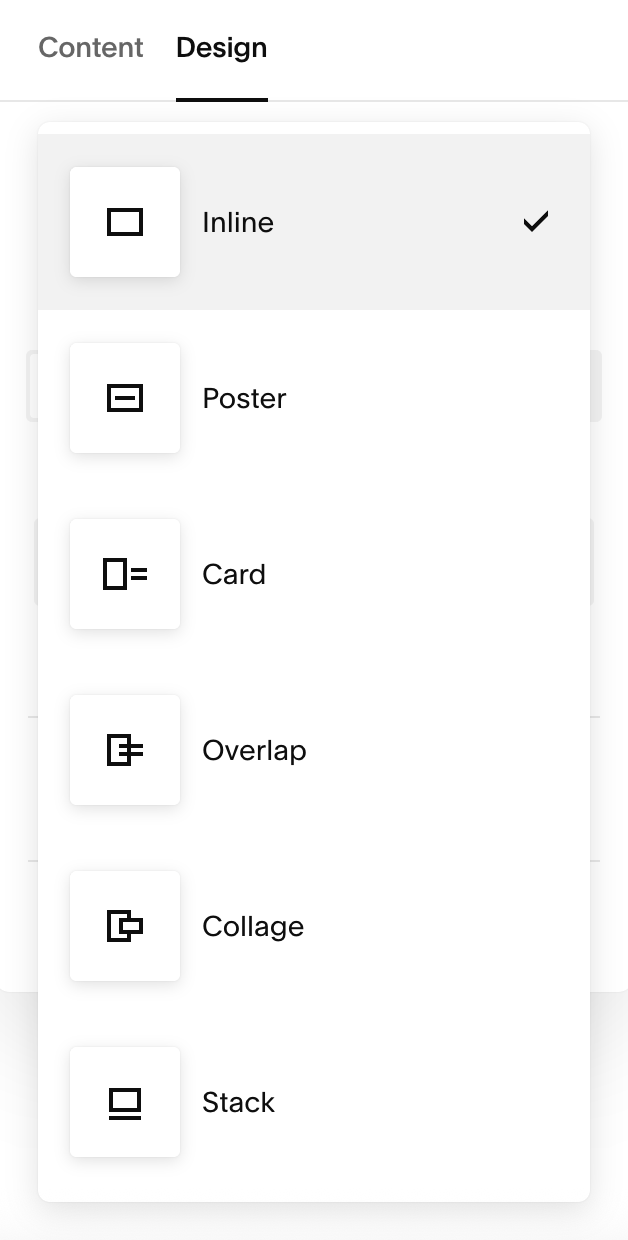
Test them all out to see how you can bring a bit more design flair to your post!
4. Create a Clear Text Hierarchy
Nobody wants to land on a blog post and be greeted by one giant wall of text.
Using headings, subheadings, bullet points, numbered lists, and plenty of little paragraph breaks makes your content so much easier to skim (and yes, people will absolutely skim blog posts!).
Your headings should help guide the reader through the post and make it obvious what each section is about. They’re also super useful for SEO because they help search engines understand how your content is structured and what your post is all about.
Just make sure you’re also using your headings in a logical order, rather than picking a heading style purely because you like the way it looks.
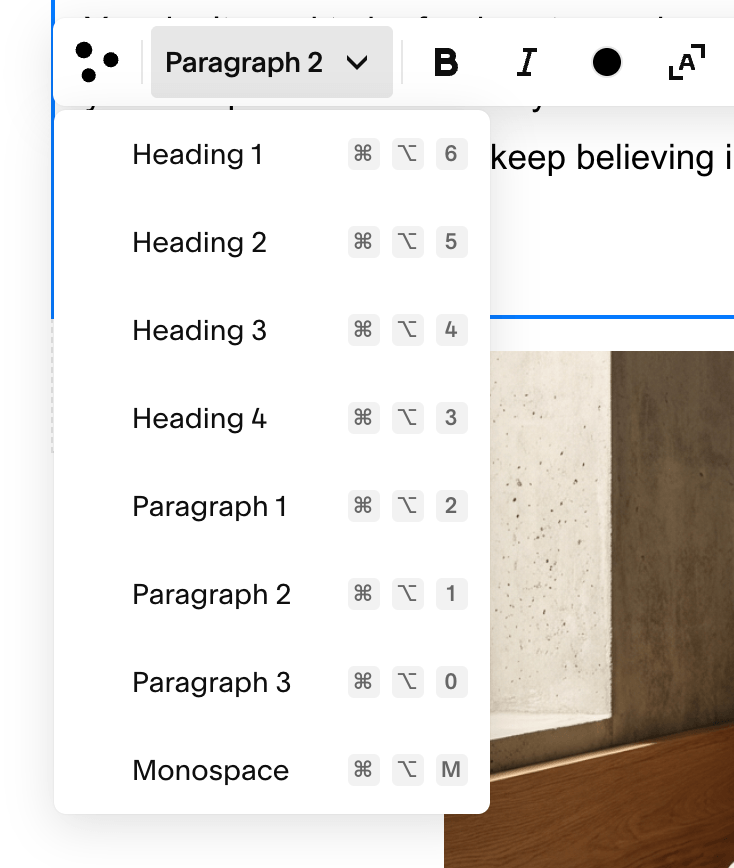
Your Heading 1 will always be the blog post title at the very top of the page (and you should only have one Heading 1 per page!)
Use Heading 2s for any main section headings in your blog post
Use Heading 3s as subheadings within your main section headings
Use Heading 4s as sub-subheadings within subheadings if you want to break things up even more.
Squarespace makes using headings really easy. Just use the text editor to switch between different headings when you’re editing your text!
5. Keep Your Text Left Aligned
This is something a lot of DIYers seem to get wrong!
Squarespace gives you the option to align your text however you like, which is great, but when you’re writing longer paragraphs of text (like blog posts), we’d definitely recommend sticking with left aligned.
There are plenty of readability studies showing that left-aligned blocks of text are much easier to follow because your eye always knows where the next line starts. Think newspapers, magazines and books... there’s a reason they’re almost always set up this way!
Centered text can still look great for short headings, quotes or little callouts, but for longer body copy it tends to feel much harder to read.
And the easier your blog is to read, the more likely people are to actually stick around and keep reading!
6. Create a Reusable Blog Post Template
If your blog posts tend to follow a similar structure, do yourself a favor and create a reusable starter post!
👉 How to Create a Blog Post Template in Squarespace
Squarespace doesn’t have a dedicated “blog post template” button, but you can create one post with all of your usual bits already in place, then duplicate it whenever you’re ready to write something new.
You might include things like:
Your usual heading structure
Image placeholders
A newsletter signup
A call-to-action section
Related posts
An affiliate disclaimer
Any little sections you use again and again
It saves you from rebuilding the same layout every single time and helps keep your blog posts looking nice and consistent too.
Want a Head Start on Your Blog Design?
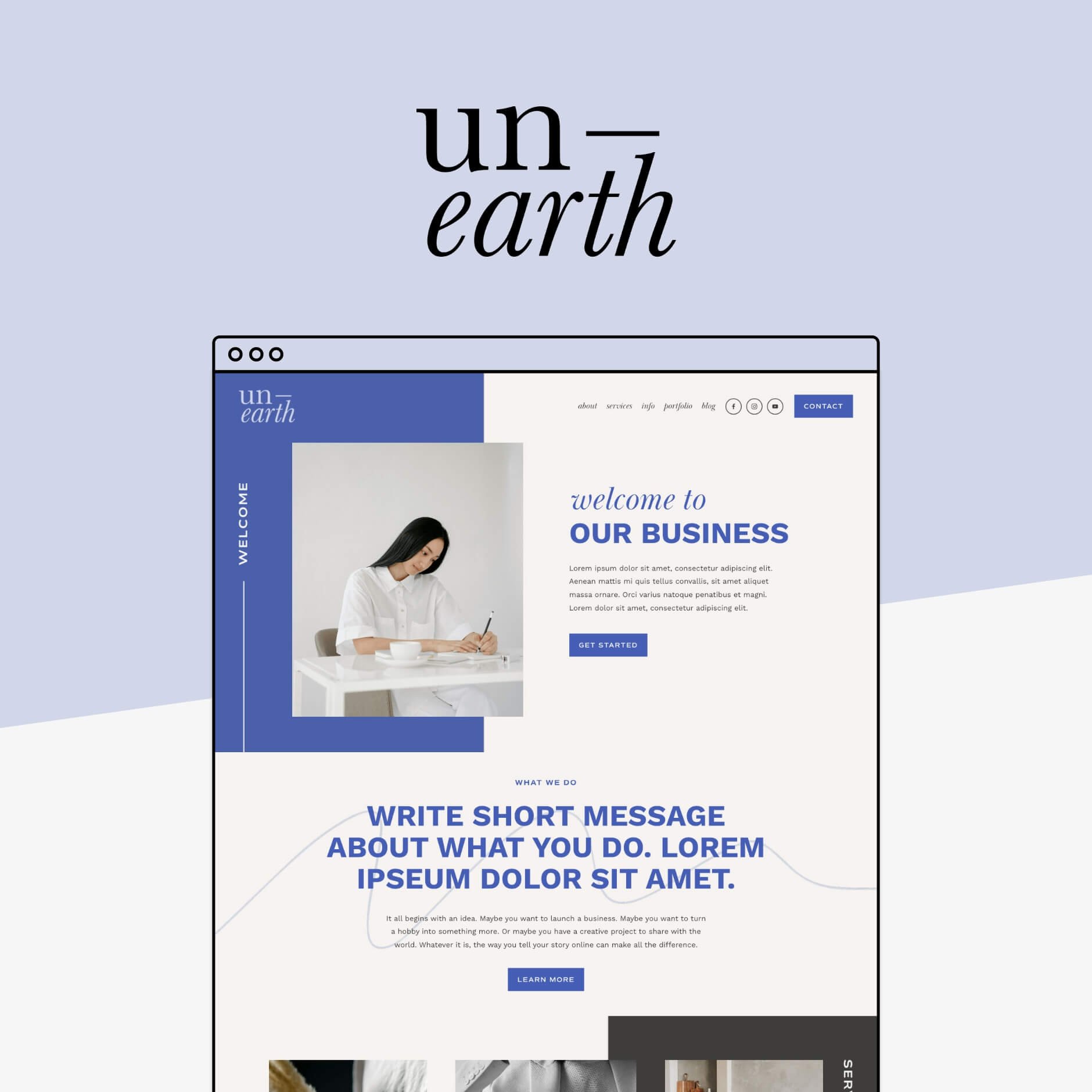
All of our Squarespace Website Templates come with a blog already built in and styled to match the rest of the website, so you’re not starting from scratch, including a bunch of blog post templates ready for you to use.
Explore the collection:


Want more blogging tips? Check out the posts below:
How to Turn Blog Readers Into Email Subscribers, Leads & Customers
How to Add a Blog Sidebar to Your Squarespace Site (7.1 and 7.0)
How to Link to Your Blog Categories on Your Squarespace Website
How to create a ‘featured post’ slider in Squarespace 7.1 & 7.0
How & Why you Should Repurpose Your Blog Content
If you liked this post, pin it to Pinterest!