If you’re a photographer, designer, or any other business that really relies on visuals to sell your services, then you know just how important a great portfolio is!
Well, the good news is that Squarespace knows this too, which is why they’ve created a built-in portfolio feature that will help you showcase your projects, photo galleries, and case studies, and elevate your website to the next level.
Portfolio pages are an amazing way to give potential clients a peek into what it’s like working with you, and they’re so easy to set up and customize. That’s why, in this post, we’re giving you a step-by-step walk through for adding, editing, and maintaining your portfolio page and individual portfolio projects. By the end, you’ll be a portfolio pro 😎
Important! Portfolio pages are only available in Squarespace 7.1, so if you’re using Squarespace 7.0 you can either migrate over to 7.1 or use one of the other workaround methods to build a portfolio on your site.
Let’s get started!

How to add a Portfolio Page
Let’s dive straight in with the good stuff! To get started with adding a portfolio page to your Squarespace 7.1 website, first navigate to the Pages Panel.
From here, you can choose to add your portfolio to either the Main Navigation or the Not Linked Navigation. Once you’ve decided, click the plus icon (+) to the right of your navigation heading.

In the menu that pops up, scroll down to the “Showcase” section and choose Portfolio.

This will then prompt you to choose one of a few different templated designs. Don’t feel too pressured here because your portfolio page is going to be completely customizable no matter which design you choose. Just pick one that feels good to get you started.
After you choose a design, you’ll be able to change the name of your page. We recommend something simple like “Gallery” or “Portfolio.” Whatever fits your business and is clear so that potential clients know where to look!
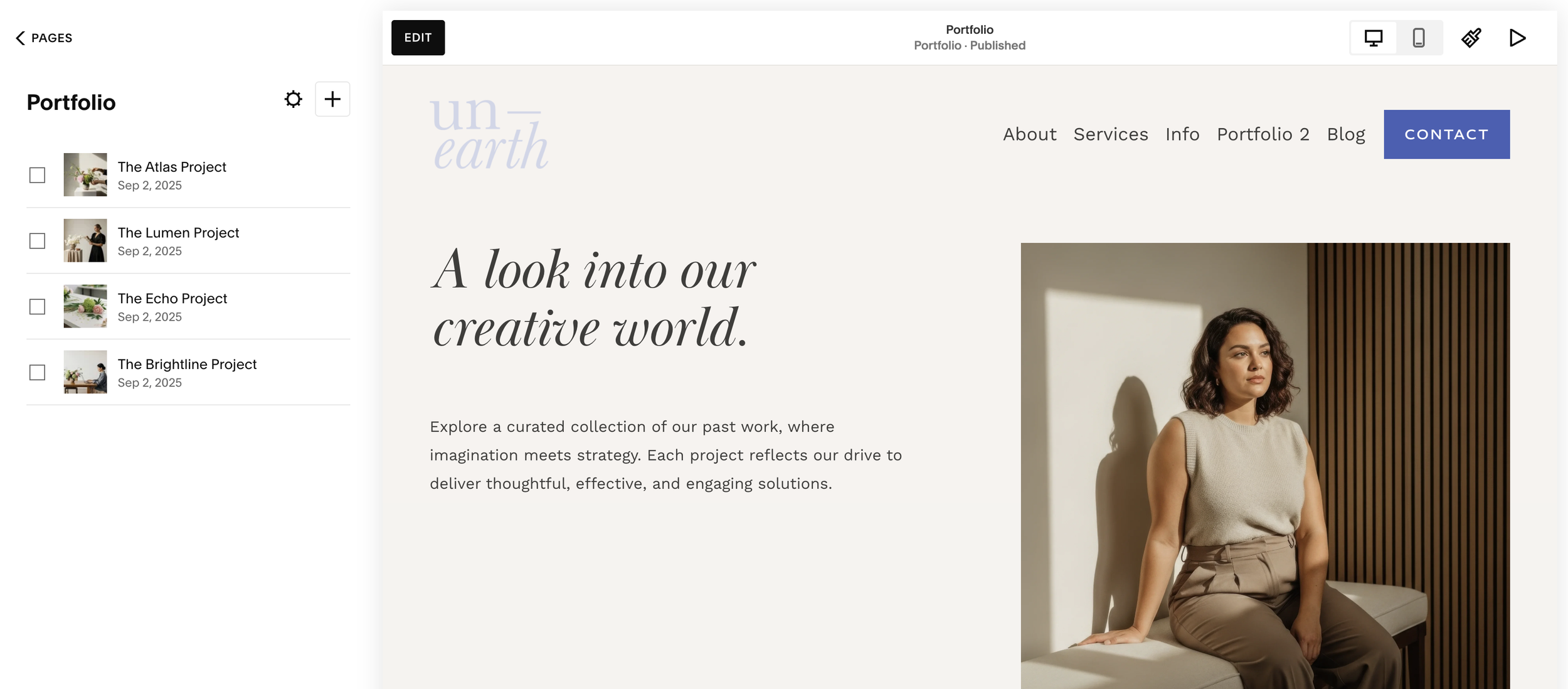
Click enter after customizing the page name and you’ll be taken directly into the portfolio panel where you’ll see your main portfolio page on the right and your individual projects listed on the left (there will automatically be some filler projects there).
P.S. Did you know that all of our Premium Squarespace Templates come with a pre-designed portfolio page and individual project pages?! Make your life even easier by starting with a template that’s strategically designed to be both beautiful and functional, helping you book that next client or service. Check out each of our designs here.
Customizing the Settings of Your Portfolio Page
To access the main settings for your portfolio page, click on the cog icon to the right of your portfolio’s name.

The Settings pop-up window will automatically open up to the General tab where you can customize:
Page Title, Navigation Title, URL Slug (these should all be the same)
Whether or not you want the page enabled/active on your website. If you toggle this option off, no one will be able to access your portfolio.
The page password. If you’d like to add a password to your portfolio so that only certain people have access, you can do this here.

You can then click into the SEO tab to customize the SEO information for your portfolio page.
The SEO Title is automatically copied from your Page Title, but you can give it a custom one if you’d like. Here, you can also add an SEO Description which is like a little bio for the page. Both the Title and Description will show up in search engine results!

The other tabs are optional, but feel free to explore them if you’d like to get a bit more advanced with settings customization.
Edit the Design of your Portfolio Page
So, as you may have noticed, your portfolio is broken up into two parts: the main portfolio page and your individual projects.
Before you start adding or customizing individual projects, it’s a good idea to get your main portfolio page set up!
Just like any other page in Squarespace, you can add unlimited page sections and blocks to your main portfolio page. This is awesome for building out a really dynamic page that feels custom and entices your visitors to view more.

Example of a Portfolio Page from our Elyra Premium Squarespace Template

Example of a Portfolio Page from our Noire Premium Squarespace Template
To customize your main portfolio page, enter editing mode by clicking Edit in the top left corner of your screen.
Regardless of which design you chose when first creating your page, you’ll have a “portfolio section” where your individual projects are showcased (this is unable to be deleted). To create a custom design for the page, you can add a new section above or below this portfolio section. Just click on the blue Add Section button anywhere you’d like and add a section of your choice.

You can then add content to your new sections via blocks (just like you would anywhere else on your website), and use the Fluid Engine Editor to fill out the page with a header, about me blurb, or any other section that makes sense for your business.
Then, when it comes to customizing the portfolio section itself, you’ll find that there are some unique settings to work with. You can access these settings by hovering over the portfolio section and clicking on Edit Section in the top right corner.

In the Format tab you’ll be able to customize how your individual projects are displayed by picking from the Layout dropdown menu.

Choose between a Simple Grid, an Overlay Grid, and three different Hover options.
Then, depending on the layout you’ve chosen, you’ll be able to play around with a bunch of additional customizable settings.
You can also click into the Background tab to add a background image to this section and click into the Colors tab to pick from one of your color themes.
And once you’re happy with the way everything looks on your main portfolio page, be sure to click Save in the top left corner of the screen before exiting.

How to add and Customize Individual Portfolio Projects
Like I briefly mentioned earlier, Squarespace will provide you with some filler projects when you first create your portfolio page. This is super handy if you have no idea where to start and need some inspiration or just don’t feel like creating something from scratch.
To edit an existing project, simply click on it within your portfolio panel and then enter editing mode to customize the content like any other Squarespace page.
You can also add a brand new project to your portfolio by clicking on the plus icon (+) to the right of your portfolio name.

You’ll then be prompted to either choose a template for your project or add a blank project. And again, these pages are completely customizable via the Squarespace Fluid Engine Editor, so it doesn’t really matter what you pick.

The next thing you’ll see once you’ve chosen a project template is the Settings window for that project. You can customize the settings for each project whenever you’d like, but you might as well get as many things as you can set-up from the beginning so that you don’t need to worry about it when you’re ready to go live.

In the General tab you can customize:
Featured Image: This is essentially your “thumbnail” image and will show up in the portfolio section on your main portfolio page, so it’s important to add an image here that represents the project well.
Title: This is the main title of your project and will be visible on the main portfolio page.
URL Slug: It’s super important to edit each of your URL slugs so that your projects are easily searchable. Keep these slugs super simple.
Duplicate: The duplicate option is really handy if you plan to have a bunch of projects! You can create one or two templates that you love and then continue to duplicate them for each new project. All you need to do is swap in the new information, the layout and design of the page will remain how you originally designed it.
In the Status tab you can adjust when you want the project to go live or whether or not it needs to be reviewed by a team member. The statuses provided are:
Draft: This project is still being edited
Needs Review: This project needs to be reviewed by another team member before going live
Published: This project is complete and you want it to go live on your main portfolio page immediately
Scheduled: This project is complete but you want it to go live at a later date
Simply check the box of the option you want and once you click save, the action will take effect.
In the SEO tab you can customize:
Title: This will automatically be whatever you set as your main project title, but you can create a custom title if you’d like.
Description: This is like a little bio about the project and will show up in search engines below the SEO Title.
And finally, in the Social Image tab you can choose to add a unique image for when your project gets shared online. If you don’t add anything here, the featured image will automatically get used.
When you’re happy, click Save in the top left corner to exit the Settings window.
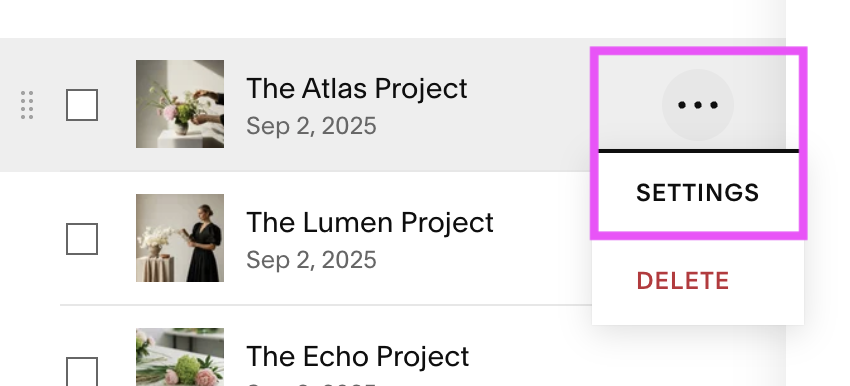
If you ever want to re-open the Settings window for a project, simply hover over the project in your portfolio panel, click the 3 dots to the right of the project name, and then click Settings.
When it comes to customizing the design of your project, these project pages can be treated like any other page on your website! You can utilize sections, blocks, and any other content features that Squarespace offers to fill out the page and showcase your work beautifully.
Adding Galleries
One feature we highly recommend taking advantage of however, when it comes to portfolio projects, is Galleries.

Example of a Portfolio Gallery from our Shelley premium Squarespace Template
You can add a new Gallery to your project page by clicking on the blue Add Section button, scrolling down to the “Showcase” category, and clicking Images. Squarespace will then provide you with a handful of different pre-designed layouts to choose from.
Some of these layouts are just creative designs while others are specifically Galleries, meaning you can add your content and then conveniently switch between different displays without having to manually adjust anything yourself. To add a Gallery, look out for the little "i" symbol in the top right corner of the thumbnail.

Once you choose a gallery, you can add in your own images by hovering over the new section and clicking on Edit Gallery in the top right corner.

In the pop-up window, you’ll be able to:
Add new images
Delete images
Edit your images
Add a description to each image
Attach a link to each image

You can also adjust the focal point here for each image which is a super helpful tool that Squarespace offers. It allows you to manually determine what the center of the image is so that, if the image needs to be cropped, the most important parts are focused on. To do this, hover over your image in the preview box and then click and drag the little circle that appears to tell Squarespace where to focus.

This is great for large group shots, landscape shots, or any other photo that has a lot going on.
And if you ever want to change the design of your Gallery, simply hover over the section and click Edit Section. From here, click on the Gallery Type dropdown menu and choose a different layout.

Depending on which layout you've selected, there will be additional settings that you can customize as well.
In addition to Galleries, you can also add videos, buttons, or anything else that might be helpful in representing your services and/or convincing visitors that they should be interested in what you have to offer.
Get creative here! Think about how you want people to view your work and then let that shine on the page.
When you’re finished customizing an individual portfolio project, you can simply Save your work and keep the project as a draft, or you can also use the Publish shortcut dropdown menu in the top left of the screen to immediately publish the project or schedule it for a later date and time.

And that’s all you need to know for creating and customizing portfolio pages in Squarespace 7.1! This feature really is such a massive time saver for service based businesses and allows you to bring new clients in by visually showing them what they’re missing out on.
Photographers, Designers, Videographers, Coaches and more can breathe a sigh of relief knowing that there’s no coding or complicated workarounds needed to showcase your work. We hope you feel confident now in putting your best foot forward!
Want more tips? Check out these posts:
Website Pages That Will Increase Your Revenue (and you Should add Today!)
How to add an Email Sign-up Form to your Squarespace Website
How to add a Border to Shape & Image Blocks in Squarespace
How to Design and Optimize Your Homepage for Better Results
5 Must-Haves for a High-Converting Photography Website
If you liked this post, Pin it to Pinterest! 👇🏻