Optimizing your URL Slugs in Squarespace is something you can easily do, but is also something that is so often overlooked!
If you’re thinking, “what on earth is a URL slug?” don’t worry, it’s actually pretty simple!
Your URL is the full address of a specific page on your website. For example, the URL for this post is:
bigcatcreative.com/blog/optimize-url-slugs-squarespace
Your domain is your main website address:
bigcatcreative.com
And the slug is the part that comes after your domain and identifies the individual page:
/blog/optimize-url-slugs-squarespace
This guide is all about optimizing that last part of your URL so it’s clear, tidy, and easy for both people and search engines like Google to understand.
Squarespace automatically uses your page or blog post names to generate default slugs for your URLs, so most people don’t usually even look at them. And although they’re usually good enough, there are definitely more ways they can be optimized to their full potential!
Let’s dive in!

More posts about Squarespace SEO that you might be interested in!
5 Quick & Easy SEO Improvements for Squarespace
Optimize your images for Squarespace SEO
The Ultimate Blog Post SEO Pre-Publish Checklist (for Squarespace)
How to Optimize Your Squarespace Blog Posts for SEO
How to Optimize Your Squarespace URL Slugs
Firstly, let’s look at how to optimize the URL slugs on your regular website pages.
Head over to your Pages panel, hover over any page and click the cog icon to open the page settings.
From there, find the URL Slug field.

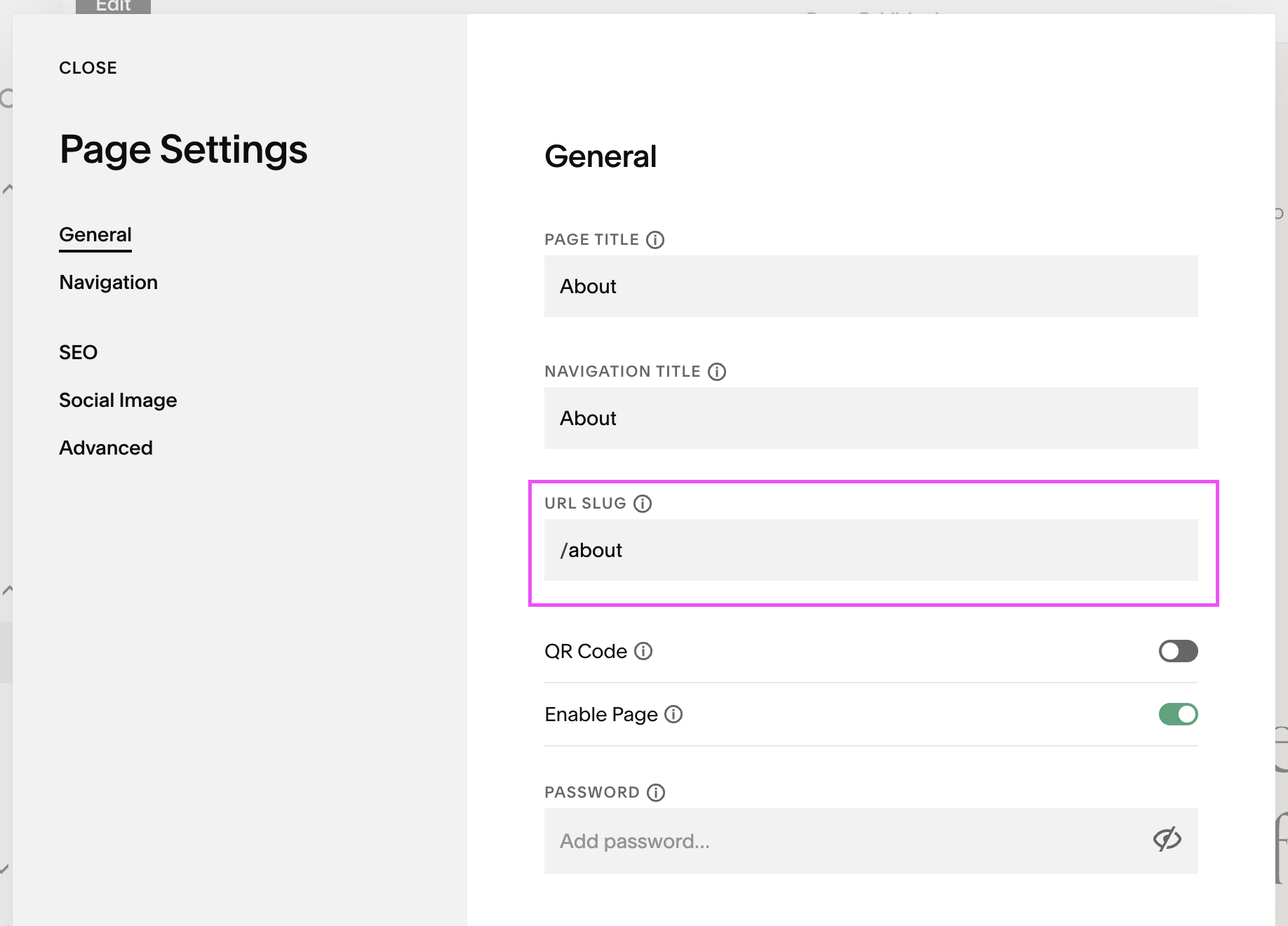
For example, if your About page slug is:
/about
that’s a perfectly good slug!
Why? Because it’s short, clear, and relevant. You can tell straight away what the page is about, which also gives search engines some useful context.
But if you’ve never looked at your slugs before, you might find some slightly less helpful ones hiding in there…
The Most Common URL Slug Mistakes
Some of the most common ones we see in Squarespace are things like:
/new-page
/contact-1
/services-copy
/page-3
These often get created while you’re building your site.
For example:
“new-page” can stick around if you create a new page before properly naming it. Even if you change the page title later, the URL slug may still need to be updated manually.
Numbers like “contact-1” can appear if you have, or previously had, more than one page with the same name, or when you duplicated a page.
So it’s really really worth going through your Pages panel and checking the slugs for all of your main pages, galleries, blog pages, and any other important content.
What is a Good URL Slug?
A good URL slug should:
Be short and concise
Clearly describe what the page is about
Include relevant keywords where it makes sense
Use simple lowercase words separated by dashes
Avoid unnecessary words, numbers or random leftovers from the build process
For example:
Good:
/squarespace-templates
Not so good:
/our-amazing-squarespace-website-templates-page-2
The goal is to keep things simple, clear and easy for both people and search engines to understand.
Important: Make a Note of any URLs you Change
If your website is already live, changing a URL can create a broken link (which is terrible for SEO)!
That means anyone visiting the old URL could land on a 404 Page Not Found unless you set up a redirect from the old URL to the new one.
If your website isn’t live yet, you don’t need to worry about this part.
👉 Why URL Redirects are so Important and how to Create Them in Squarespace
How to Optimize Your Blog Post URL Slugs
Blog post URLs work a little differently because they include both your blog page slug and the individual post slug.
For example:
bigcatcreative.com/blog/optimize-url-slugs-squarespace
Here:
/blog = the blog page slug
/optimize-url-slugs-squarespace = the individual post slug
Squarespace will usually create the post slug automatically from your blog post title, which is super handy, but it’s still worth checking before you publish, especially if you’ve duplicated a blog post template for example.
Long blog titles can also turn into very long URLs. To optimize your blog post URLs, we recommend taking out all of the fluff/filler words and just using the keywords (aka the important words) of the post title.
For example, this post is called:
“How to Optimize URL Slugs in Squarespace (& Why You Should)”
A bad URL for this would be the whole title:
bigcatcreative.com/blog/how-to-optimize-url-slugs-in-squarespace-and-why-you-should
A better URL for this would be:
bigcatcreative.com/blog/optimize-url-slugs-squarespace
How to Update a Blog Post URL in Squarespace
Head to your Blog page.
Find the post you want to edit in the left sidebar, hover over its name and click the three dots > Settings.
In the blog post Settings panel,
In the Content tab, scroll down and find the Post URL field.
Update the URL slug and save your changes!
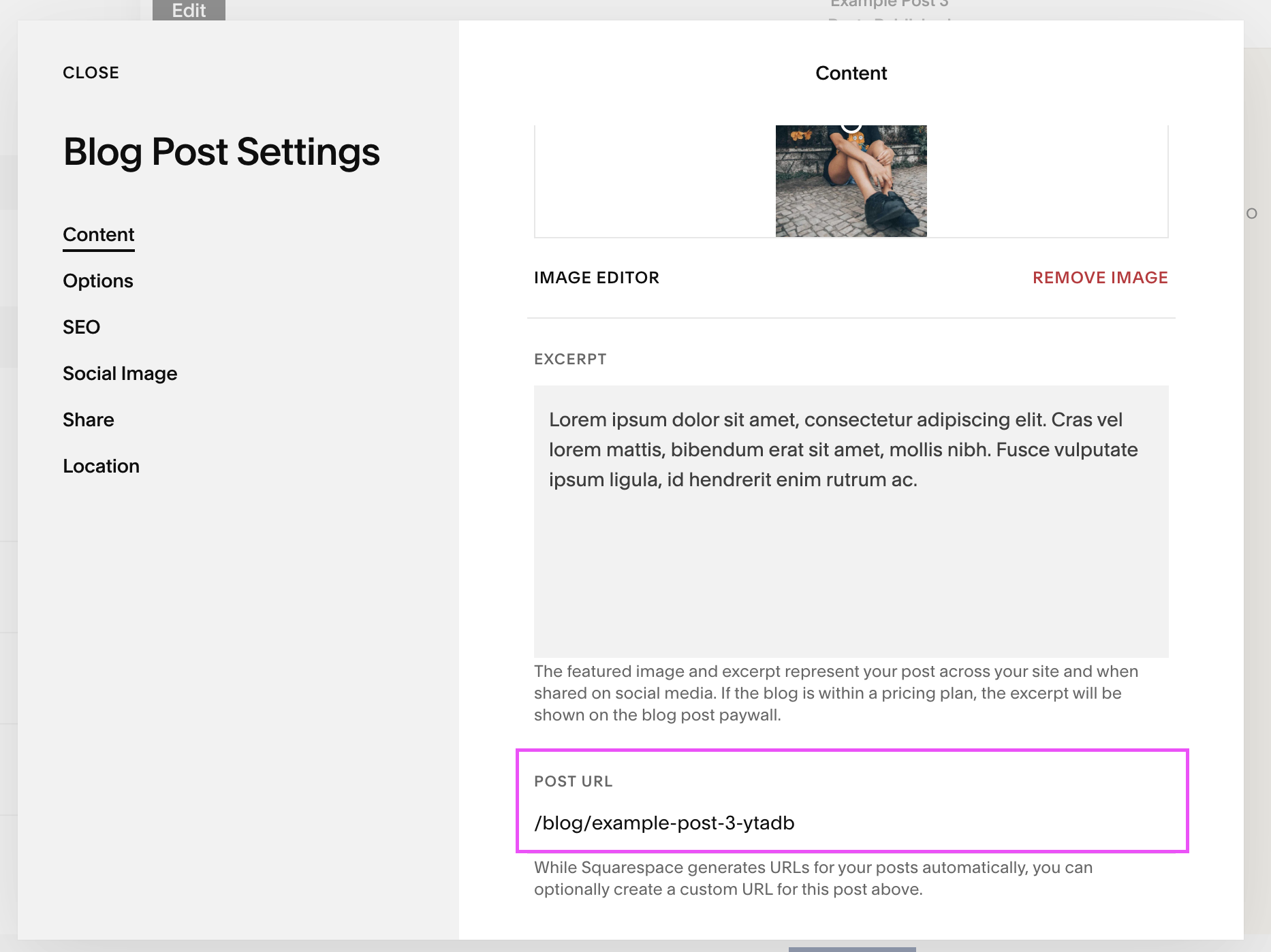
You should do this every time you add a new blog post!
Note: Again, if you are going back and updating URLs of existing blog posts, you will need to use the URL Redirect feature, otherwise you run the risk of visitors landing on a 404 Page Not Found!
Index Page Slugs (Squarespace 7.0)
This tip is a bit of a mystery. This isn’t something that you can easily find information on, but with lots of experience and digging, it’s been verified by Squarespace that if you are using Index pages on Squarespace 7.0, you should hide these individual page sections from SEO.
If you’re using Squarespace 7.1, this tip isn’t for you, so you can skip this! Similarly, if you are using Squarespace 7.0 but aren’t using index pages in your design, then you don’t have to worry about this either!
Index pages are a bit strange, in that they are a collection of individual pages stacked on top of each other inside a sort of folder (the “index page”)
The index page holds all of these individual pages together and creates one “super” page (and no, that isn’t the official term for it!).
But because the pages inside the index are also regular pages, they can stand alone. So, if you leave your index page and sections as-is, and leave all of the SEO turned on, then search engines will see your index page and sections, and it will index (same work, different meaning!) your pages as one long super page, and also as all of the individual pages sections.
Ideally, we just want Google to index the one, long, super-index page, rather than all of the individual sections. If Google indexes our individual sections, these will show up in Google as single pages, and people will be able to click on them and go to the one index section, which will probably look really weird when it’s out of context. Also, Google won’t be very impressed with these page sections individually, as they probably don’t contain much good information.
So, we need to turn these off for SEO:
Go to your Pages panel and see your Index Pages.
Click on the little cog next to your page SECTIONS (NOT the entire index pages, just the page sections within it).
Click on the SEO tab in the pop up.
Then toggle ON Hide Page From SEO, now the page section will be hidden from Google.
Do this with all of your sections.
Make sure to leave the whole index page ON for SEO, so then the entire page as one will be indexed.
Double check your index’s page URL to make sure it’s optimized!
Redirecting URLs
It’s always best to optimize your URLs before you publish a page or post. If you do that, you won’t need to worry about redirects at all. Woohoo!
But realistically, sometimes a page is already live before you notice the URL isn’t great and now you want to change it (we’ve all been there).
We definitely encourage you to change it, as long as you implement a URL Redirect for that particular page! This means that if someone visits the old URL, they will be seamlessly redirected to the new URL (they won’t even notice!).
If you don’t implement a URL Redirect for your new URL, then if someone visits the old URL, they will land on a 404 Not Found Page and probably navigate away. Even if you’re pretty certain people won’t be landing on a 404 Page, we highly recommend setting up a custom one to try to keep visitors on your site longer!
How to Redirect URLs in Squarespace
Squarespace makes this pretty easy, and we’ve got a full step-by-step tutorial here:
👉 How to Set Up URL Redirects in Squarespace
Here’s a quick refresher on how to set up URL redirects anyway:
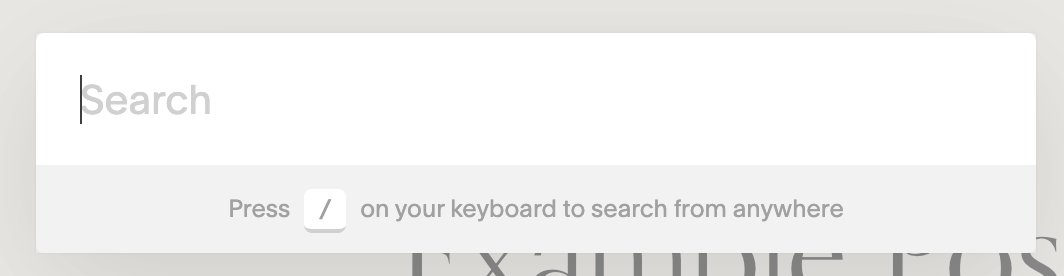
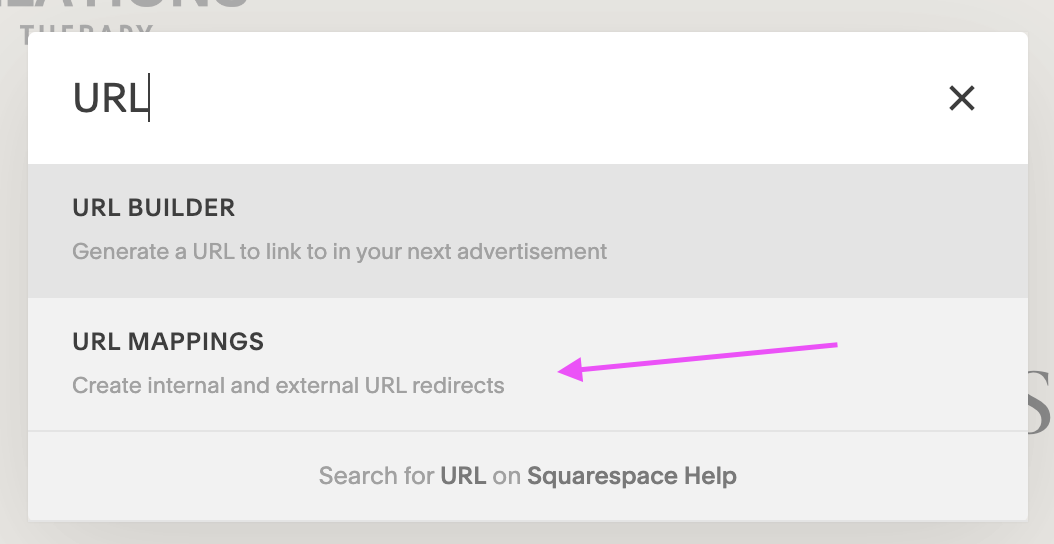
While on the backend of your site, hit the ‘/’ key on your keyboard.
In the search bar pop-up start typing in “URL” and click on the URL Mapping option.
You’ll be taken straight to the right settings!
Then add your details to this formula below, paste it into the URL mappings box box and hit save!
Note: Leave the “->” and the “301” where they are, just change the slugs.
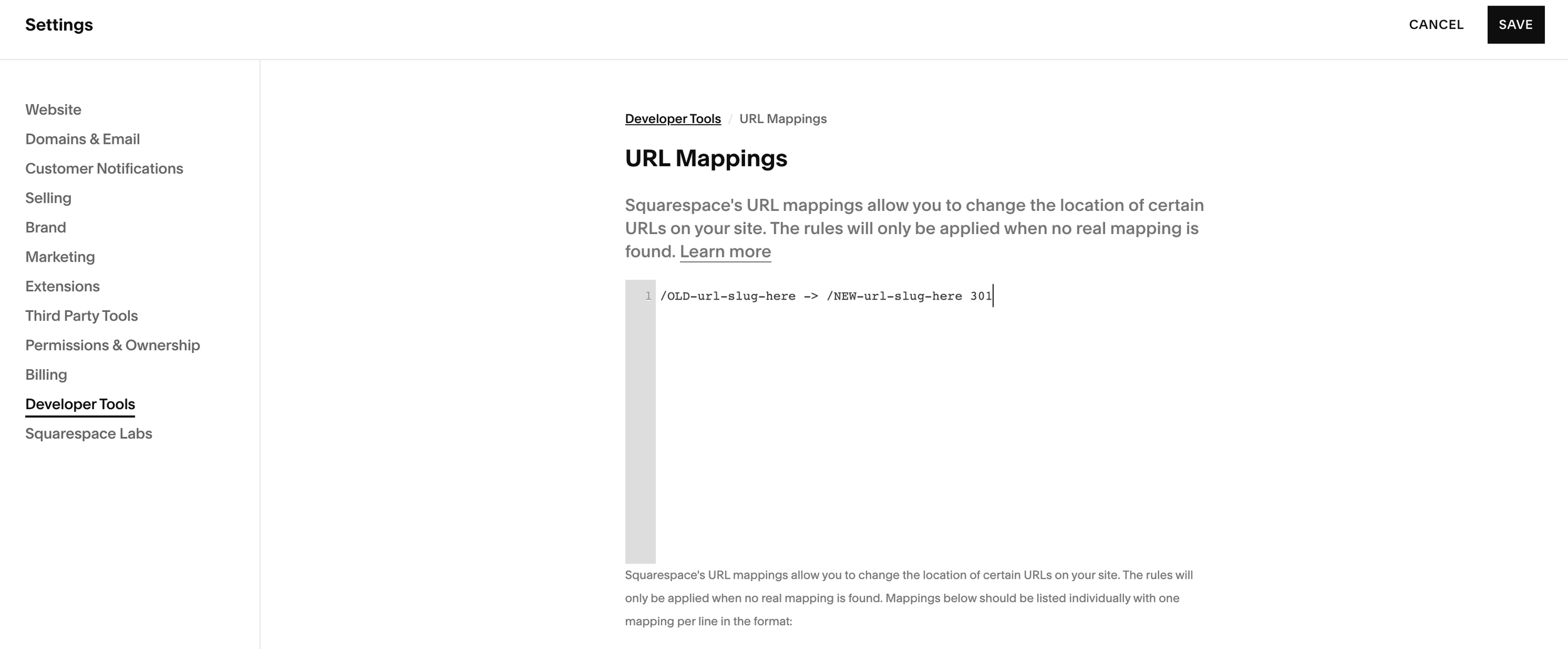
if you’re updating a blog post URL, remember to also include the /blog slug!
/blog/OLD-post-url-slug-here -> /blog/NEW-post-url-slug-here 301
You can test if it’s working by going to the old URL, it should immediately redirect you to the new URL.
And that’s really all there is to it!
URL slugs are one of those tiny website details that are super easy to ignore, but taking a few minutes to clean them up can make your site feel a lot more polished and give both people and search engines a clearer idea of what each page is about.
Keep them short, clear and relevant, check them before you publish, and if you ever change a live URL, don’t forget the redirect.
Small tweak, very worth doing!
Liked this post? Pin it to Pinterest!