

A popular design feature in Squarespace is the ability to easily create full-bleed content. That is, content that extends from one edge of the browser window to the other, spanning the full width of the site.
We love adding full-bleed images to websites because it creates this dynamic and expansive feel that elevates any website, and you can now do the same with your Instagram Block!
Let's get started!
Step 1: Add a new Section
First things first, let's add a new section to your site where you would like the Instagram feed to appear. This can be any type of page section, including in your footer area!
Step 2: Add an Instagram Block
Next, add an Instagram block to that section. To do this head over to the page on your Squarespace site you want to add the Instagram feed to, click +Add Block and select Instagram. A lot of websites often have the Instagram feed towards the bottom of the page right above the footer.

Step 3: Connect Your Instagram Account
Once you add an Instagram block, you'll see placeholder images appear along with a pop-up menu. In this pop-up menu, we are going to connect the Instagram account so it can pull in the feed accordingly.

To connect the account, click the drop-down menu under Connected Account and select Add an Account, then follow the prompts to log into your Instagram account and connect it to your site.

Step 4: Update Instagram Feed Settings
Once you've connected your Instagram account to Squarespace, we can move on to customizing the Instagram feed settings.
Underneath the drop-down menu, you'll find a slider that indicates the number of posts you'd like to appear on your website. We've set mine to have 6 images across, but you can adjust as needed.

Next, let's move over to the Design tab where we'll customize the look and feel of the Instagram feed block. We've applied the following settings:
Layout: Grid
Aspect Ratio: 1:1 Square
Crop Images: Yes
Thumbnails Per Row: 6
Padding: 0
The padding controls the amount of spacing between your Instagram images. We don't want any white space in between our images, so we lowered this to 0. Feel free to increase this if you'd prefer a bit of white space!

Step 5: Resize Your Instagram Block
Click out of the settings panel, then click on your Instagram block once. You should see a blue highlight around it.
To resize the block, drag one of the corners all the way to the edge of your screen. Repeat on the other side.
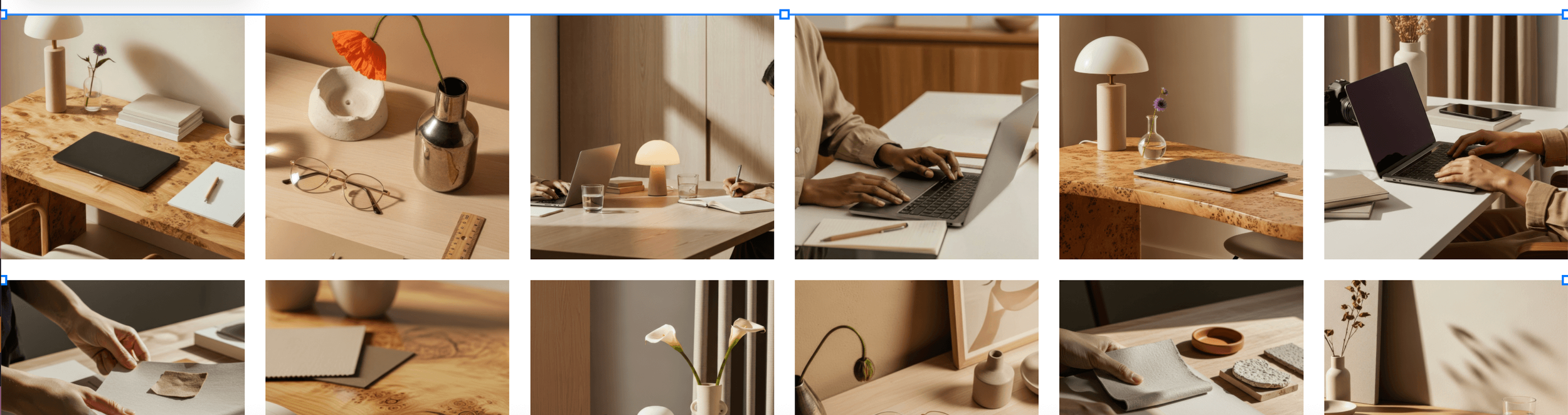
Hit Save in the upper left corner to lock in any changes and voila, you’ve got a new full-width Instagram feed!
Want to give your socials a boost?
Check out our easy to use and beautifully designed Canva social media template packs 👇
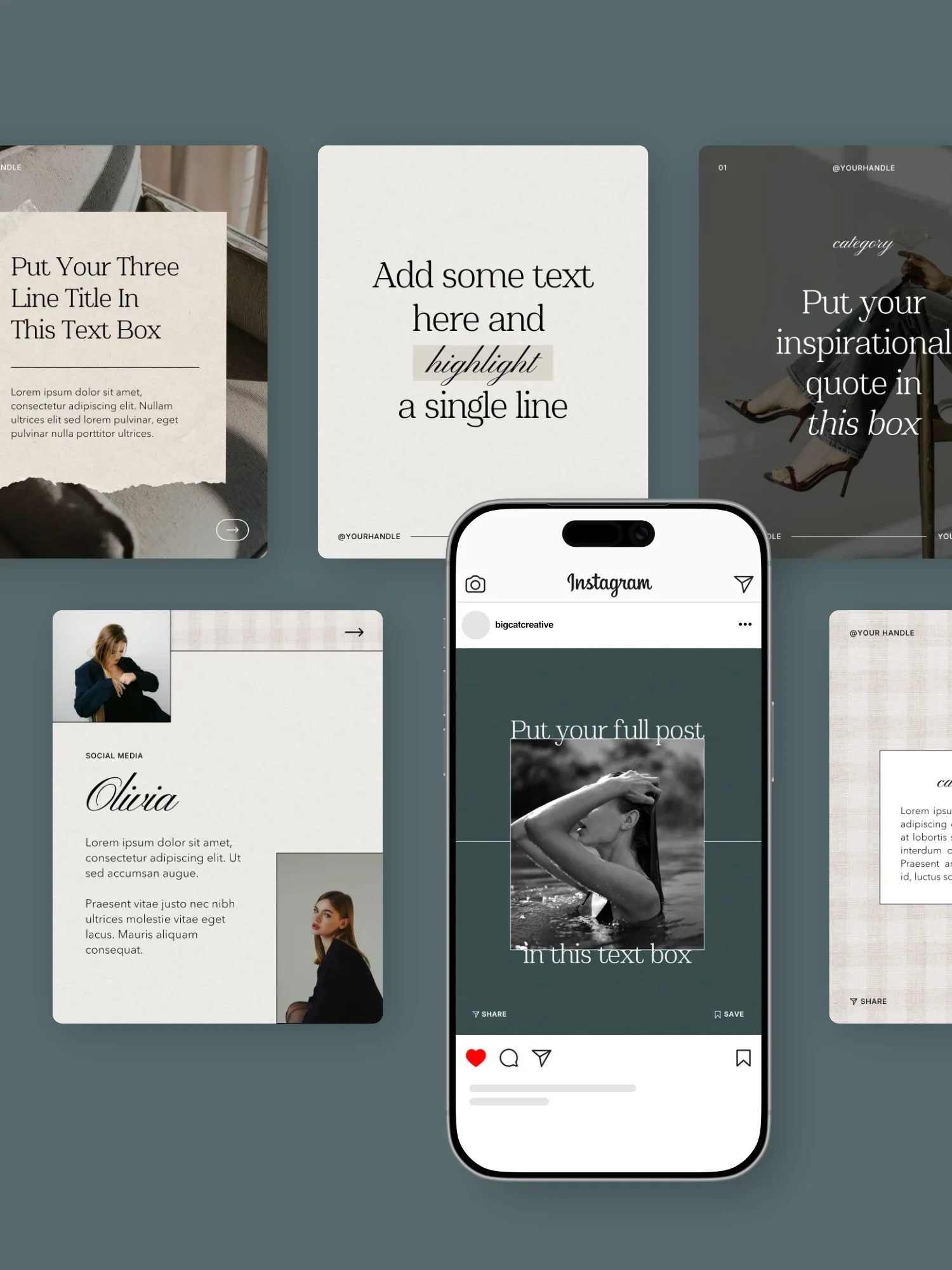
Get an elevated editorial look with the Elyra Social Media Template Pack, combining timeless typography with refined layouts to create a cohesive and sophisticated brand presence across your social platforms.
What’s included?
81 Portrait Posts (1080x1350)
The perfect designs for Instagram Posts and Carousels. But can also work great for for Facebook Posts and Email graphics!
4 Seamless Carousels (1080x1350)
Specifically for a Instagram Carousels, these designs create a seamless scrolling experience and set a captivating canvas for your content.
84 Stories (1080x1920)
Perfectly crafted for Instagram and Facebook stories, these designs can also be repurposed for Pins, Reels and TikToks.
35 Reel Covers (1080x1920)
Ensuring your design looks good as a Reel Cover and on your Insta feed, these designs are tailor made to make sure you look good across allll of Instagram.
53 Pinterest Pins (1000x1500)
Optimized specifically for Pinterest, you can use these as video, carousel or static Pins.
-
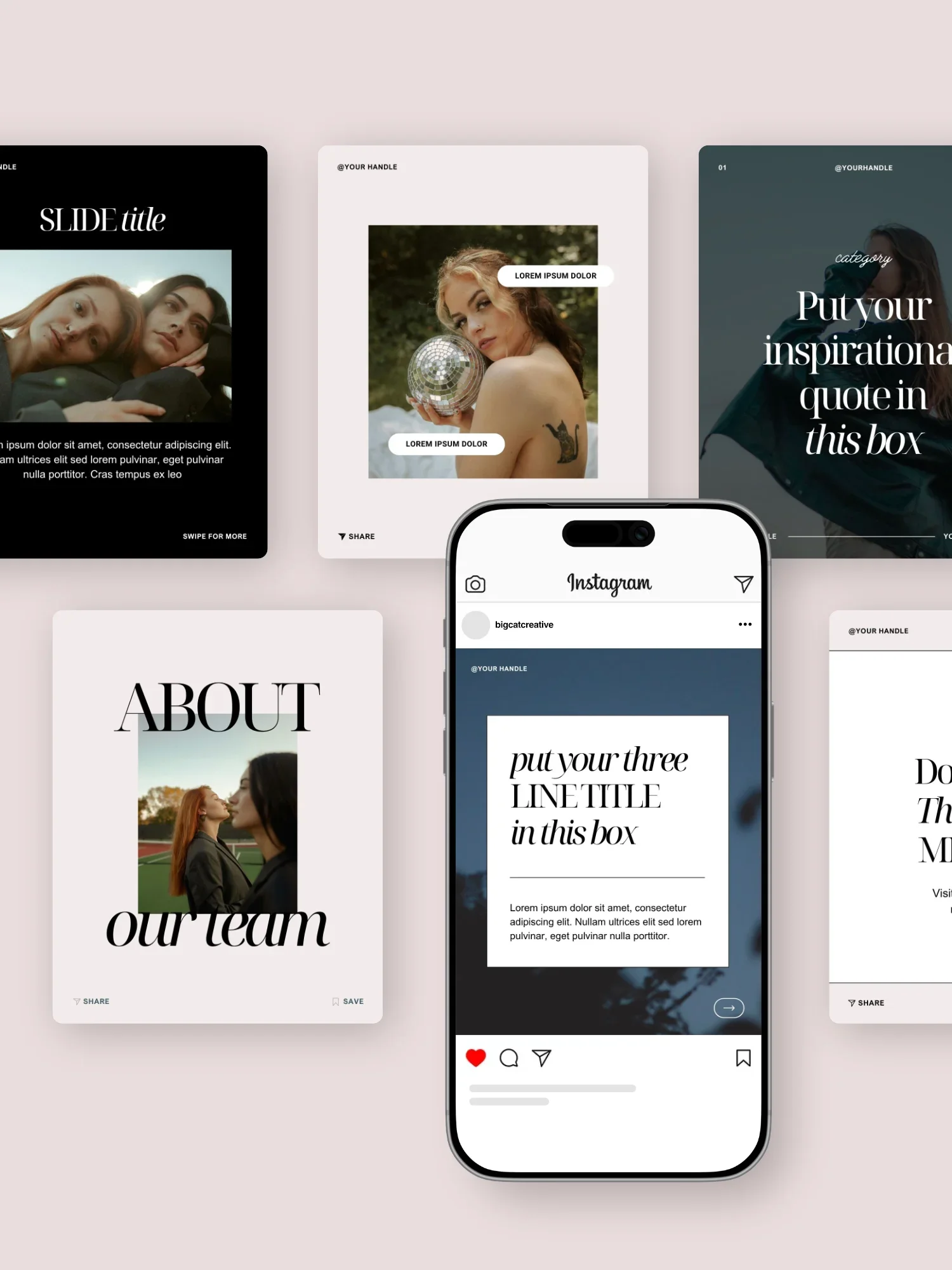
The Nyx Social Media Template Pack blends clean design with striking typography for a scroll-stopping, modern aesthetic—perfect for brands that want to stay minimal yet memorable.
What’s included?
81 Portrait Posts (1080x1350)
The perfect designs for Instagram Posts and Carousels. But can also work great for for Facebook Posts and Email graphics!
4 Seamless Carousels (1080x1350)
Specifically for a Instagram Carousels, these designs create a seamless scrolling experience and set a captivating canvas for your content.
84 Stories (1080x1920)
Perfectly crafted for Instagram and Facebook stories, these designs can also be repurposed for Pins, Reels and TikToks.
35 Reel Covers (1080x1920)
Ensuring your design looks good as a Reel Cover and on your Insta feed, these designs are tailor made to make sure you look good across allll of Instagram.
53 Pinterest Pins (1000x1500)
Optimized specifically for Pinterest, you can use these as video, carousel or static Pins.
-
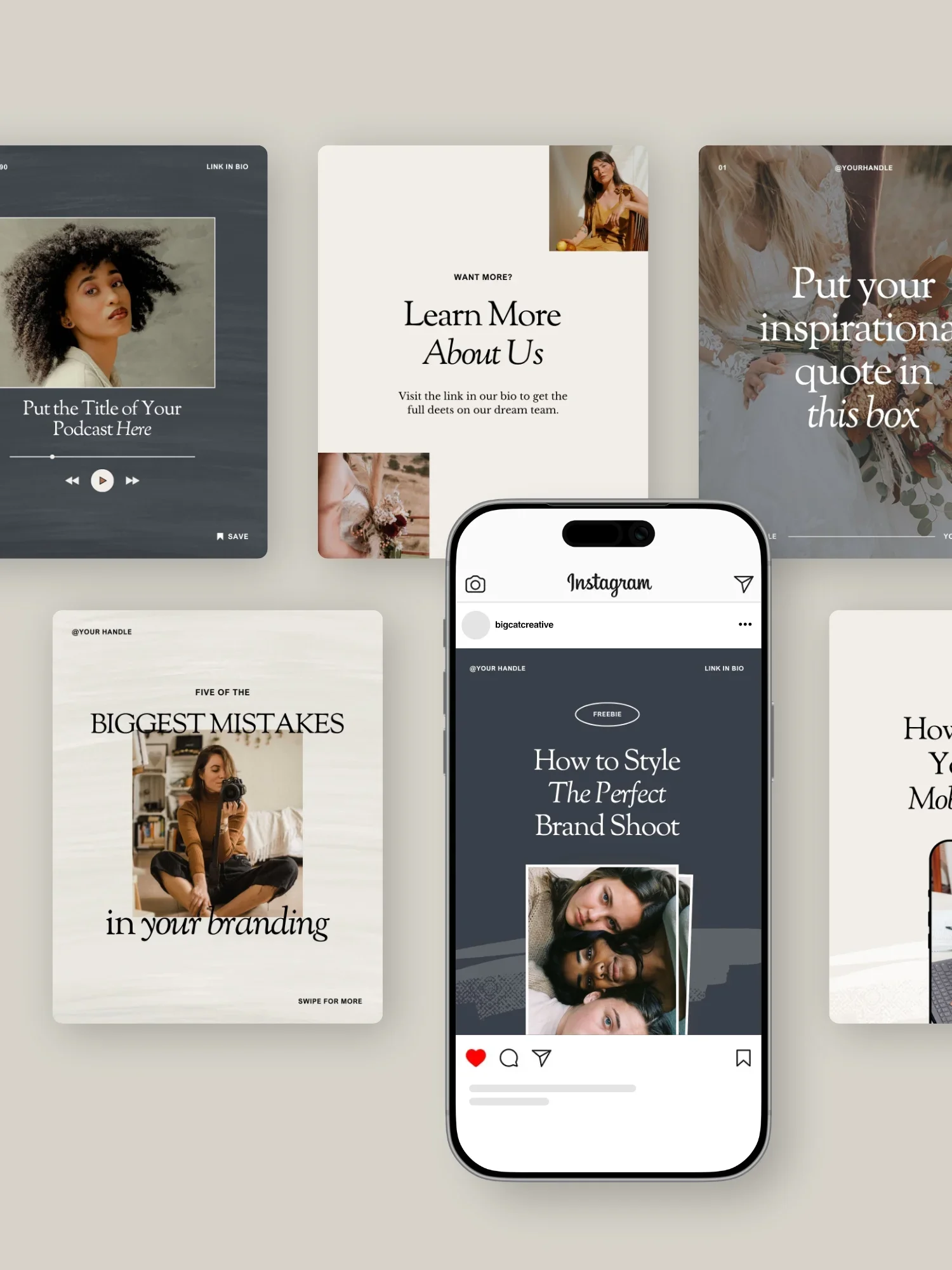
Sophie's rustic charm and moody aesthetics make this Social Media Template Pack perfect for creating a classic and romantic vibe.
What’s included?
81 Portrait Posts (1080x1350)
The perfect designs for Instagram Posts and Carousels. But can also work great for for Facebook Posts and Email graphics!
4 Seamless Carousels (1080x1350)
Specifically for a Instagram Carousels, these designs create a seamless scrolling experience and set a captivating canvas for your content.
84 Stories (1080x1920)
Perfectly crafted for Instagram and Facebook stories, these designs can also be repurposed for Pins, Reels and TikToks.
35 Reel Covers (1080x1920)
Ensuring your design looks good as a Reel Cover and on your Insta feed, these designs are tailor made to make sure you look good across allll of Instagram.
53 Pinterest Pins (1000x1500)
Optimized specifically for Pinterest, you can use these as video, carousel or static Pins.
-
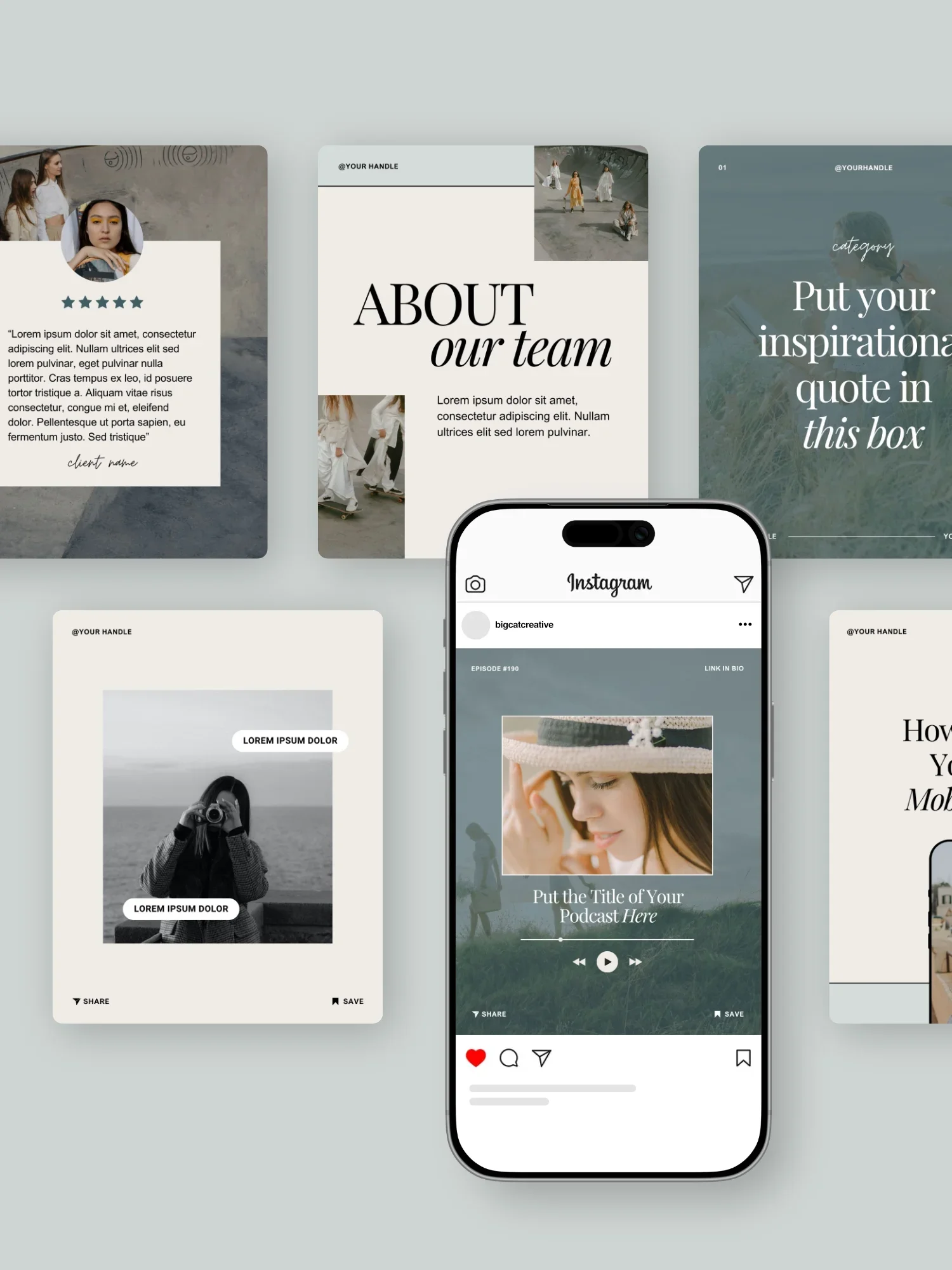
The Shelley Social Media Template Pack is modern and classy, to ensure your content stands out with timeless sophistication.
What’s included?
81 Portrait Posts (1080x1350)
The perfect designs for Instagram Posts and Carousels. But can also work great for for Facebook Posts and Email graphics!
4 Seamless Carousels (1080x1350)
Specifically for a Instagram Carousels, these designs create a seamless scrolling experience and set a captivating canvas for your content.
84 Stories (1080x1920)
Perfectly crafted for Instagram and Facebook stories, these designs can also be repurposed for Pins, Reels and TikToks.
35 Reel Covers (1080x1920)
Ensuring your design looks good as a Reel Cover and on your Insta feed, these designs are tailor made to make sure you look good across allll of Instagram.
53 Pinterest Pins (1000x1500)
Optimized specifically for Pinterest, you can use these as video, carousel or static Pins.
-
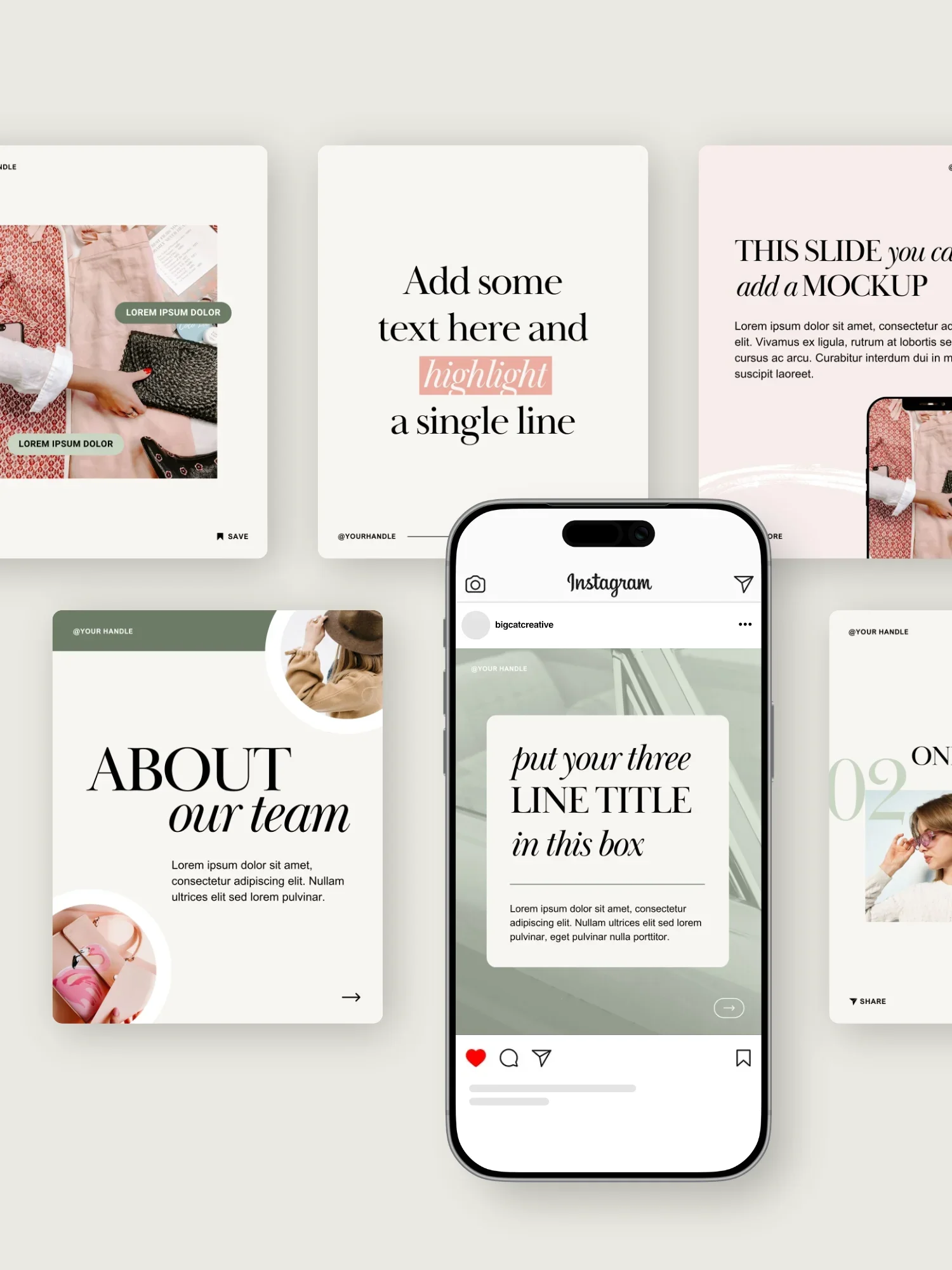
With a fresh and fun design, the Victoria Social Media Template Pack is perfect for a modern yet fun look on your socials.
What’s included?
81 Portrait Posts (1080x1350)
The perfect designs for Instagram Posts and Carousels. But can also work great for for Facebook Posts and Email graphics!
4 Seamless Carousels (1080x1350)
Specifically for a Instagram Carousels, these designs create a seamless scrolling experience and set a captivating canvas for your content.
84 Stories (1080x1920)
Perfectly crafted for Instagram and Facebook stories, these designs can also be repurposed for Pins, Reels and TikToks.
35 Reel Covers (1080x1920)
Ensuring your design looks good as a Reel Cover and on your Insta feed, these designs are tailor made to make sure you look good across allll of Instagram.
53 Pinterest Pins (1000x1500)
Optimized specifically for Pinterest, you can use these as video, carousel or static Pins.
-
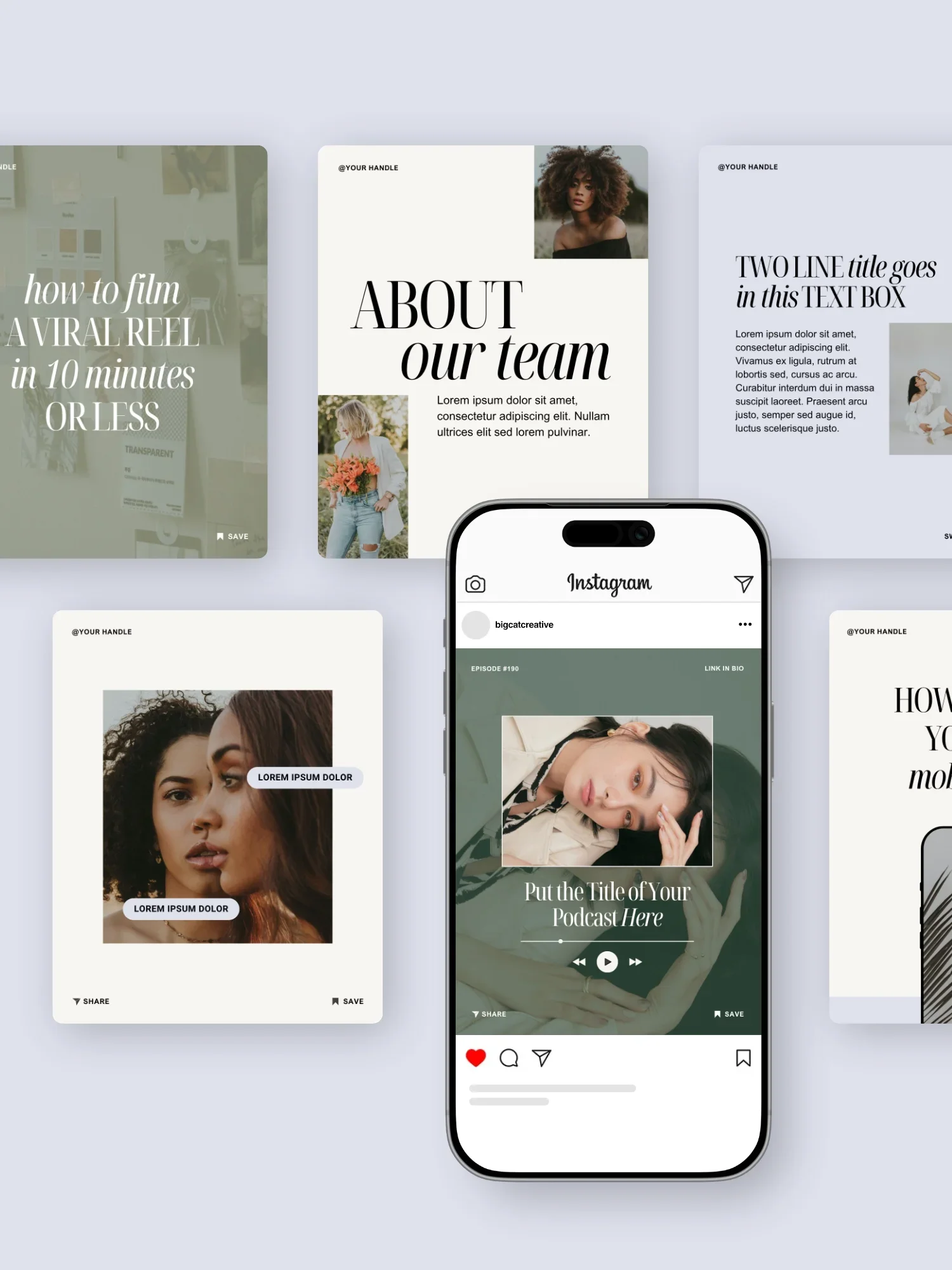
Elevate your social media presence with the Verano Template Pack. Modern, classy, and minimal, it offers a clean and refined look for your content.
What’s included?
81 Portrait Posts (1080x1350)
The perfect designs for Instagram Posts and Carousels. But can also work great for for Facebook Posts and Email graphics!
4 Seamless Carousels (1080x1350)
Specifically for a Instagram Carousels, these designs create a seamless scrolling experience and set a captivating canvas for your content.
84 Stories (1080x1920)
Perfectly crafted for Instagram and Facebook stories, these designs can also be repurposed for Pins, Reels and TikToks.
35 Reel Covers (1080x1920)
Ensuring your design looks good as a Reel Cover and on your Insta feed, these designs are tailor made to make sure you look good across allll of Instagram.
53 Pinterest Pins (1000x1500)
Optimized specifically for Pinterest, you can use these as video, carousel or static Pins.
-
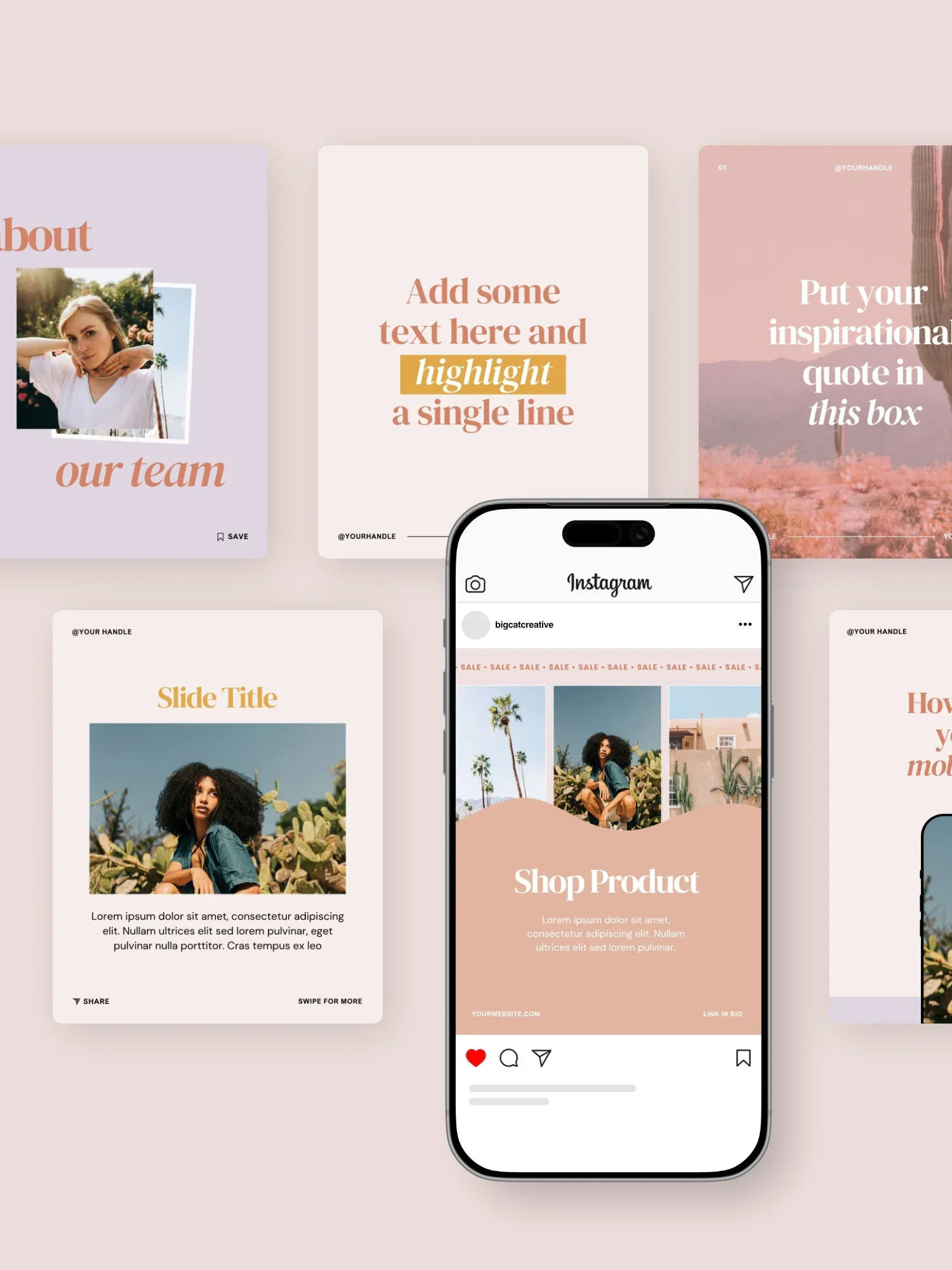
Bring out the fun and bold vibes with the Ventura Social Media Template Pack, designed to make your posts stand out in the crowd.
What’s included?
81 Portrait Posts (1080x1350)
The perfect designs for Instagram Posts and Carousels. But can also work great for for Facebook Posts and Email graphics!
4 Seamless Carousels (1080x1350)
Specifically for a Instagram Carousels, these designs create a seamless scrolling experience and set a captivating canvas for your content.
84 Stories (1080x1920)
Perfectly crafted for Instagram and Facebook stories, these designs can also be repurposed for Pins, Reels and TikToks.
35 Reel Covers (1080x1920)
Ensuring your design looks good as a Reel Cover and on your Insta feed, these designs are tailor made to make sure you look good across allll of Instagram.
53 Pinterest Pins (1000x1500)
Optimized specifically for Pinterest, you can use these as video, carousel or static Pins.
-
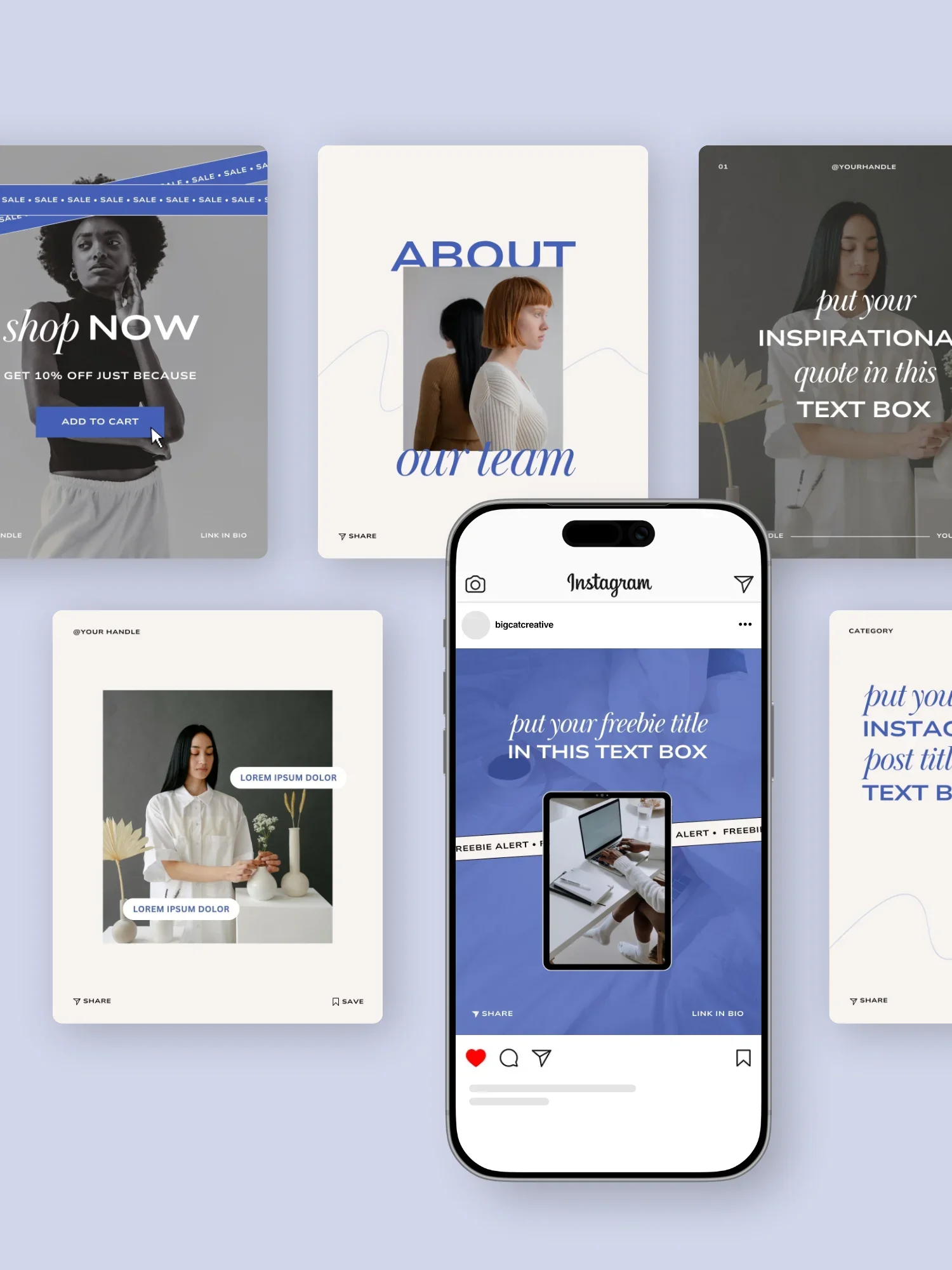
The Unearth Social Media Templates minimalistic and classy design ensures a clean, editorial look, making your content effortlessly stand out with style.
What’s included?
81 Portrait Posts (1080x1350)
The perfect designs for Instagram Posts and Carousels. But can also work great for for Facebook Posts and Email graphics!
4 Seamless Carousels (1080x1350)
Specifically for a Instagram Carousels, these designs create a seamless scrolling experience and set a captivating canvas for your content.
84 Stories (1080x1920)
Perfectly crafted for Instagram and Facebook stories, these designs can also be repurposed for Pins, Reels and TikToks.
35 Reel Covers (1080x1920)
Ensuring your design looks good as a Reel Cover and on your Insta feed, these designs are tailor made to make sure you look good across allll of Instagram.
53 Pinterest Pins (1000x1500)
Optimized specifically for Pinterest, you can use these as video, carousel or static Pins.
-
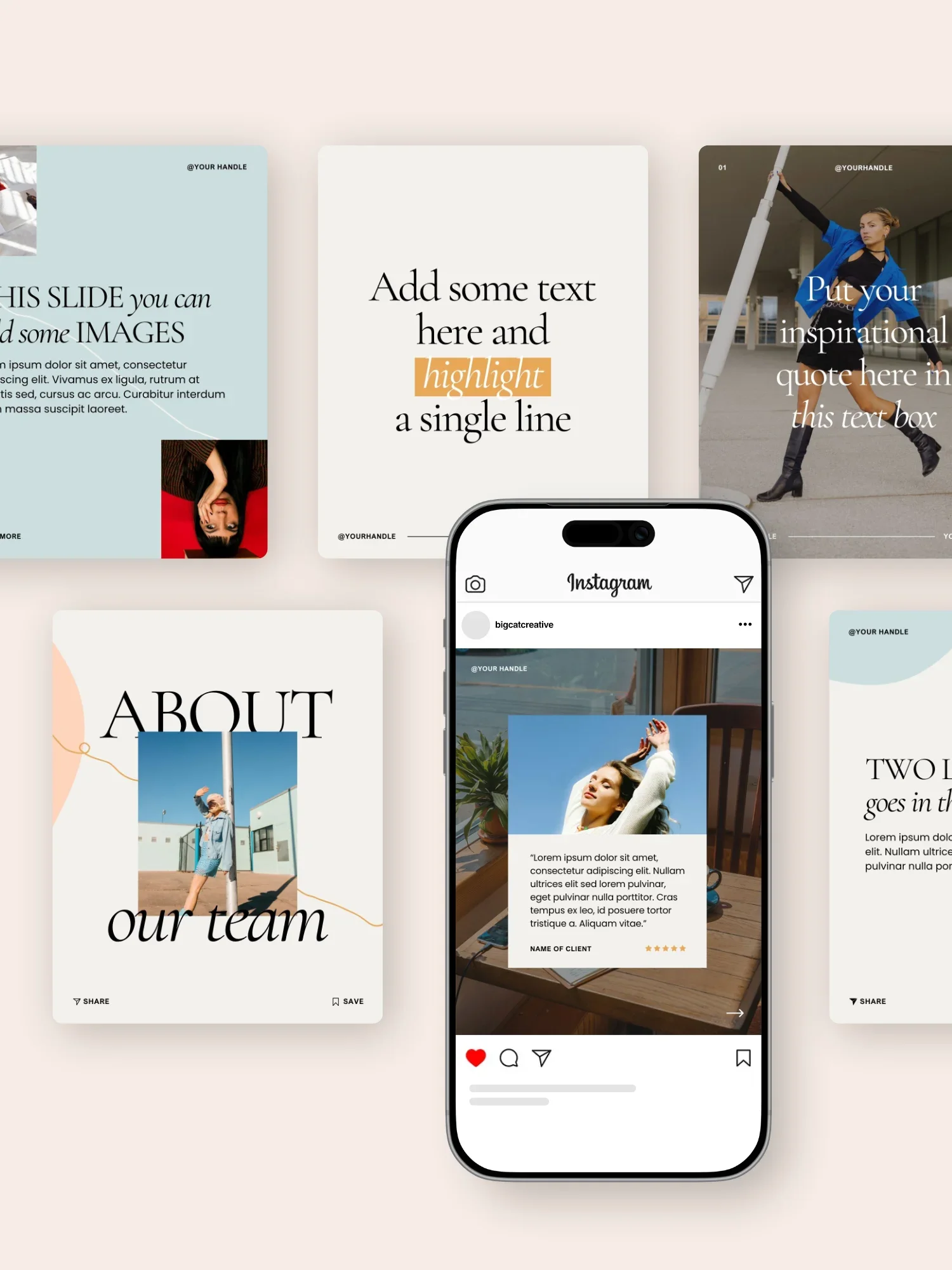
Make a bold statement with the Nova Social Media Template Pack, adding dynamic and playful vibes to your social media presence.
What’s included?
81 Portrait Posts (1080x1350)
The perfect designs for Instagram Posts and Carousels. But can also work great for for Facebook Posts and Email graphics!
4 Seamless Carousels (1080x1350)
Specifically for a Instagram Carousels, these designs create a seamless scrolling experience and set a captivating canvas for your content.
84 Stories (1080x1920)
Perfectly crafted for Instagram and Facebook stories, these designs can also be repurposed for Pins, Reels and TikToks.
35 Reel Covers (1080x1920)
Ensuring your design looks good as a Reel Cover and on your Insta feed, these designs are tailor made to make sure you look good across allll of Instagram.
53 Pinterest Pins (1000x1500)
Optimized specifically for Pinterest, you can use these as video, carousel or static Pins.
-
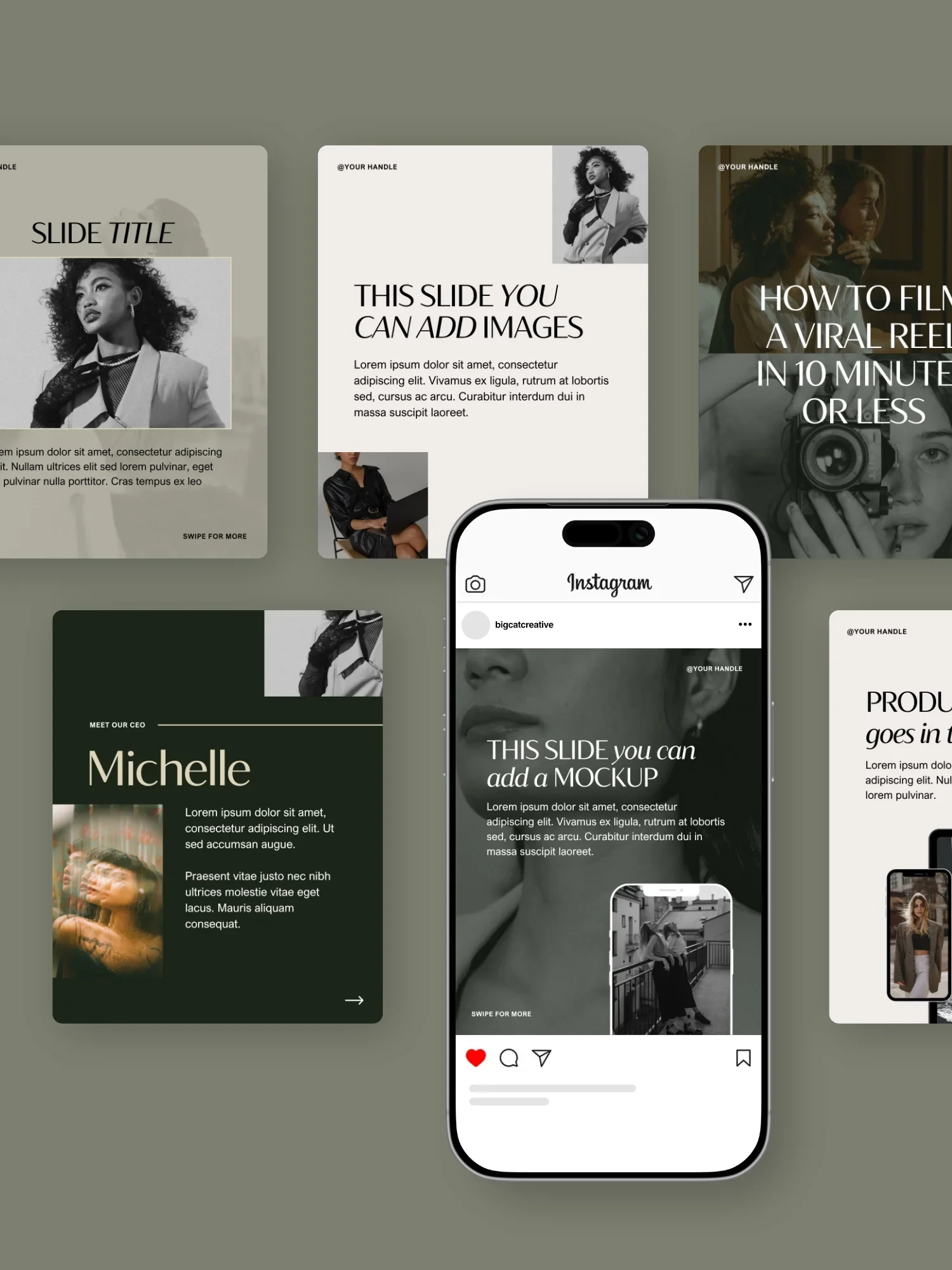
Dive into the sleek and bold aesthetic of the Noire Social Media Template Pack. Its dark and modern design adds an edge, ensuring your content makes an statement.
What’s included?
81 Portrait Posts (1080x1350)
The perfect designs for Instagram Posts and Carousels. But can also work great for for Facebook Posts and Email graphics!
4 Seamless Carousels (1080x1350)
Specifically for a Instagram Carousels, these designs create a seamless scrolling experience and set a captivating canvas for your content.
84 Stories (1080x1920)
Perfectly crafted for Instagram and Facebook stories, these designs can also be repurposed for Pins, Reels and TikToks.
35 Reel Covers (1080x1920)
Ensuring your design looks good as a Reel Cover and on your Insta feed, these designs are tailor made to make sure you look good across allll of Instagram.
53 Pinterest Pins (1000x1500)
Optimized specifically for Pinterest, you can use these as video, carousel or static Pins.
-
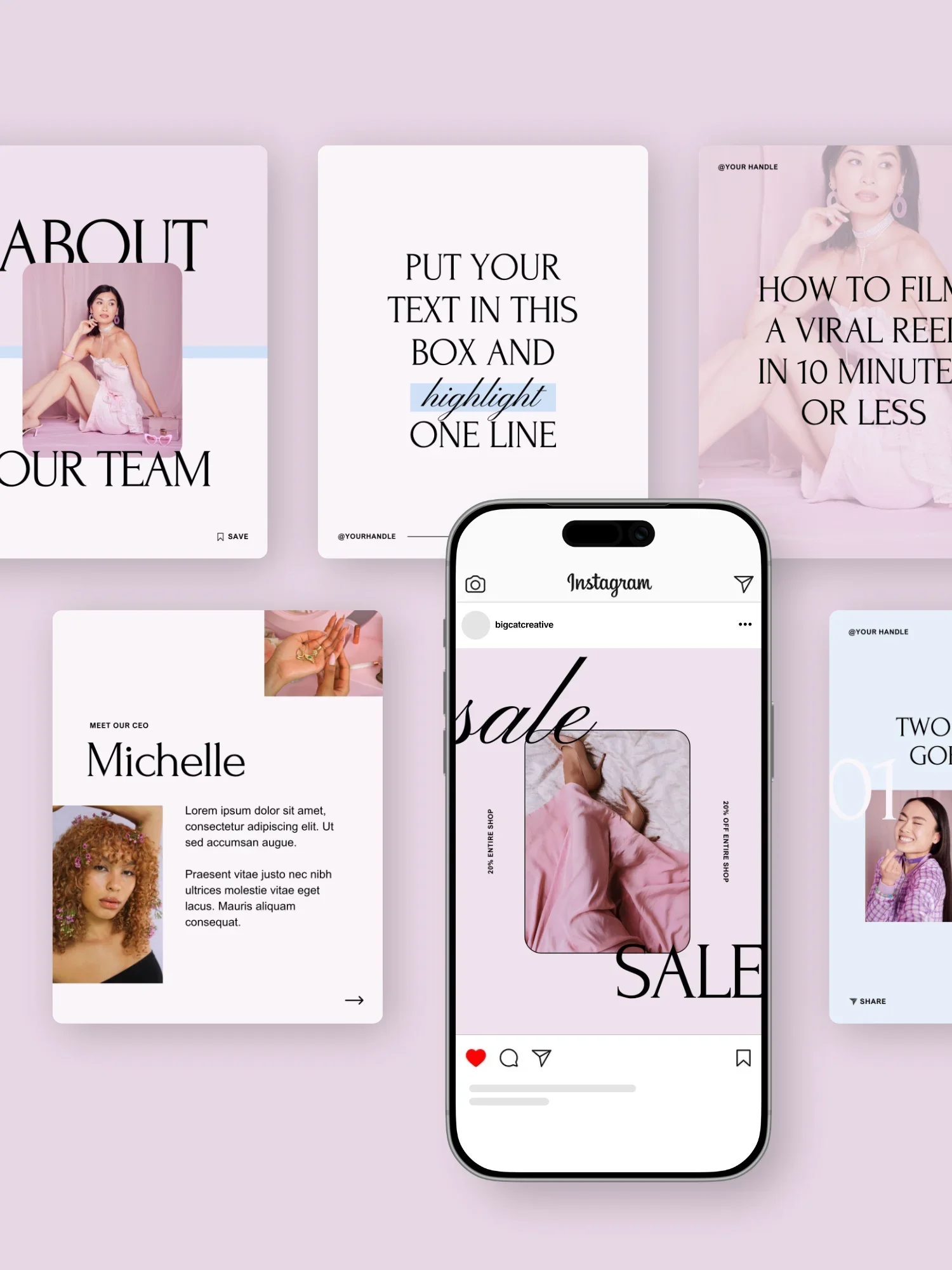
Keep it light, modern, and classy with the Michi Social Media Template Pack, offering an editorial canvas for your content.
What’s included?
81 Portrait Posts (1080x1350)
The perfect designs for Instagram Posts and Carousels. But can also work great for for Facebook Posts and Email graphics!
4 Seamless Carousels (1080x1350)
Specifically for a Instagram Carousels, these designs create a seamless scrolling experience and set a captivating canvas for your content.
84 Stories (1080x1920)
Perfectly crafted for Instagram and Facebook stories, these designs can also be repurposed for Pins, Reels and TikToks.
35 Reel Covers (1080x1920)
Ensuring your design looks good as a Reel Cover and on your Insta feed, these designs are tailor made to make sure you look good across allll of Instagram.
53 Pinterest Pins (1000x1500)
Optimized specifically for Pinterest, you can use these as video, carousel or static Pins.
-
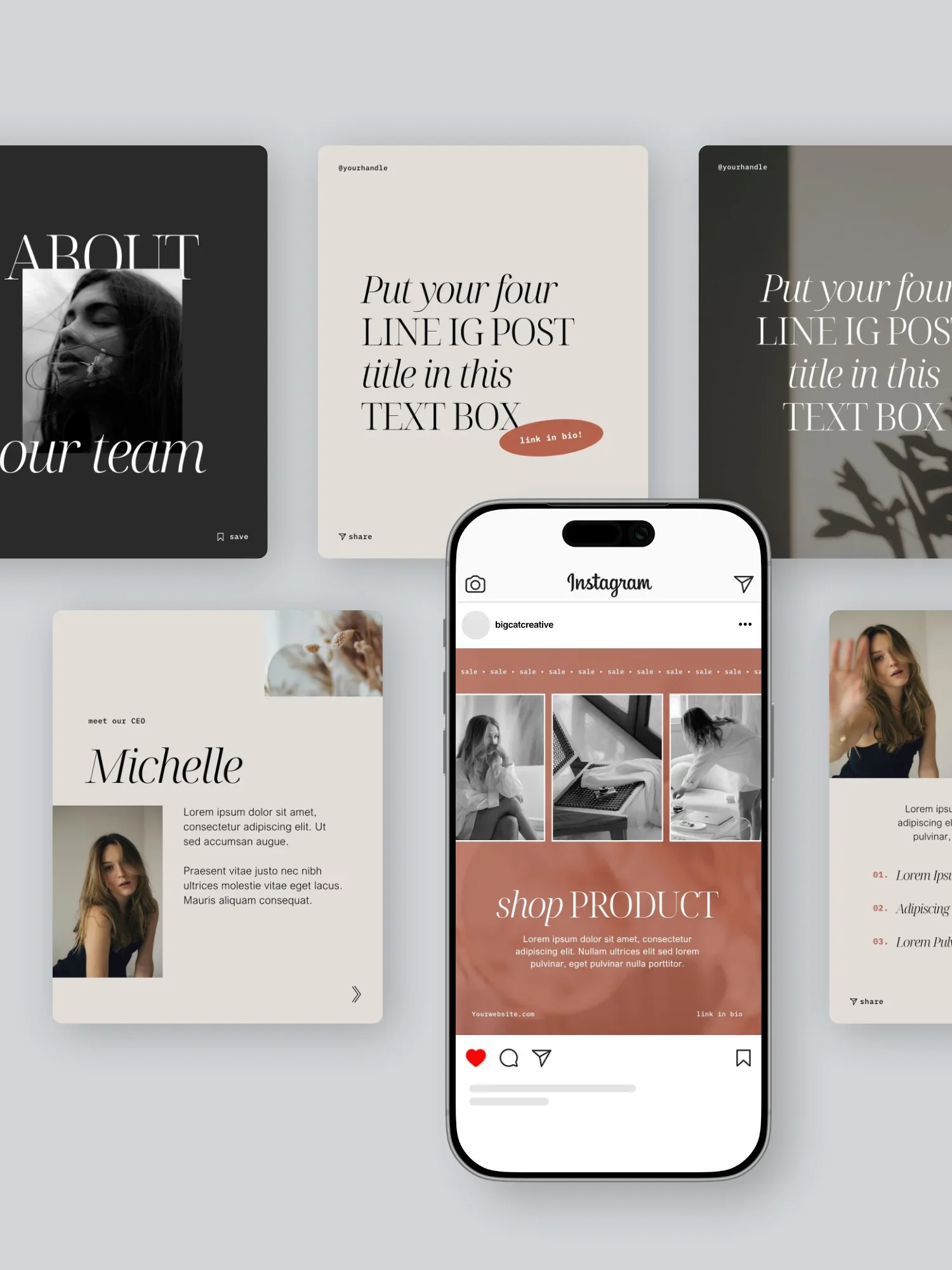
With modern and moody aesthetics, the Iris Social Media Template Pack ensures a chic and impactful online presence.
What’s included?
81 Portrait Posts (1080x1350)
The perfect designs for Instagram Posts and Carousels. But can also work great for for Facebook Posts and Email graphics!
4 Seamless Carousels (1080x1350)
Specifically for a Instagram Carousels, these designs create a seamless scrolling experience and set a captivating canvas for your content.
84 Stories (1080x1920)
Perfectly crafted for Instagram and Facebook stories, these designs can also be repurposed for Pins, Reels and TikToks.
35 Reel Covers (1080x1920)
Ensuring your design looks good as a Reel Cover and on your Insta feed, these designs are tailor made to make sure you look good across allll of Instagram.
53 Pinterest Pins (1000x1500)
Optimized specifically for Pinterest, you can use these as video, carousel or static Pins.
-
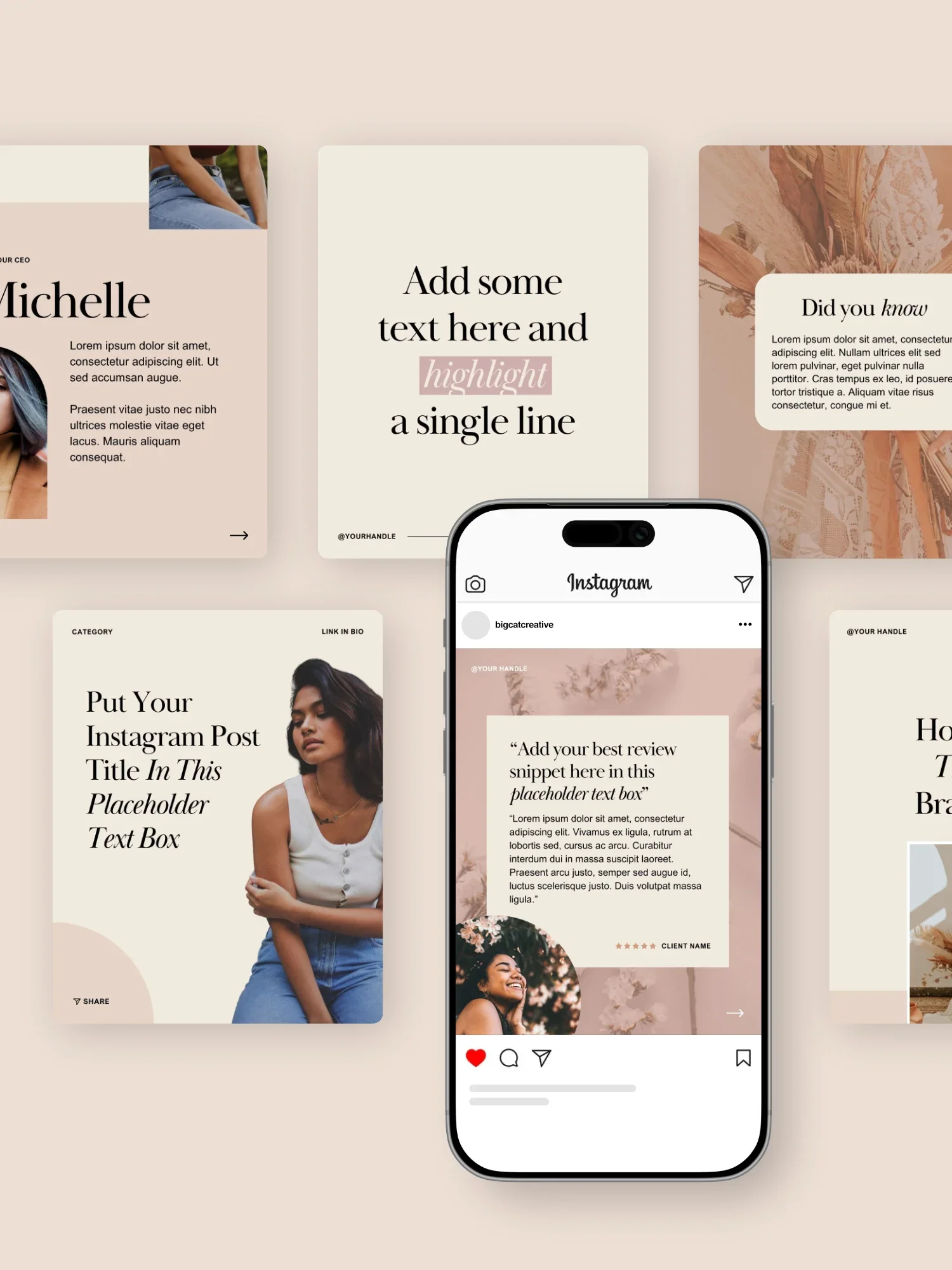
The Leon Social Media Template Pack brings a touch of modern playfulness to your content. These lively and engaging designs are sure to resonate with your audience.
What’s included?
81 Portrait Posts (1080x1350)
The perfect designs for Instagram Posts and Carousels. But can also work great for for Facebook Posts and Email graphics!
4 Seamless Carousels (1080x1350)
Specifically for a Instagram Carousels, these designs create a seamless scrolling experience and set a captivating canvas for your content.
84 Stories (1080x1920)
Perfectly crafted for Instagram and Facebook stories, these designs can also be repurposed for Pins, Reels and TikToks.
35 Reel Covers (1080x1920)
Ensuring your design looks good as a Reel Cover and on your Insta feed, these designs are tailor made to make sure you look good across allll of Instagram.
53 Pinterest Pins (1000x1500)
Optimized specifically for Pinterest, you can use these as video, carousel or static Pins.
-
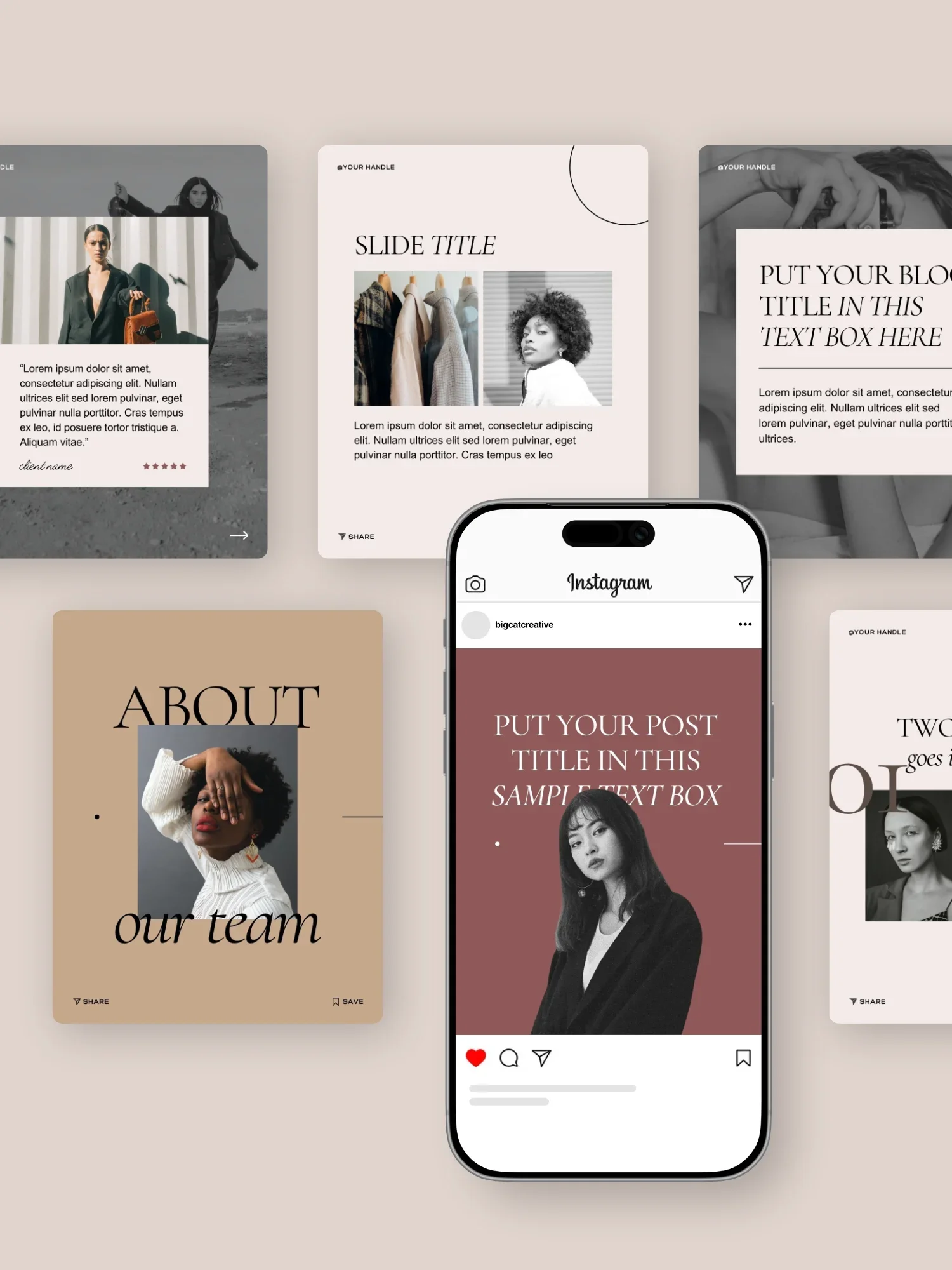
The Gigi Rose Social Media Template Pack is your go-to choice for a modern, editorial and sophisticated social presence.
What’s included?
81 Portrait Posts (1080x1350)
The perfect designs for Instagram Posts and Carousels. But can also work great for for Facebook Posts and Email graphics!
4 Seamless Carousels (1080x1350)
Specifically for a Instagram Carousels, these designs create a seamless scrolling experience and set a captivating canvas for your content.
84 Stories (1080x1920)
Perfectly crafted for Instagram and Facebook stories, these designs can also be repurposed for Pins, Reels and TikToks.
35 Reel Covers (1080x1920)
Ensuring your design looks good as a Reel Cover and on your Insta feed, these designs are tailor made to make sure you look good across allll of Instagram.
53 Pinterest Pins (1000x1500)
Optimized specifically for Pinterest, you can use these as video, carousel or static Pins.
-
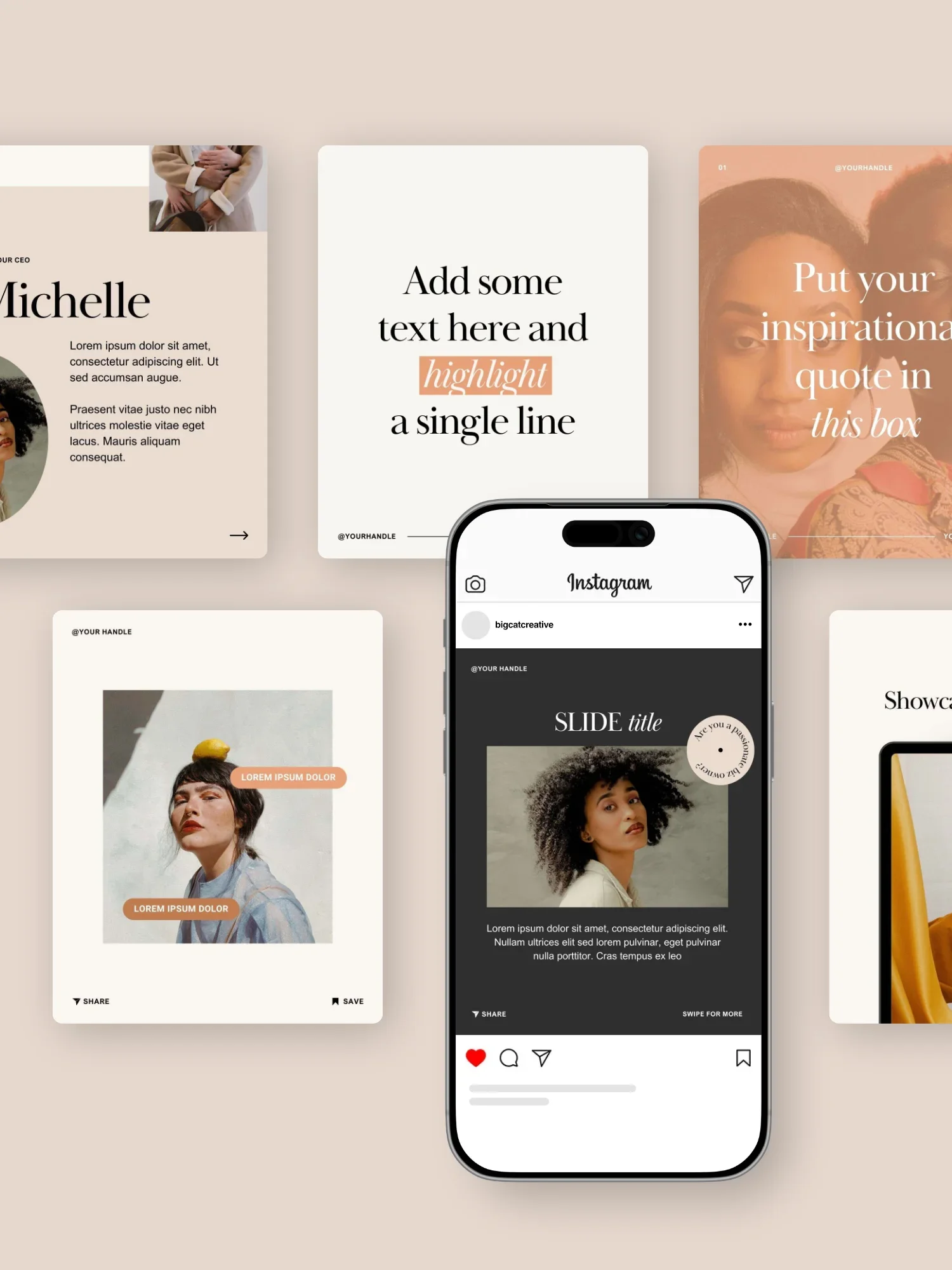
Get a modern classic vibe with the Ava Grand Social Media Template Pack, combining editorial elements with functional design.
What’s included?
81 Portrait Posts (1080x1350)
The perfect designs for Instagram Posts and Carousels. But can also work great for for Facebook Posts and Email graphics!
4 Seamless Carousels (1080x1350)
Specifically for a Instagram Carousels, these designs create a seamless scrolling experience and set a captivating canvas for your content.
84 Stories (1080x1920)
Perfectly crafted for Instagram and Facebook stories, these designs can also be repurposed for Pins, Reels and TikToks.
35 Reel Covers (1080x1920)
Ensuring your design looks good as a Reel Cover and on your Insta feed, these designs are tailor made to make sure you look good across allll of Instagram.
53 Pinterest Pins (1000x1500)
Optimized specifically for Pinterest, you can use these as video, carousel or static Pins.
-
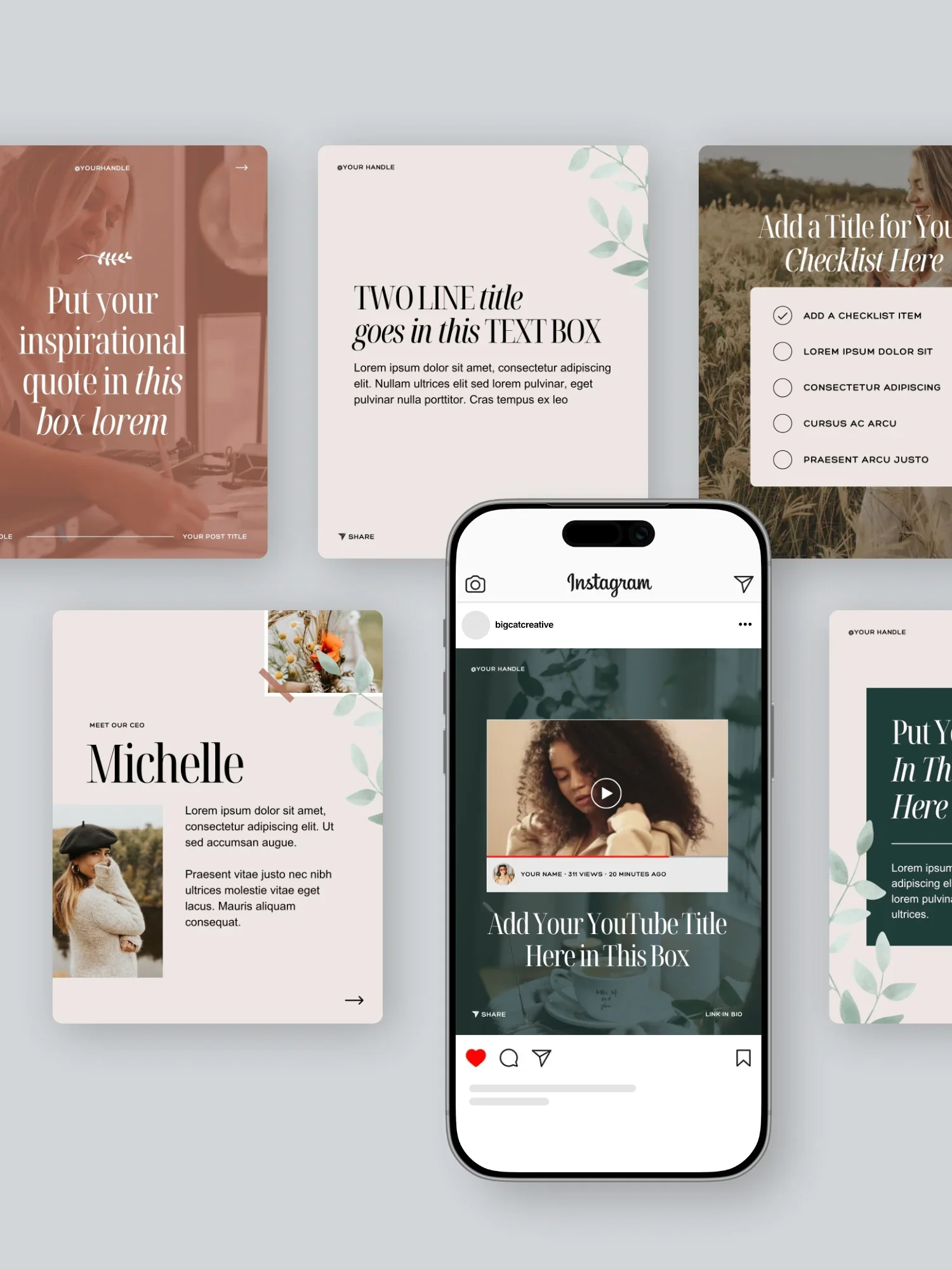
Classy and whimsical, the Belladonna Social Media Template Pack is perfect if you’re seeking an elevated and sophisticated social presence.
What’s included?
81 Portrait Posts (1080x1350)
The perfect designs for Instagram Posts and Carousels. But can also work great for for Facebook Posts and Email graphics!
4 Seamless Carousels (1080x1350)
Specifically for a Instagram Carousels, these designs create a seamless scrolling experience and set a captivating canvas for your content.
84 Stories (1080x1920)
Perfectly crafted for Instagram and Facebook stories, these designs can also be repurposed for Pins, Reels and TikToks.
35 Reel Covers (1080x1920)
Ensuring your design looks good as a Reel Cover and on your Insta feed, these designs are tailor made to make sure you look good across allll of Instagram.
53 Pinterest Pins (1000x1500)
Optimized specifically for Pinterest, you can use these as video, carousel or static Pins.
-
Loved that post? Check out more Instagram tips below!
How to connect Instagram to your Squarespace website
How to create GIF stickers for Instagram in Canva & Photoshop
How to create a Youtube preview for Instagram Stories in Canva
Why you should stop using Linktree & how to create your own in Squarespace
How to grow your business & get clients with Instagram in 2022
If you liked this post, Pin it to Pinterest! 👇🏻


Say hello to your new secret weapon for social! With a few clicks, the Josie Social Media Templates bring a bold, playful energy straight to your feed. With pops of color and fun graphic details, they’re made for creators who want their content to be totally scroll-stopping. Your content + Josie templates = match made in heaven!
What’s included?
81 Portrait Posts (1080x1350)
The perfect designs for Instagram Posts and Carousels. But can also work great for for Facebook Posts and Email graphics!
4 Seamless Carousels (1080x1350)
Specifically for a Instagram Carousels, these designs create a seamless scrolling experience and set a captivating canvas for your content.
84 Stories (1080x1920)
Perfectly crafted for Instagram and Facebook stories, these designs can also be repurposed for Pins, Reels and TikToks.
35 Reel Covers (1080x1920)
Ensuring your design looks good as a Reel Cover and on your Insta feed, these designs are tailor made to make sure you look good across allll of Instagram.
53 Pinterest Pins (1000x1500)
Optimized specifically for Pinterest, you can use these as video, carousel or static Pins.