How to Showcase Your Websites With Full Page Screenshots
Have you ever wanted to take a screenshot of an entire website page and found yourself piecing together multiple screenshots to create the look of a scrolling website page?
I'm here to tell you that you've been doing it the hard way and the good news is that you can actually get a full page screenshot in just one click... seriously! Even better, it's free!
You're probably ready to get straight into it, so let's get started.

How to Take a Full Page Screenshot in Google Chrome
If you use Google Chrome, we'd recommend using the extension GoFullPage, but there are a handful of other Chrome extension options out there that do the same thing like CocoShot.
First things first, you'll need to install the extension through the Chrome Web Store using the link above.
To access the extension, all you have to do is click the icon in the extension menu that sits to the right of the address bar. You'll see in the image below that the GoFullPage extension icon is a grey camera:

Once you click the GoFullPage extension icon, you'll see a small pop-up window appear at the top of your browser window to indicate it's active and GoFullPage will scroll the entire page by itself.
This will only capture the tab you're currently on.

Note! GoFullPage only works on pages that are live. If you want to screenshot a page on an unpublished Squarespace site, add ?noredirect to the end of the preview URL. GoFullPage will then be able to scroll through the full page as usual.
Once it has captured the full page, a new tab will open that contains the screenshot.

From here, you have a few options on the top menu bar:
Edit: GoFullPage will automatically bring you to the GoFullPage Editor where you can crop your screenshot or add annotations.

2. Download:
By default, GoFullPage allows you to download your screenshot in PDF or PNG format.

Note: If you would like to download your image as a JPG, you can click on the Options icon in the top right corner.

Under Capture > Image Format, choose JPG from the drop-down menu.

The setting will save automatically, but you will need to retake your website screenshot in order for the JPG format to be available for download.
That's it! I wasn't exaggerating when I said all it takes is one click and you have a beautiful full page screenshot ready to use. What we love most about GoFullPage is how easy it makes the entire process and hopefully, you will feel the same way after you try this way too.
GoFullPage works on both Google Chrome and Microsoft Edge, but if you prefer another browser, check out some alternative full page screenshot extensions below.
Alternative Full Page Screenshot Extensions for Different Browsers
If you don't use Chrome as your internet browser, here are some other full page screenshot extensions that you can use to take a full page screenshot:
Mozilla Firefox:
Safari:
Page Screenshot* (Paid extension)
Safari's most reliable screenshot extensions are not free, so we recommend downloading Chrome (it's free!) and using the free one to take full-page screenshots!
How to use Your Full Page Screenshot
Now that you’ve got a beautiful full-page screenshot of your website… what do you actually do with it?
One of our favourite ways to use these is in website mockups. Instead of sharing a plain screenshot, you can pop your website into a laptop, desktop, tablet or phone mockup to make it look a little more polished and professional.
They’re especially handy for:
Portfolio pages and website case studies
Instagram posts and Pinterest graphics
Client launch announcements
Your own website or Services page

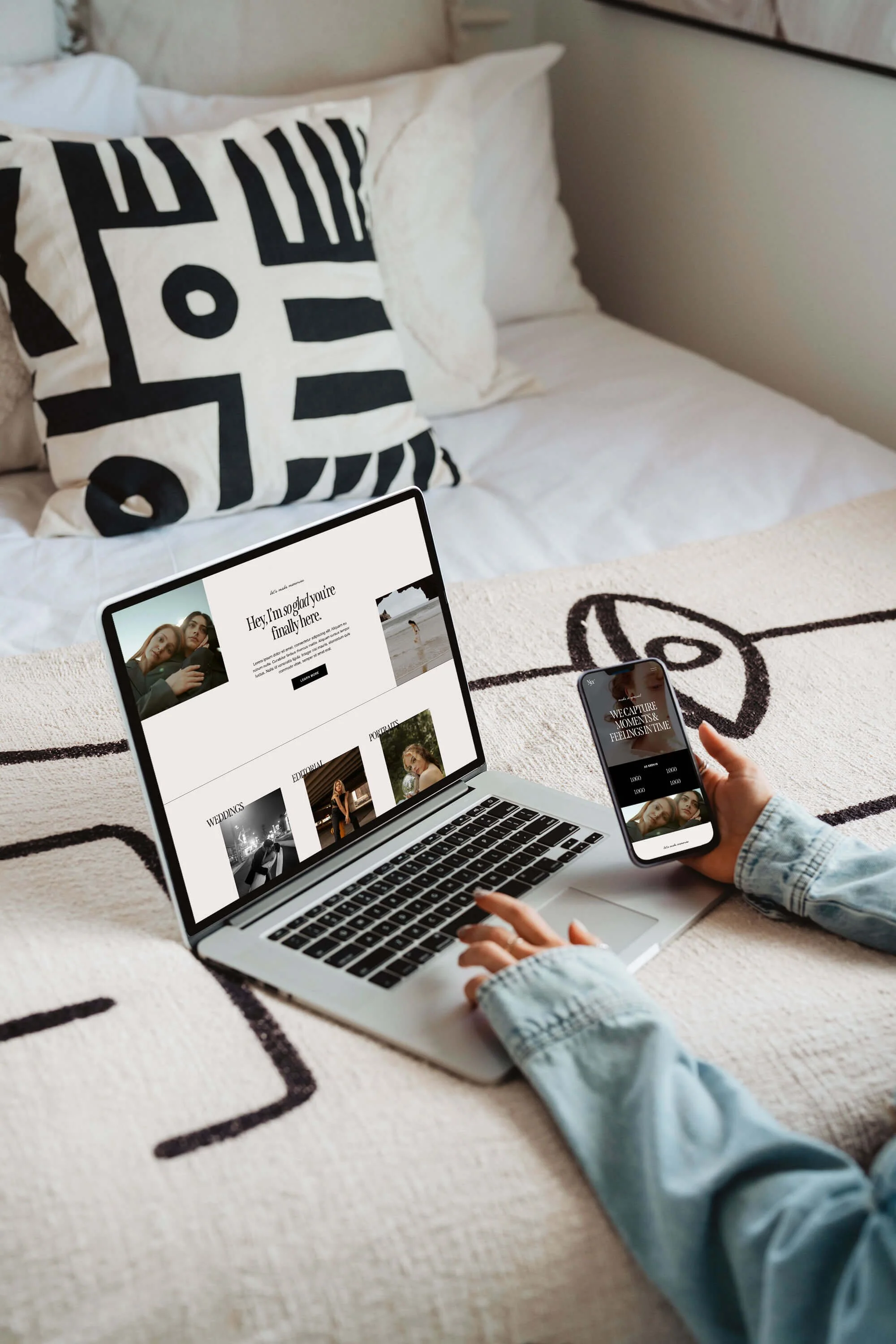
We love to create mockups of our templates!
Where to Find Mockups
You definitely don’t need to buy a fancy mockup pack to get started. There are plenty of great free options online, including:
Want to learn how to create a gorgeous scrolling animation using your new full page screenshot? Check out the posts below:
👉 How to create a scrolling computer mockup in Canva (easy!)
👉 How to create a scrolling computer mockup in Photoshop
If you liked this post, Pin it to Pinterest! 👇🏻