The Summary block is one of the most diverse Squarespace blocks. There are just so many things you can do with it. Wherever there’s a Squarespace ‘tip’ or ‘trick’, it usually involves the Summary block.
For example, creating a testimonial slider, adding related or featured blog posts, faking a sidebar or completely redesigning your blog out of the Squarespace bounds, the Summary block can do it all, almost.
For such a diverse block, it has one fatal flaw: You can’t change the fonts.
The heading and excerpt fonts will automatically just be a different size variation of your body text font.
Here’s an example of a Summary Block from our Noire Template that's pulling posts from the Blog. You can see that the heading font is just the same as the body text (um, boring!)
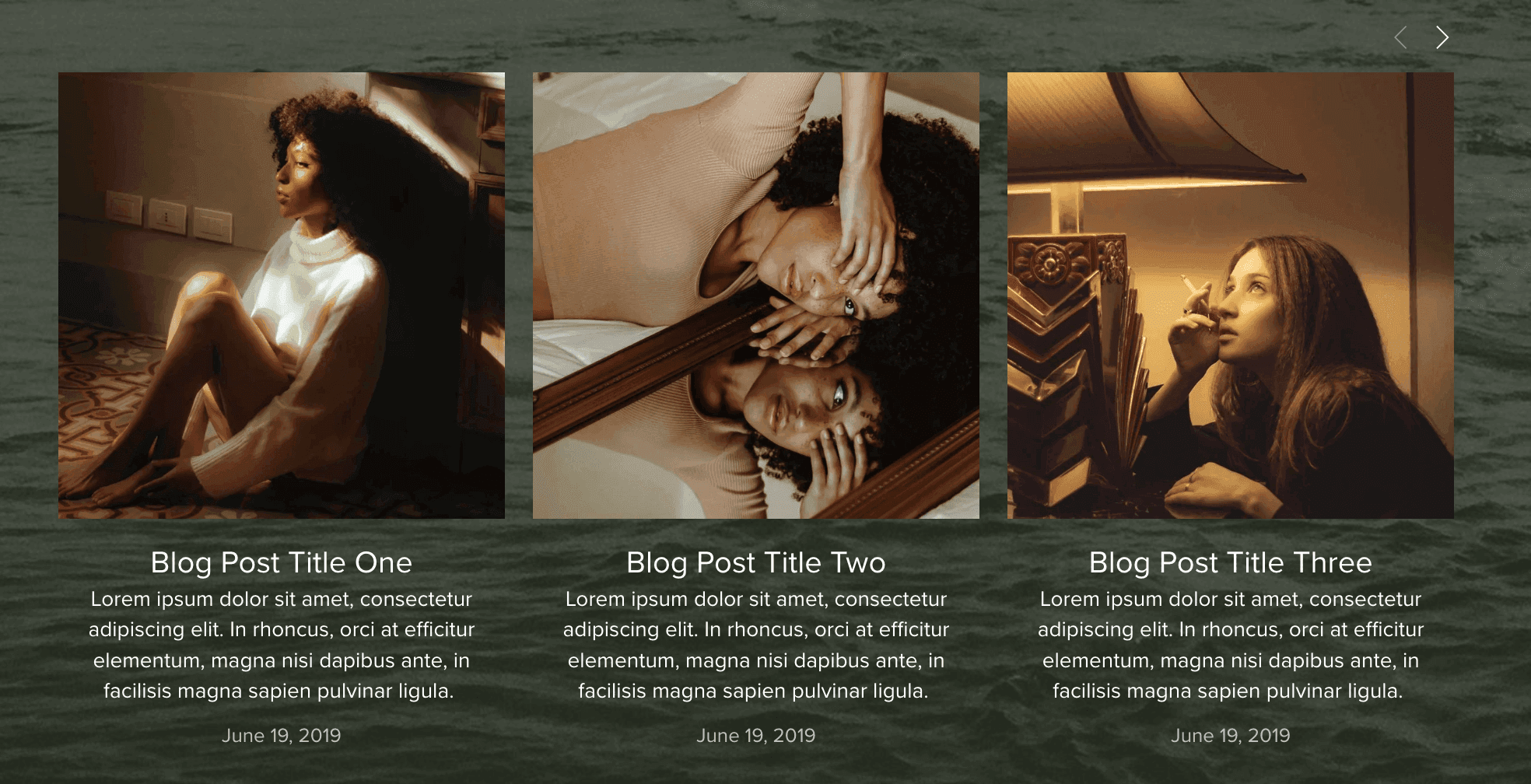
So, let us help you fix it! Keep reading for a walkthrough on how to change your Summary Block fonts to get the custom look you’re going for.
What Exactly is a Summary Block
If you’re not totally familiar, a Summary Block is a super handy tool that pulls existing content from your website and displays it in a concise and easy to digest manner.
Summary Blocks are particularly awesome for showcasing recent or popular blog posts, featured products, testimonials and so much more. You can customize the display layout of your Summary Block and even choose what information you want to show visitors, making them versatile and perfect for any type of business!
We love to use Summary Blocks throughout our Premium Squarespace Templates as they’re convenient and easy to customize. Take a look at some examples below:
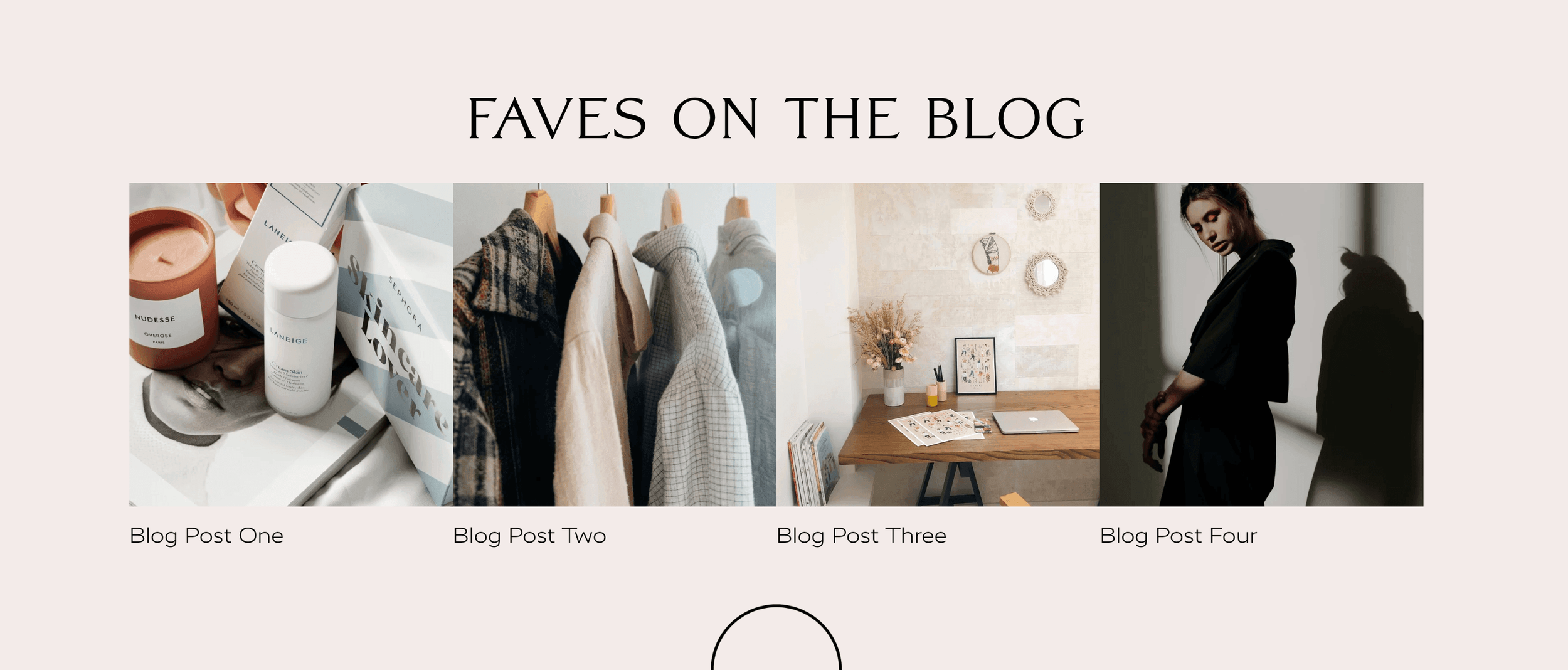
Example of Summary Block from our Gigi Rose Premium Squarespace Template
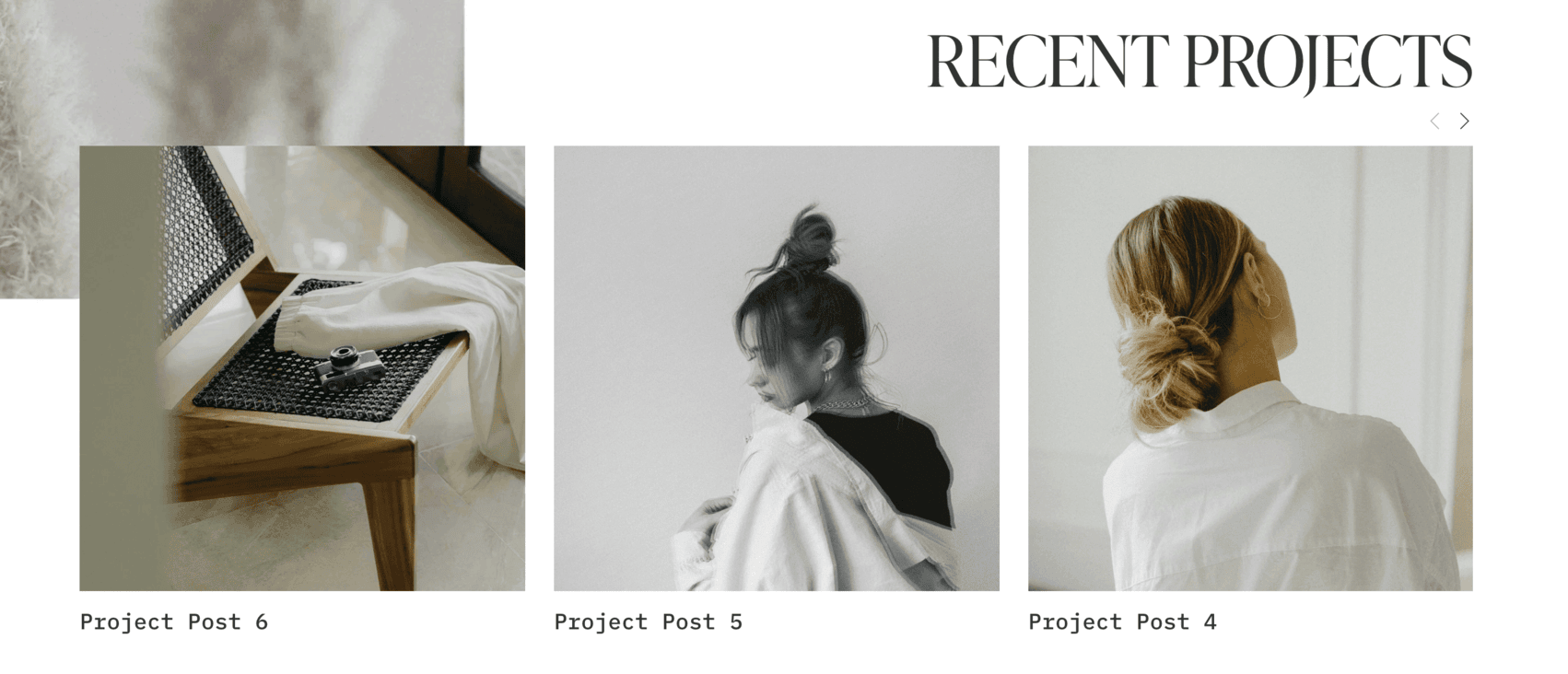
Example of Summary Block from our Iris Premium Squarespace Template
How to Change the Summary Heading Font
Now let’s get into the good stuff! To change the heading font, you have to enter a small bit of code. Don’t freak! It’s really easy and we’ll talk you through it.
This code works for both Squarespace 7.0 and 7.1!
First, you’ll need to add your Summary Block by entering editing mode and then choosing Summary from the list of content blocks. In Squarespace 7.1 you’ll do this by click on the Add Block button and in Squarespace 7.0 you’ll do this by clicking on the blue plus sign.
From there, you can customize the settings of your Summary Block however you’d like.
Note: If you want to make the following customizations, be sure to toggle on the Title, Excerpt, and Read More options in your Block’s design settings.
Next, follow these steps:
Make sure you stay on the page where you can see your summary block, so that you can view the changes as you make them.
Access your Custom CSS window by clicking the slash key ( / ) on your keyboard and typing in “Custom CSS”
Paste the following code into your Custom CSS window:
.sqs-block-summary-v2 {
.summary-title,
.summary-heading {
font-family: proxima nova;
font-weight: 600;
font-size: 18px !important;
color: #33cccc;
text-transform: uppercase;
font-style: italic;
} }
When you paste this in, you should automatically see your Summary block headings change into something similar to this:

Now you can go through and tweak parts of the code so that it matches your design requirements.
Don’t touch this first part of the code, as it’s telling your website what you want to change (aka the Summary Block’s headings):
.sqs-block-summary-v2 {
.summary-title,
.summary-heading {
This is the section where you will want to make adjustments:
font-family: proxima nova;
font-weight: 600;
font-size: 18px !important;
color: #33CCCC;
text-transform: uppercase;
font-style: italic;
 } }
Font-family: Enter any font you want, or, if you want to leave the font as is (same as your body font), just remove this line all together.
Font-weight: You can play around with numbers here, this will be different depending on what font you’re using. Font weights are usually listed as whole-hundred numbers: 100, 200, 300, 400, 500, 600 etc. The numbers indicate the weight: 100 would be very thin, 1000 would be very bold. If nothing happens when you enter in a number it means the font you are using doesn’t have that variation, try a different number.
Font-size: Replace the number but leave the ‘px’ and the ‘!important’. Because there are some text size settings within the Summary Block panel (small, medium and large), we need to override these by saying that this number is more important than the Summary Block panel number.
Color: This indicates the font color. Change this hex code to one of your brand colors, or you can find a complete list of hex codes here.
Text-transformation: We have ours set to uppercase which transforms all of the letters to uppercase. You can also use lowercase or capitalize.
Font-style: Italic adjusts your lettering to be slanted. If you don’t want italic text, just change it to “none”
How to Change the Summary Excerpt Font
If you want to keep customizing, you can also change the excerpt font. The second part of the code (the actual adjustments) will be exactly the same as above, but the first part will need to be changed to:
.sqs-block-summary-v2 {
.summary-excerpt p {

How to Change the Summary Read More Font
And same with the 'Read More' link — use the following piece of code for the first part, and then use the adjustments from above for the second part. You can update the fonts in that part of the code.
.sqs-block-summary-v2 {
.summary-read-more-link {

I hope this tutorial was quick and easy for you! Flick us a DM on instagram if you enjoyed this post, and make sure to share it with your biz buddies or Pin it to Pinterest using the image below!
Make sure to check out some of our other quick code tricks for customizing your Squarespace site below! 👇
How to customize your Squarespace cookie banner design
How to animate your links on hover in Squarespace 7.0 & 7.1
How to create a sticky header nav in Squarespace
How to add a background color to a text block in Squarespace
6 fun code snippets for your Squarespace web design
Liked this post? Pin it to Pinterest! 👇