

We all love Instagram Stories! They’re quick, casual, and such an easy way to share the BTS of what’s happening in your business. The only problem? They only last 24 hours!
That’s where Instagram Highlights come in.
Highlights let you save your best Stories to your profile so people can come back and watch them whenever they like. They’re a handy way to introduce your business, answer common questions, show off your work, and keep useful content from disappearing into the Instagram void.
So if you’ve got some great Stories sitting in your archive doing absolutely nothing… let’s put them to work!
What to include in Your Instagram Highlights
Instagram Highlights are a really handy way to keep the good stuff easy to find, right at the top of your Instagram profile. Potential customers are going to see these before they even see your feed, so it’s a pretty good idea to be a little bit strategic about what you include.
Here are a few ideas:
Your Work
What do you want people to know about your business? If you’re a designer, photographer, or another creative, Instagram Highlights are a great place to show examples of previous work so people can get a quick feel for what you do and your overall style.
Services or Products
Give people an easy overview of what you offer, how it works, or what’s included. You don’t need to squeeze your entire sales page into an Instagram Story, just enough to get someone interested and point them in the right direction!
Freebies, Resources, and Blog Posts
All that useful content you’re continuously putting out there tends to disappear down the feed pretty quickly. Instagram Highlights give you a place to keep your best resources easy to find. Just remember to clearly tell people where they can access the freebie, blog post, or other resource (by adding a link sticker in the Stories for example!).
FAQs
If you find yourself answering the same questions over and over again, turn them into Stories and save them as a Highlight. Pricing, booking, shipping, turnaround times, how your service works… whatever makes sense for your business!
Behind the Scenes
People love to watch a day in the life of what you do, or where you work. It helps them to get to know and trust you. Social media is all about putting yourself out there and bringing a real human aspect to your brand and this is a great way to do it.
Testimonials and Reviews
Got some lovely client feedback? Give it somewhere to live! A Reviews or Kind Words Highlight is an easy way for new visitors to see what other people have to say about working with you.
Tutorials, Tips, and Tricks
You can create Highlights full of useful content, little tutorials, FAQs, infographics or quick videos. If you’re already sharing helpful Stories with your audience, save the best ones so they can keep working for you. These are great ways to target your ideal audience and get them following along.
Launches, Events, and Sales
Have an event coming up, a new product launching, or a limited-time sale? Pop all the details into a Highlight so people can easily find them! Just remember to remove or update anything once it’s no longer relevant. Nobody needs to find your “SALE ENDS SUNDAY!!!” Highlight six months later 😅
How to Create an Instagram Highlight
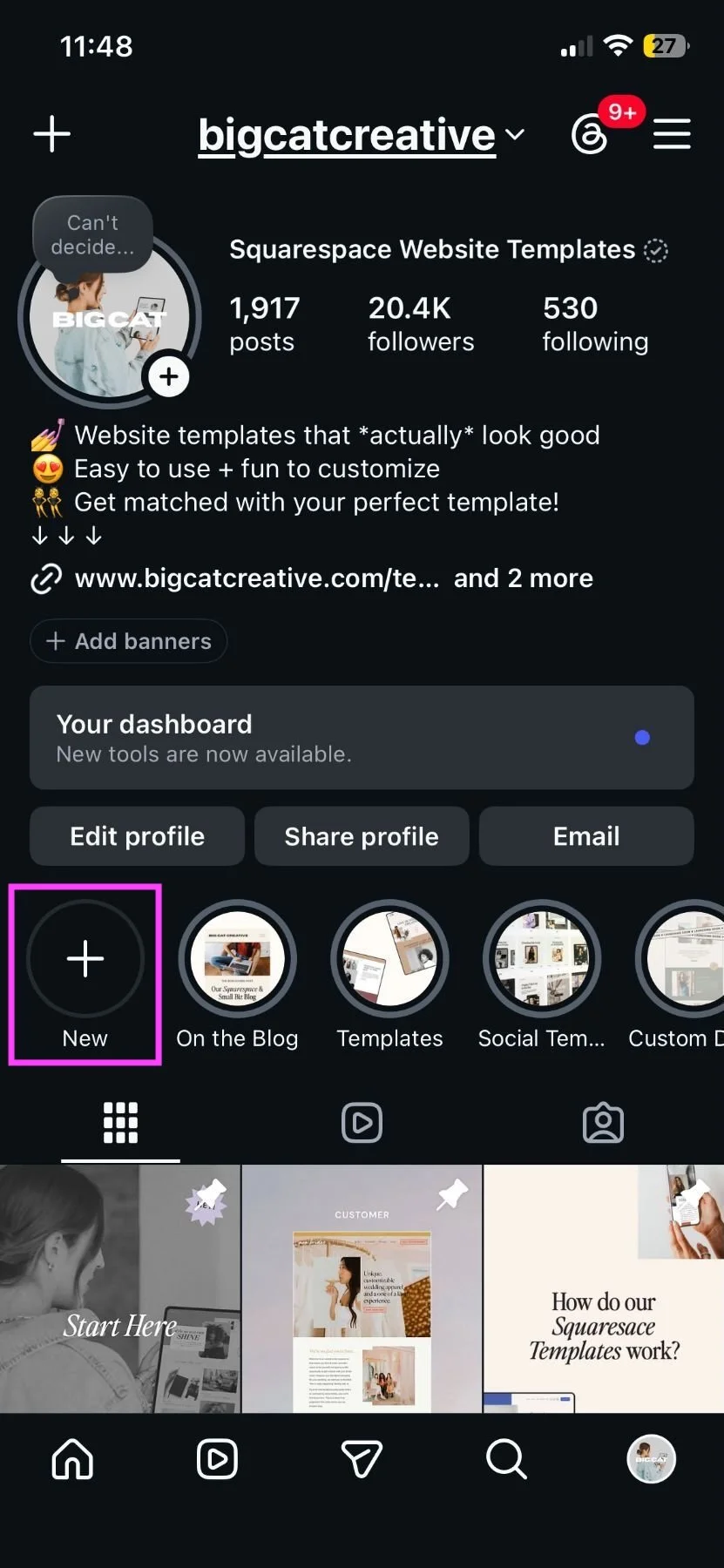
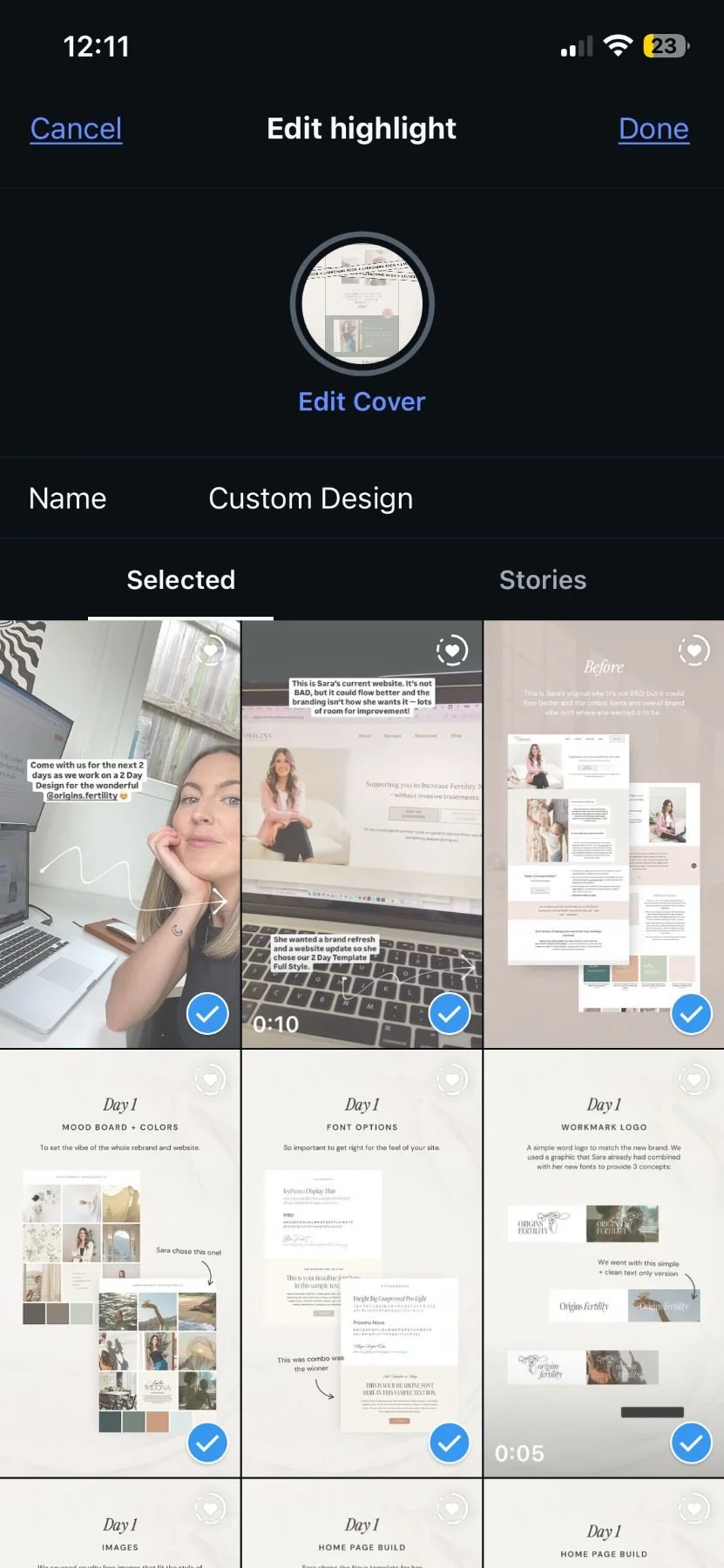
To add a new Highlight “category”, head to your Instagram profile and click the + New button just above your profile grid. This will open a preview of all of your Archived Stories.
Tap on the Stories that you would like to add to your Highlight (you’ll see a blue tick appear on the selected ones) and hit Next in the top right corner once you’ve chosen all the ones you want to add.
Here, you’ll be able to name your Highlight as well as select a cover by clicking Edit Cover.
Click Done in the top right corner to save your Highlight.
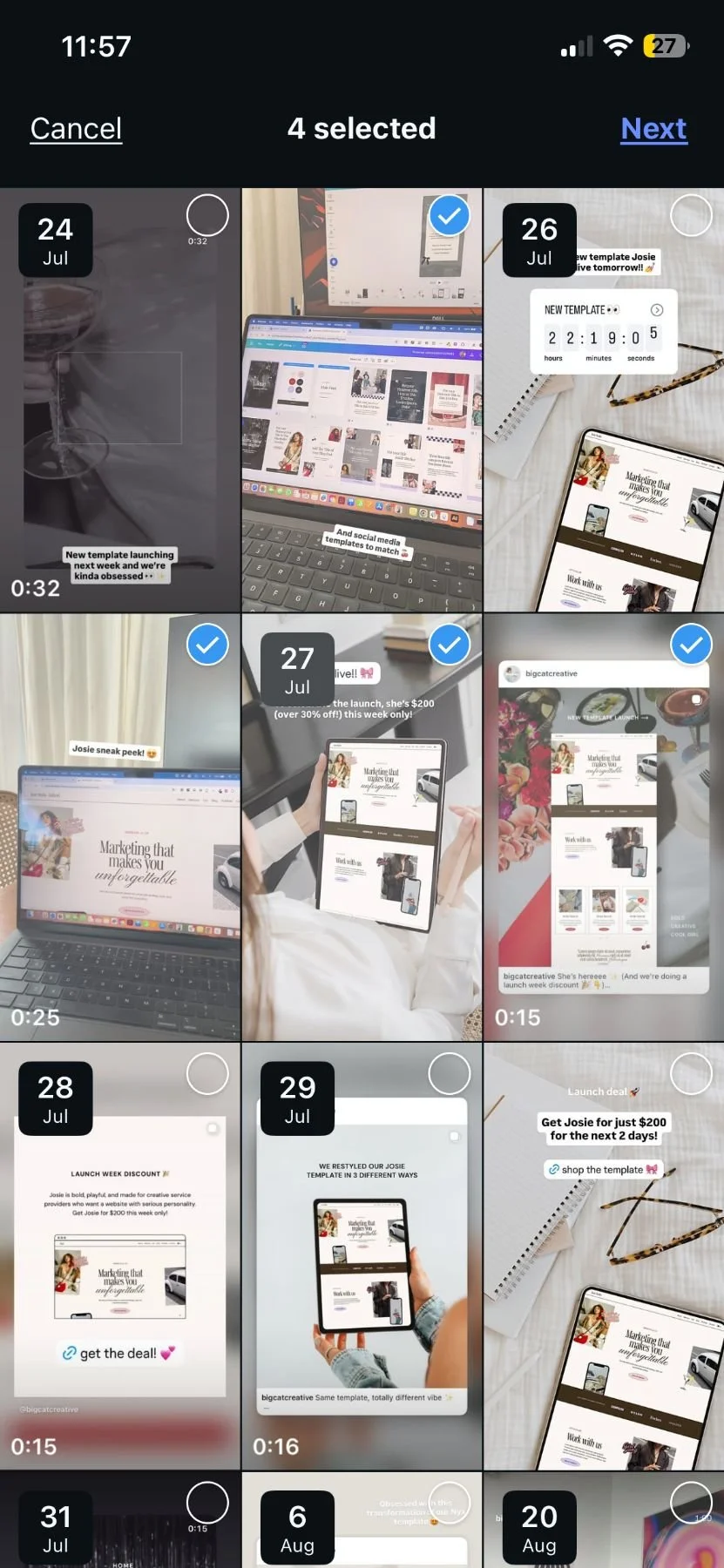

This is especially handy if you already have a bunch of useful Stories sitting around in your Archive doing nothing. Super simple, right?
Another option, is to add a Story to a Highlight while it’s live:
Add a Story as you usually would.
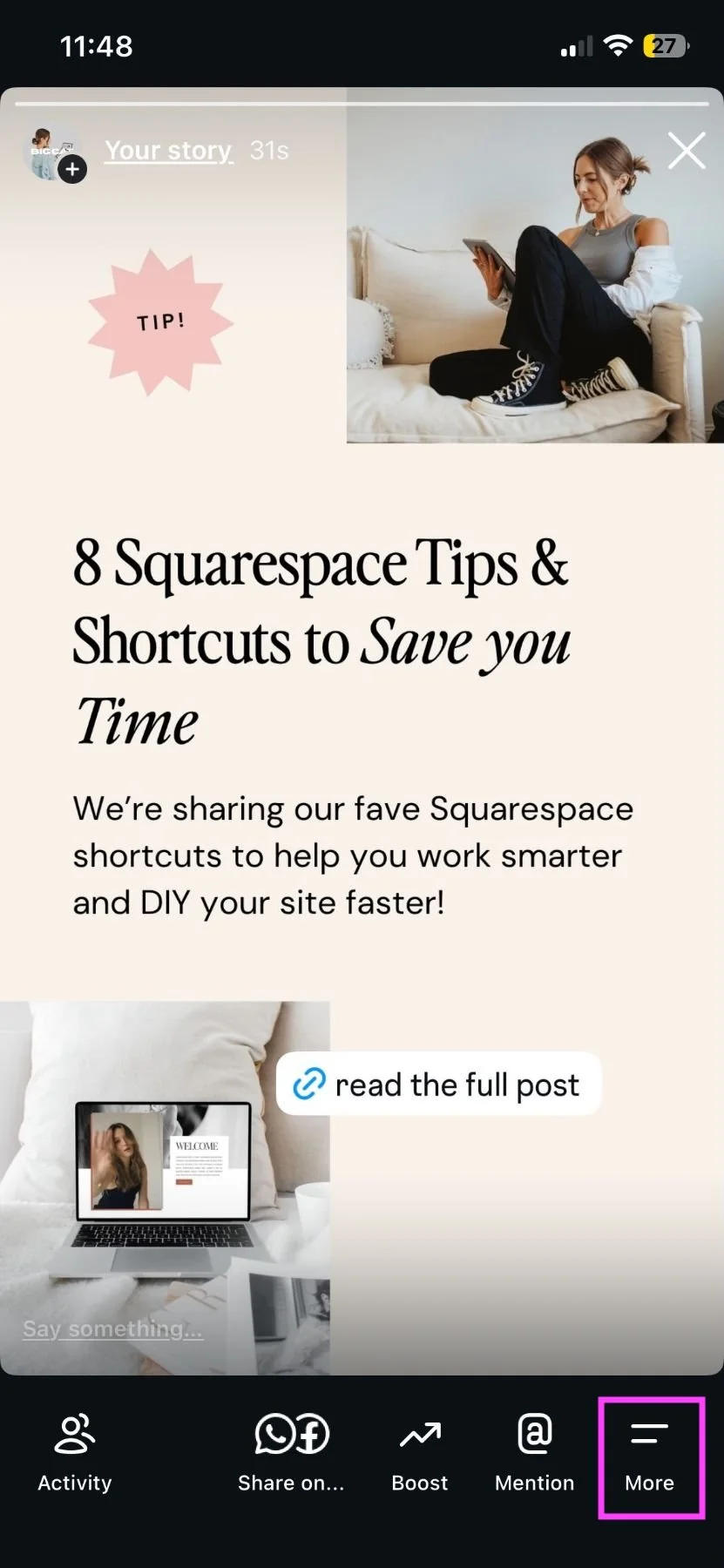
Once it’s live, click the More button in the bottom right corner.
Click the Highlight button.
Select which Highlight to add it to or click + to create a new Highlight “category”.


Editing Your Instagram Highlights
Once your Highlight is set up, you can go back and update it whenever you like!
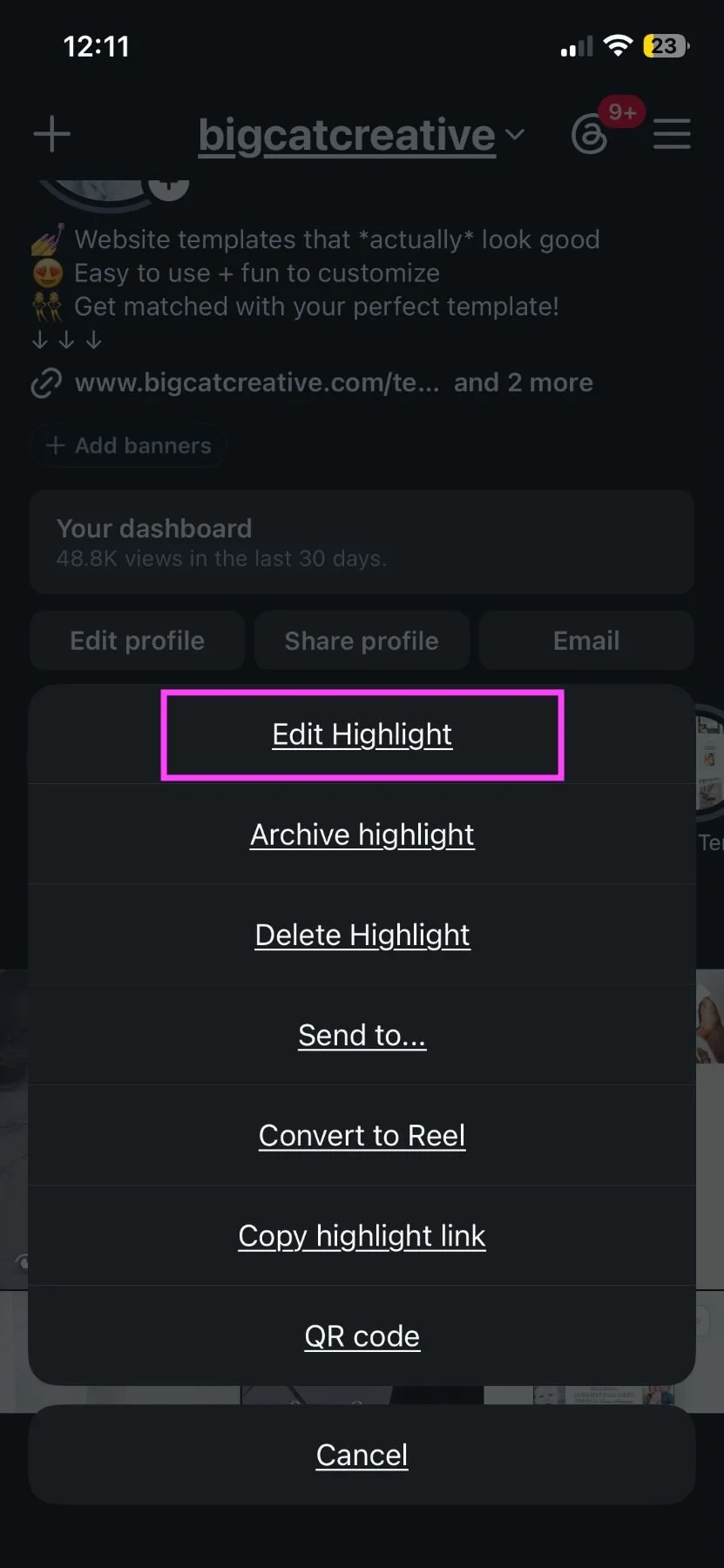
In your Instagram profile, press and hold the Highlight that you would like to edit and click Edit Highlight in the pop up (or choose from any of the other options!).
From here, you can add or remove Stories from your Archive, change the name or update the cover.
Remember to press Done in the top right corner once you’re happy with your updates.
Naming Your Highlights
Keep your Highlight names short, sweet, and obvious.
There isn’t a huge amount of room for the title, so something simple like:
About
Services
Work
Tips
FAQs
Reviews
Freebies
Shop
usually works much better than trying to squeeze an entire sentence in! The goal is for someone to understand what they’ll find inside without having to think too hard about it.
Keep Them Useful and Up-to-Date
You definitely don’t need to create a Highlight for every Story you’ve ever posted.
Think of them more like a little menu of the things someone visiting your profile is most likely to want to know.
Every now and then, go through them and remove old launches, expired sales, outdated information or anything that just isn’t particularly useful anymore.
Creating Instagram Highlight Covers
Okay, designer hat on for a second 🎨
Because your Highlights form part of your Instagram profile, it’s worth putting a little thought into how the covers look.
They don’t need to be overly designed or complicated, but keeping them cohesive with your branding can make your profile feel much more polished and intentional. You could use simple icons, illustrations, brand colors, photos or even very short text.
The main thing is to keep everything simple and easy to recognize at a small size.
How to Make Instagram Highlight Covers in Canva
Canva makes this super easy. Start with an Instagram Story design at 1080 × 1920 px, then create your Highlight covers using your brand colors, fonts and graphics.
A few little tips:
Keep your main icon or design element right in the center, as Instagram will crop the image when it displays as a Highlight cover.
Keep things simple. Tiny text and detailed graphics can disappear once the image is shown at thumbnail size.
Use the same general style across all your covers so they feel like a set.
If you’re using text, keep it VERY short, in most cases, a simple icon or graphic works even better.
Create all of your covers in the same Canva file so you can easily keep the sizing, colors and layout consistent.
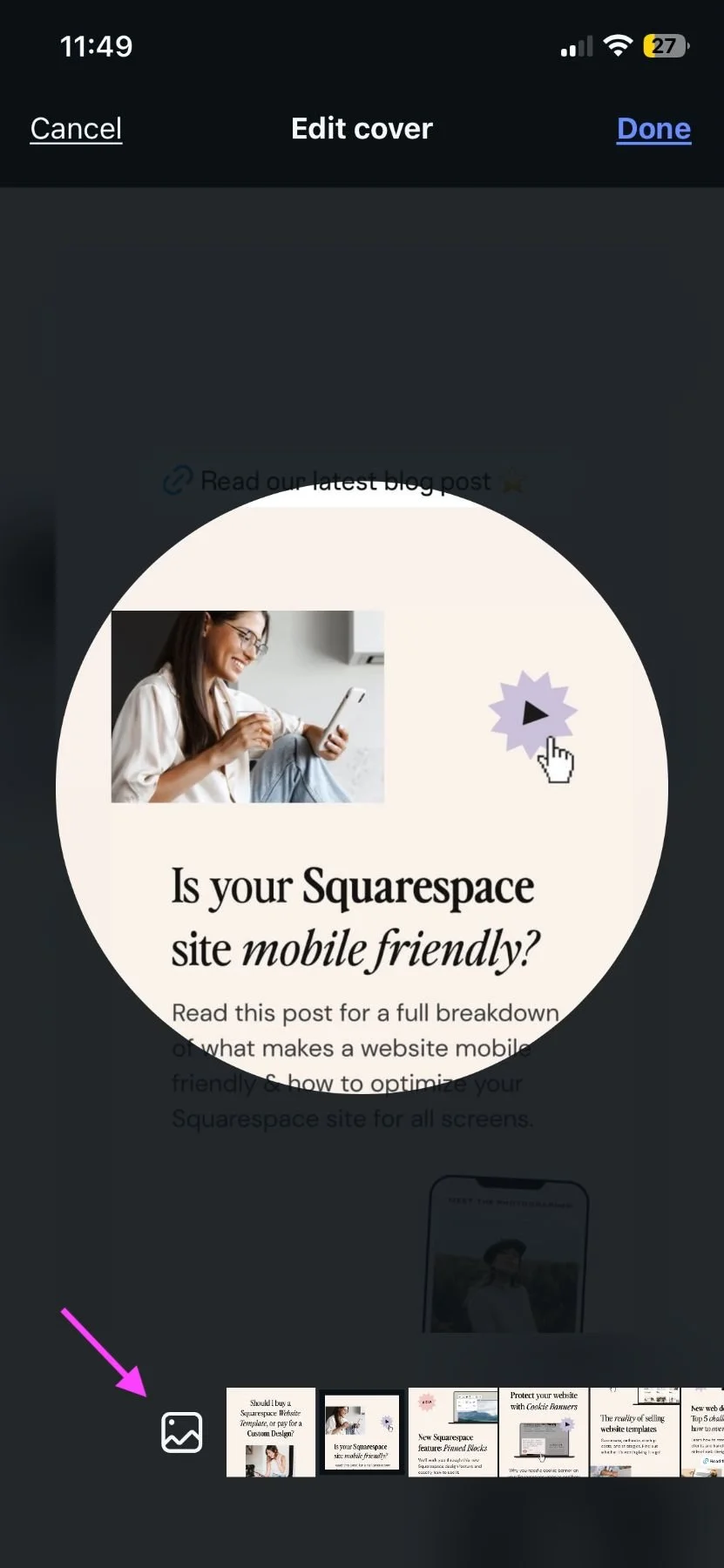
Once they’re ready, download your covers and upload them when you choose Edit Cover inside your Highlight settings.
You’ll be able to choose a cover from any of the Stories in the Highlight or click the small image icon to update a new one.

A few Final Instagram Highlight Tips
Keep your most useful content easy to find.
Give each Highlight one clear topic.
Keep your names short and simple.
Use covers that feel consistent with the rest of your branding.
Delete outdated sales, launches and information.
Add clear directions when you want someone to visit a link, read a post, shop or sign up.
And most importantly, think about your Highlights from the perspective of someone who has never heard of your business before.
Would they quickly understand what you do? Could they find the important stuff? Would they know where to go next? If yes, you’re doing it right!
Now go dig through that Story Archive and put some of that good content back to work!
Speed up Your Stories Creation
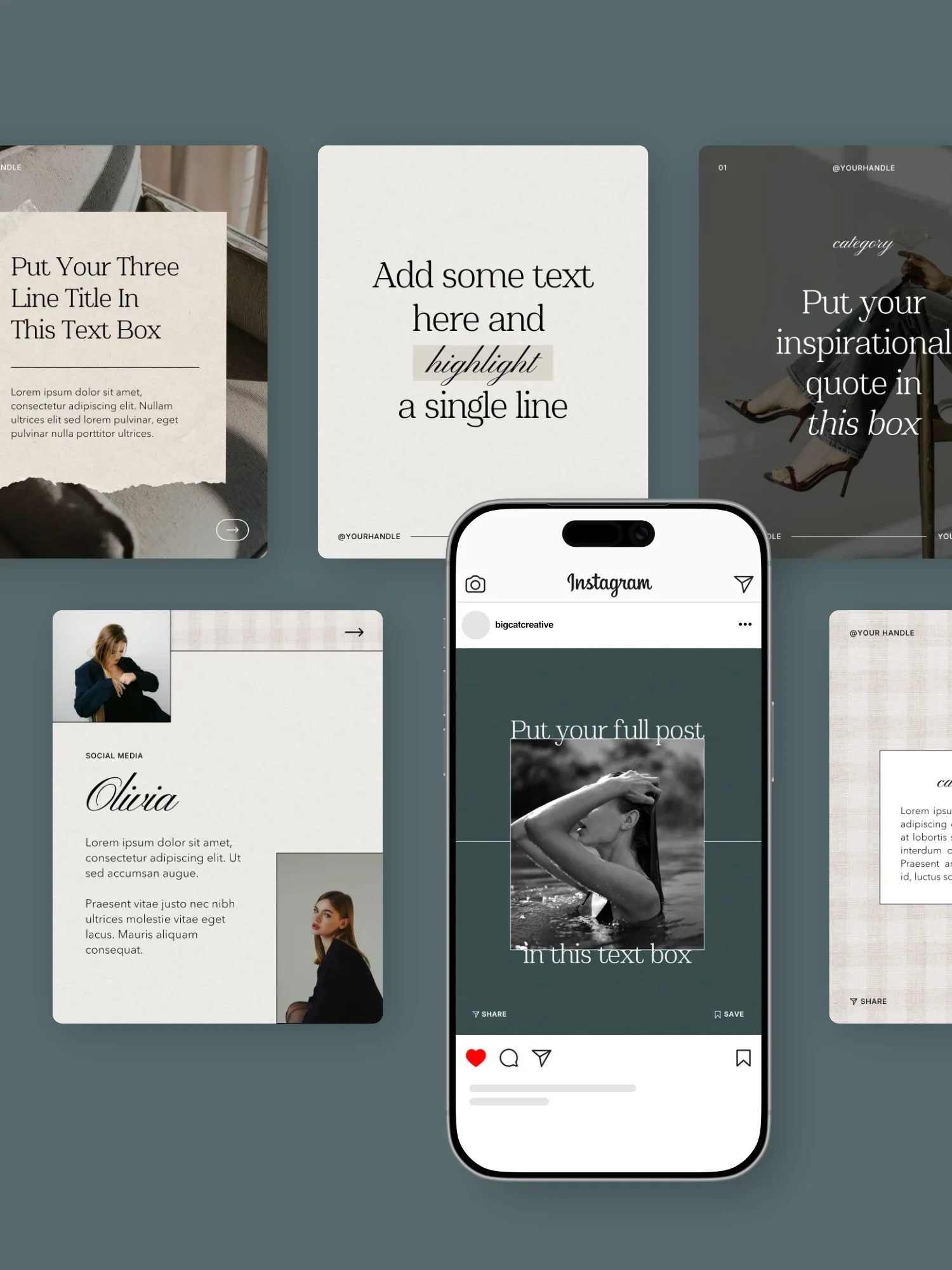
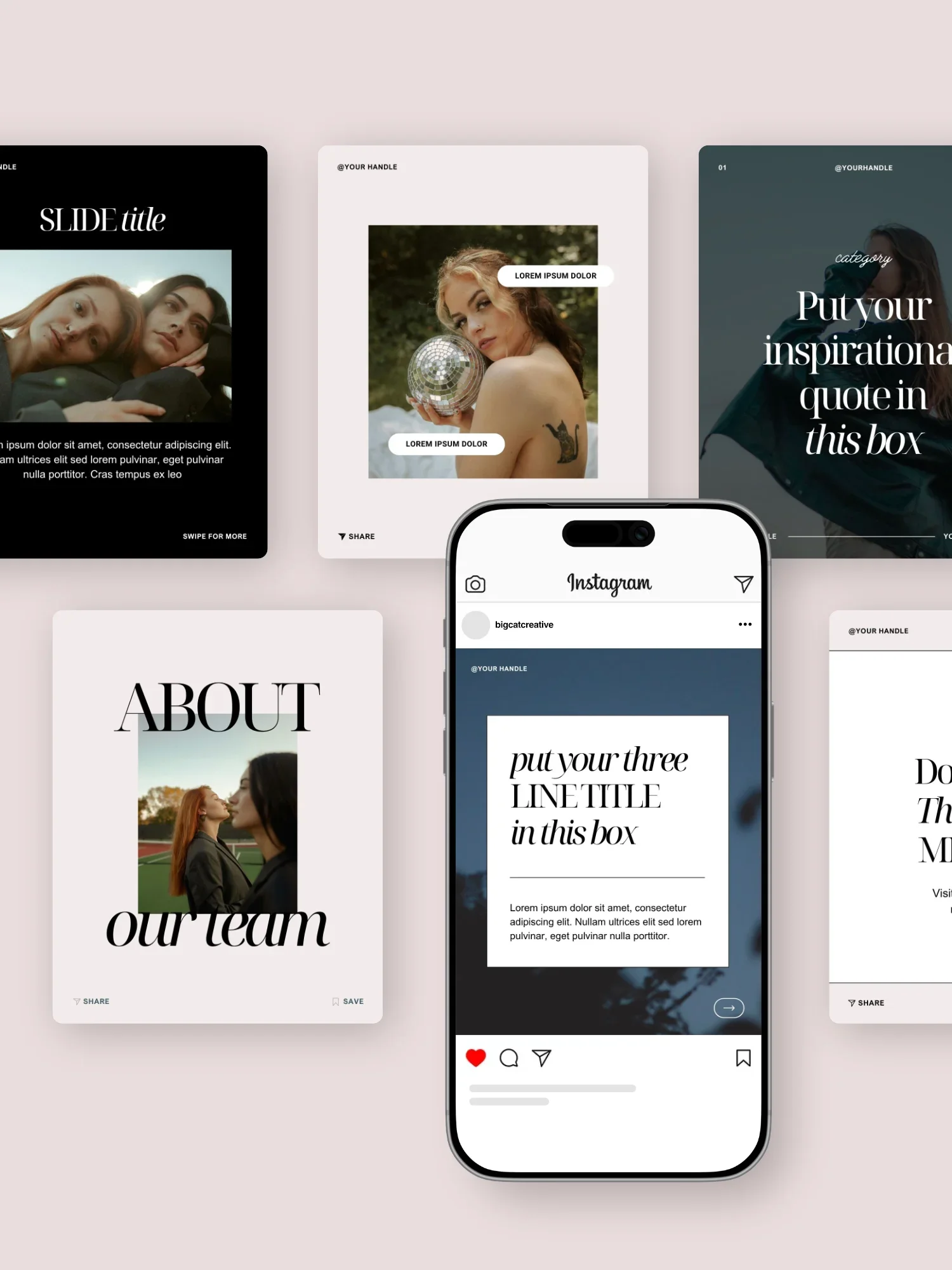
If keeping your Instagram looking polished and on-brand is the part that always takes way too long, our Canva Social Media Templates can give you a nice little head start!
They include ready-to-customize Story templates, along with posts, carousels, and Reel covers, so you can swap in your own colors, fonts, photos and content without starting from a blank page every single time.
Browse the the social media templates collections 👇
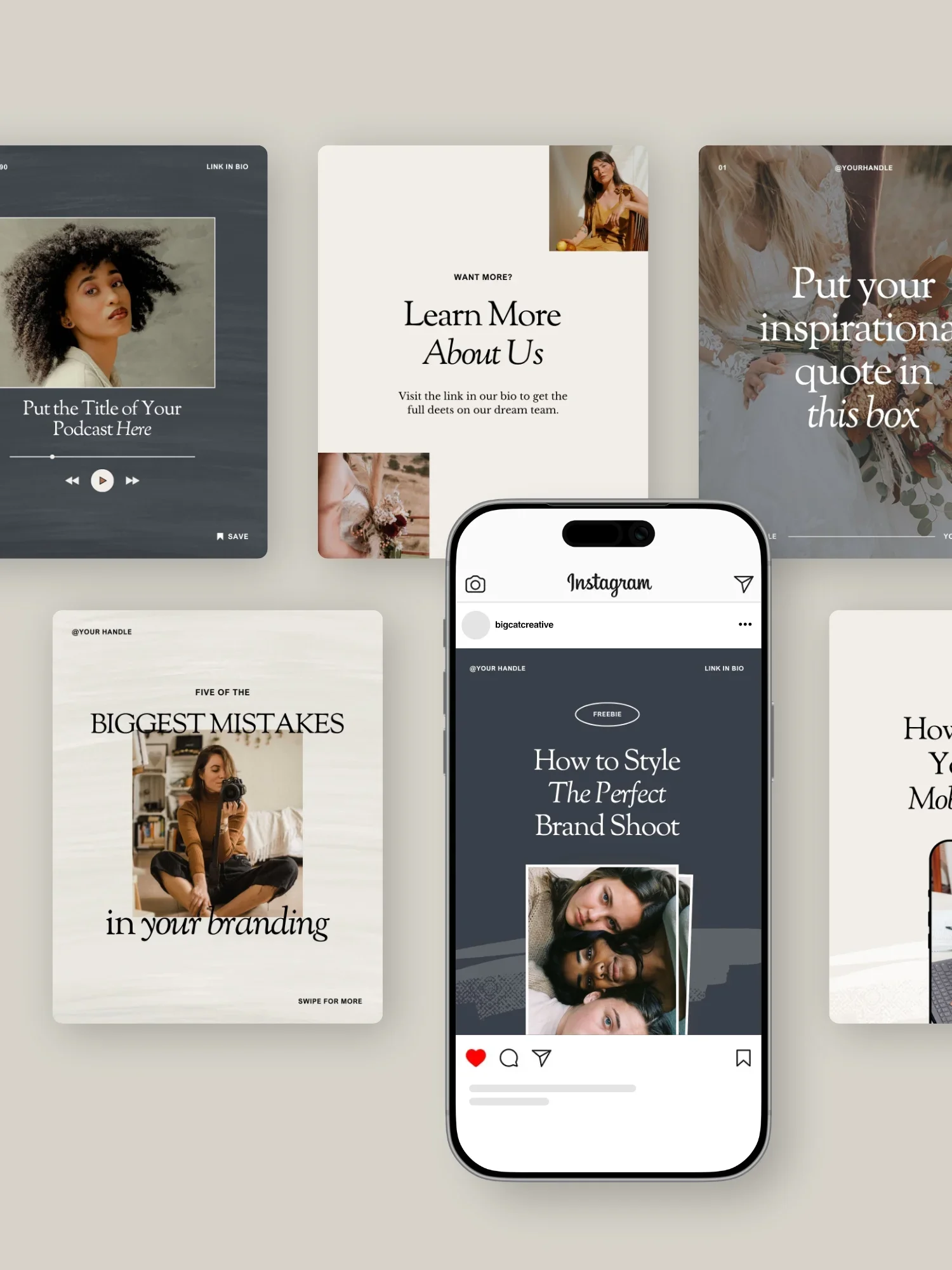
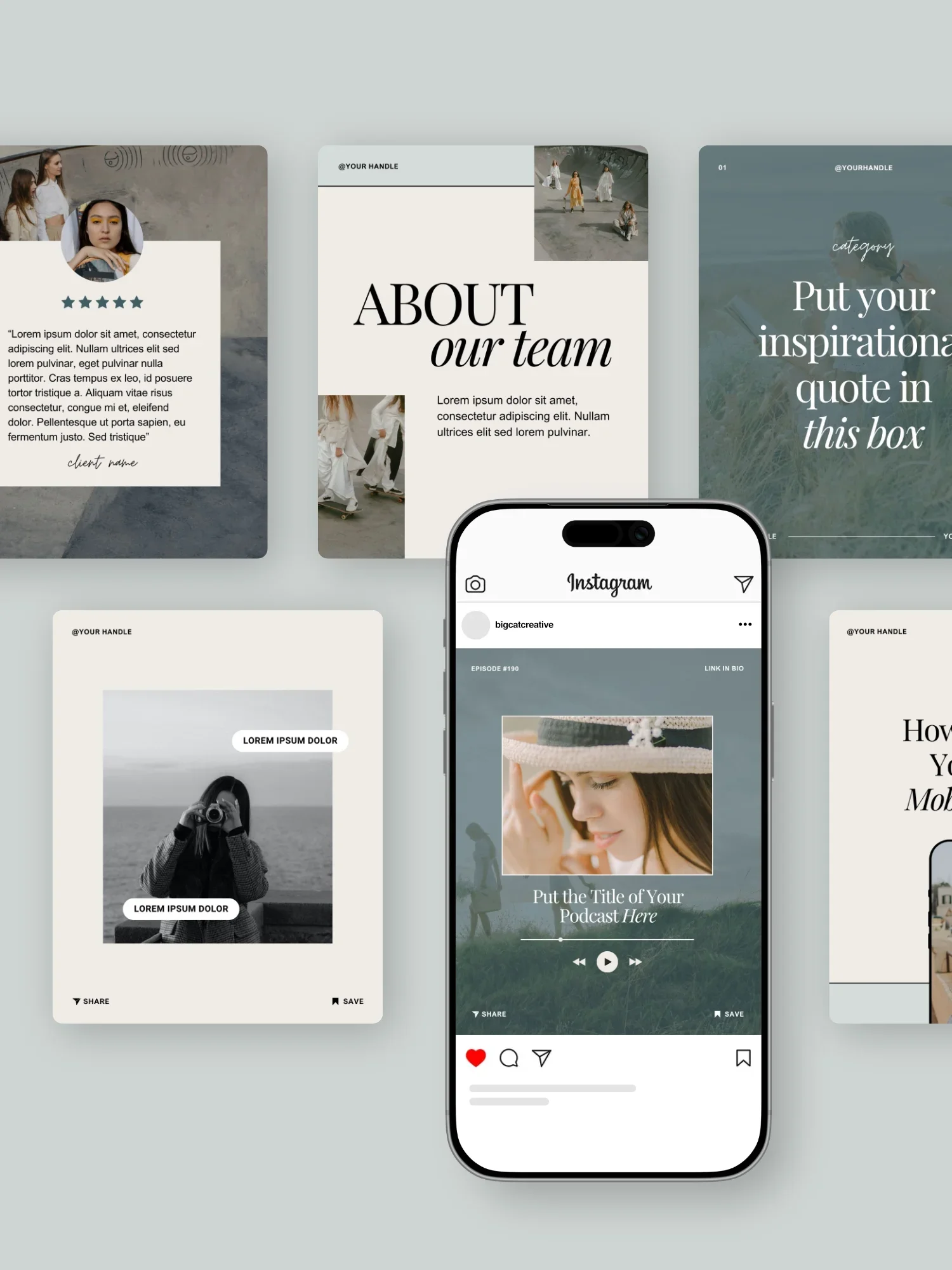
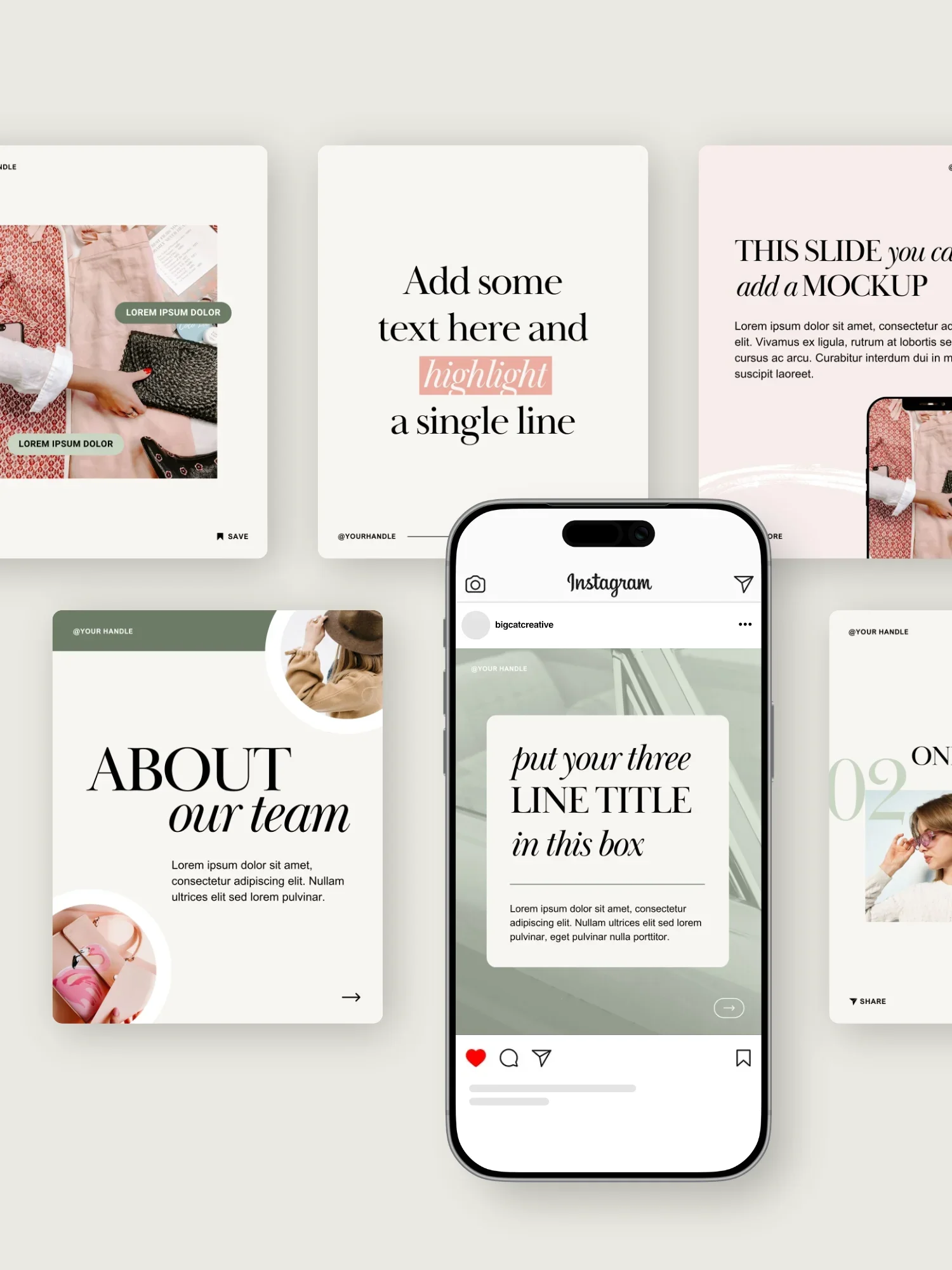
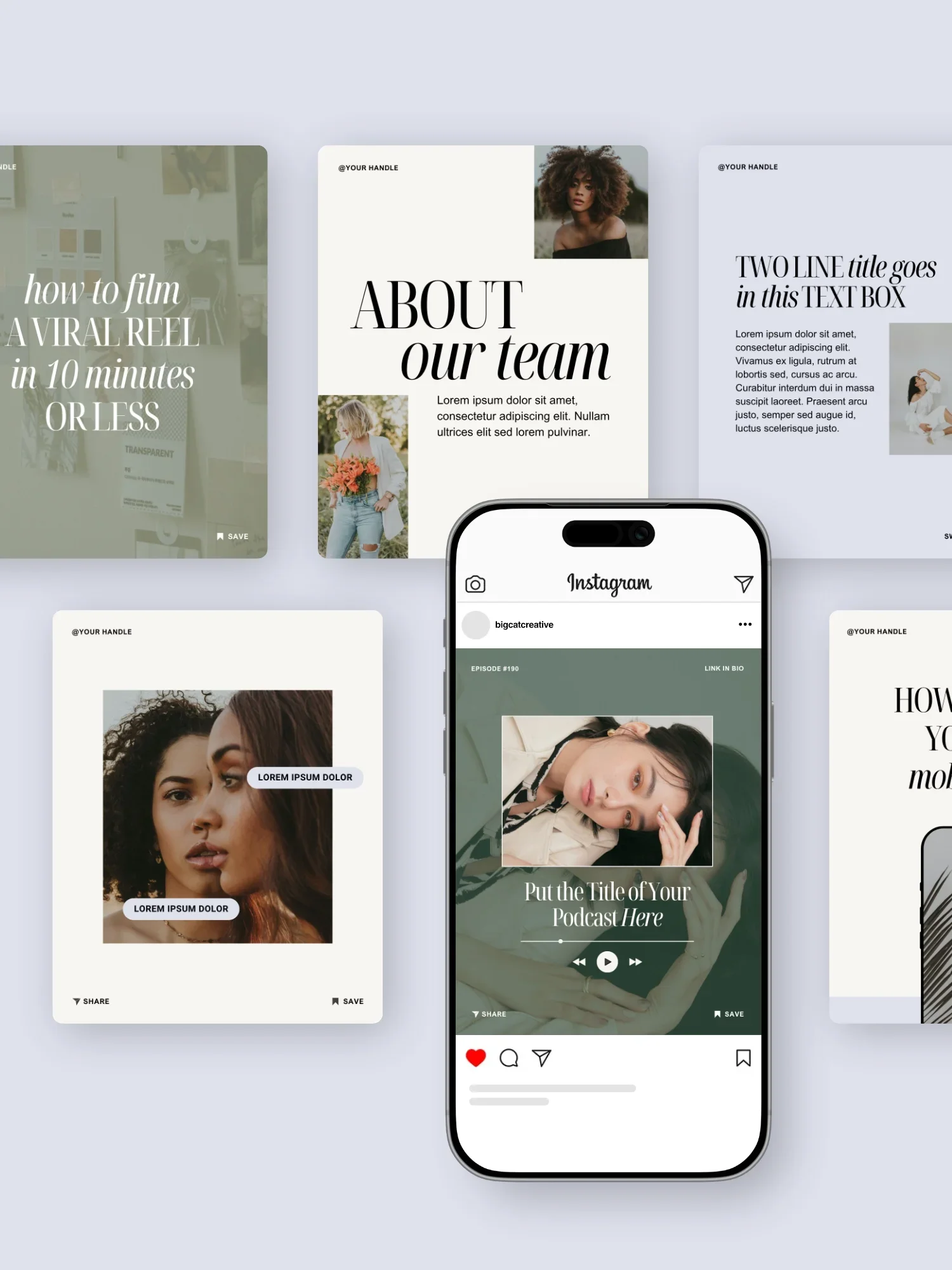
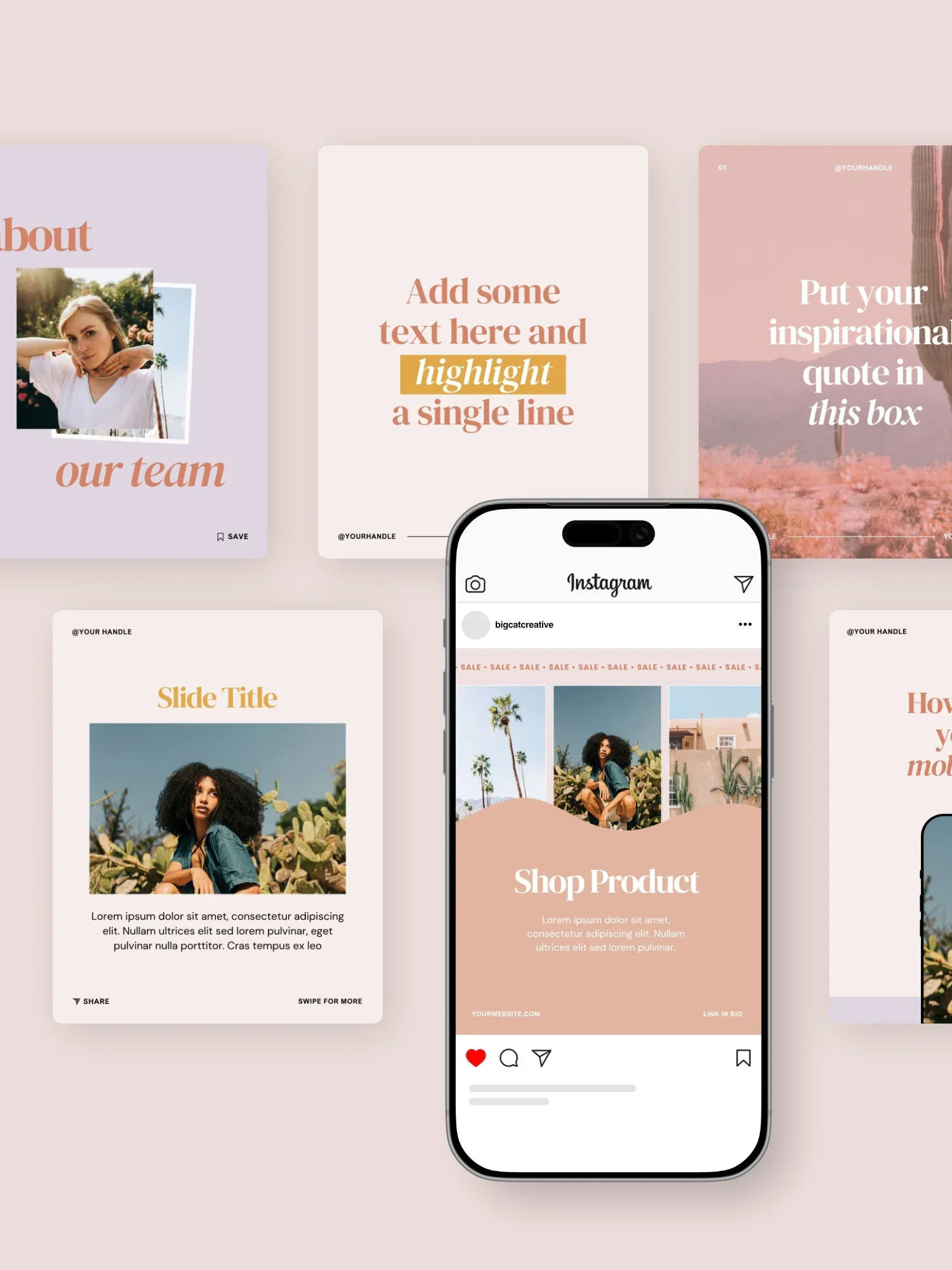
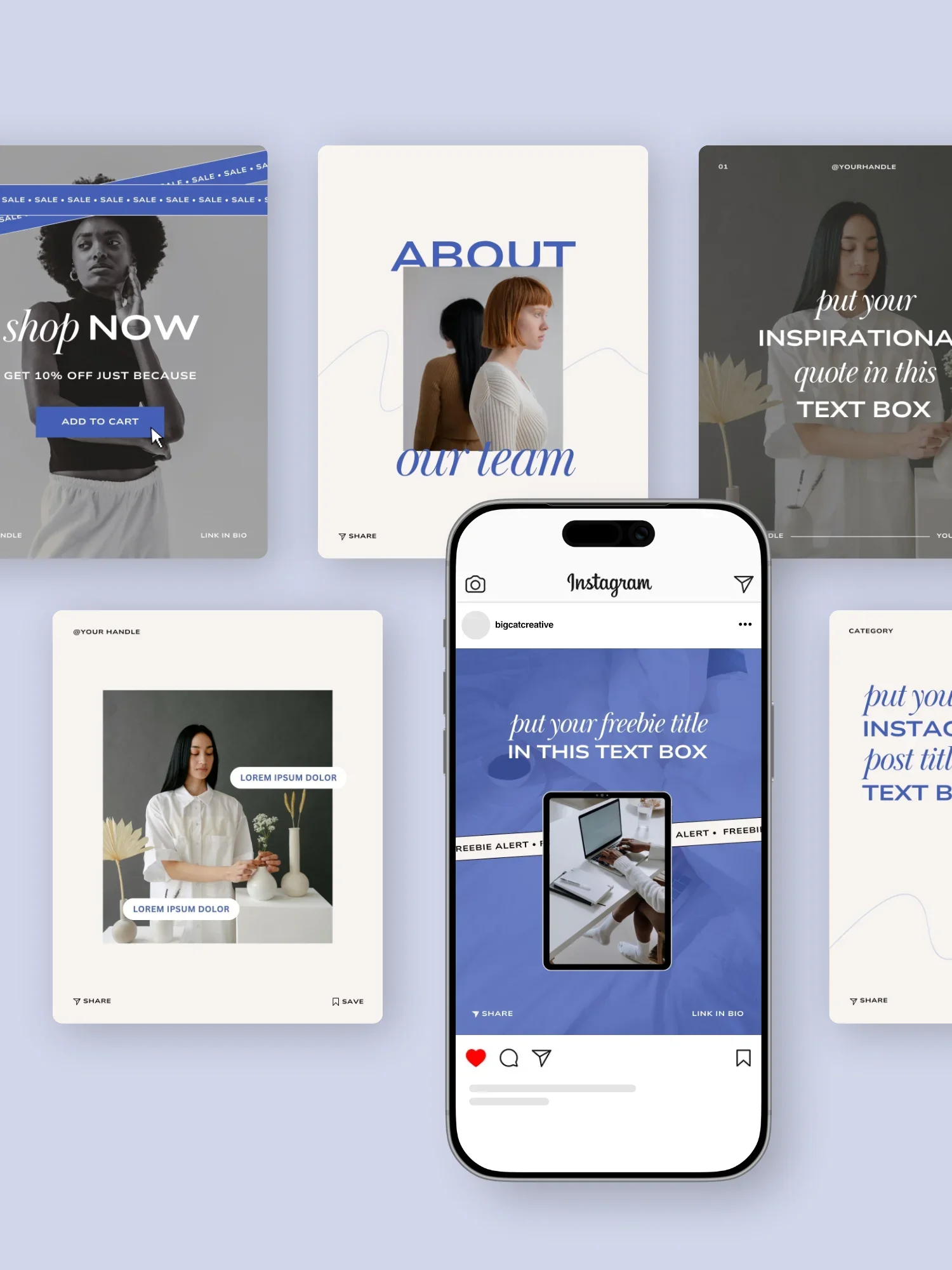
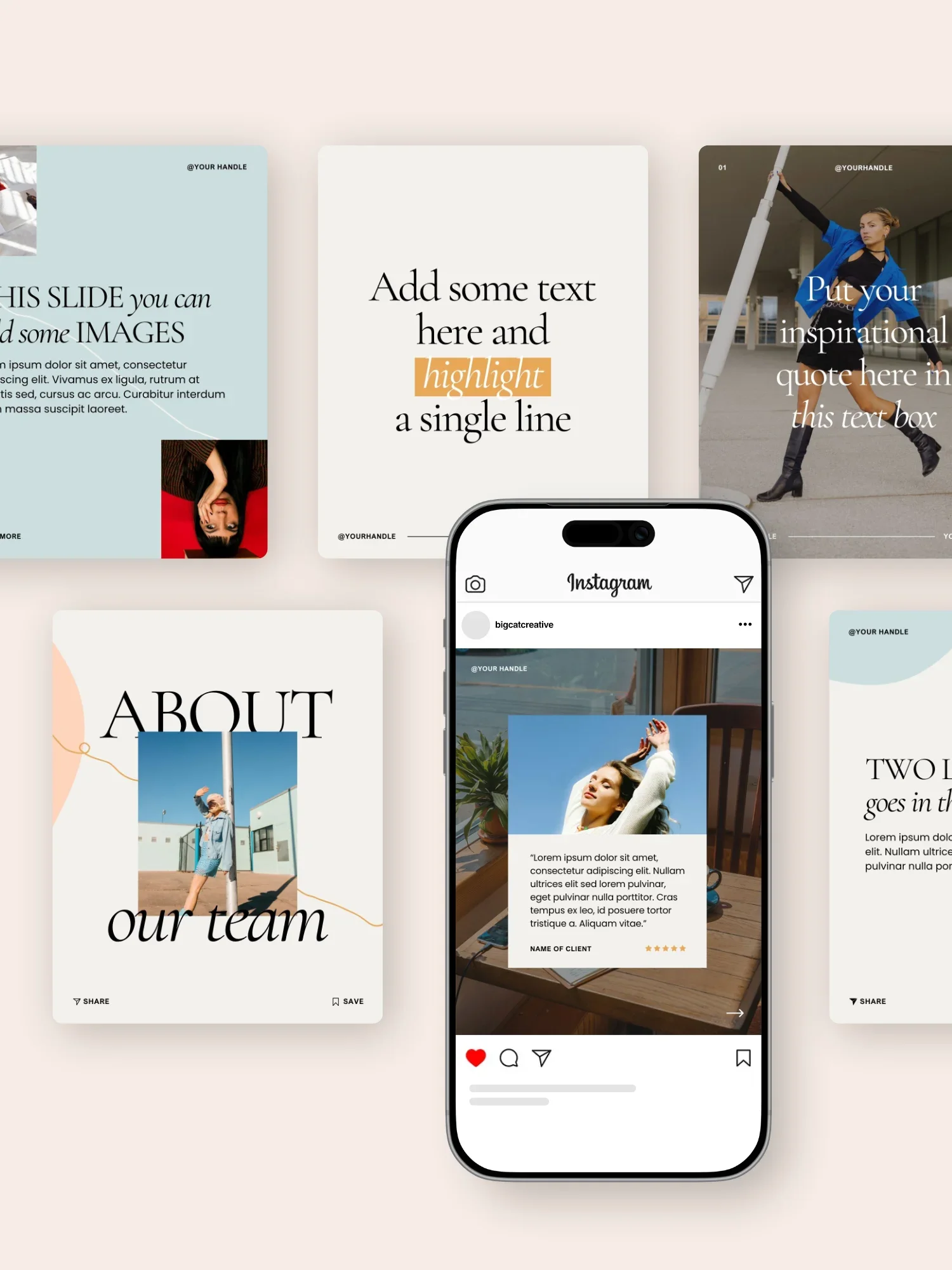
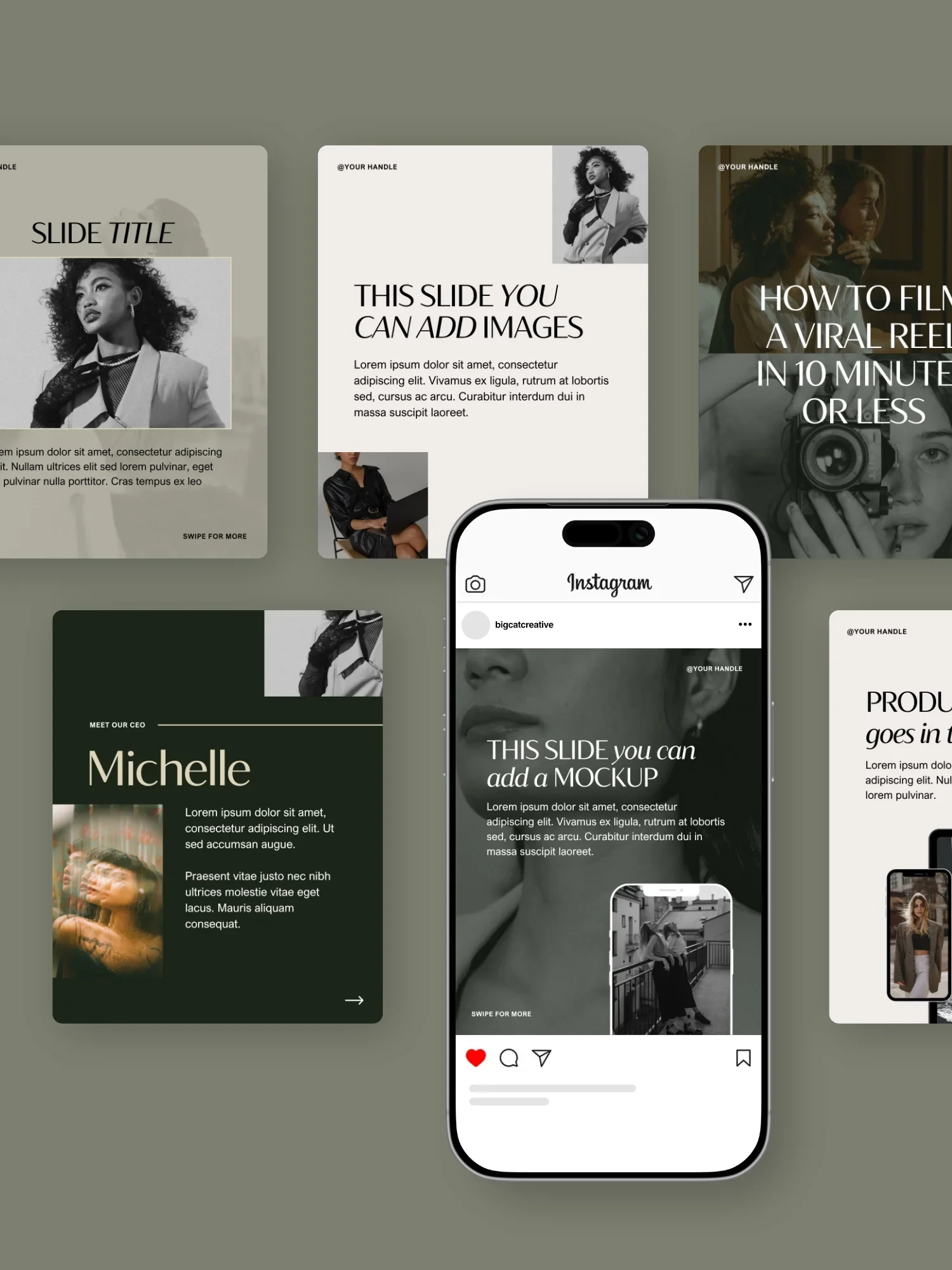
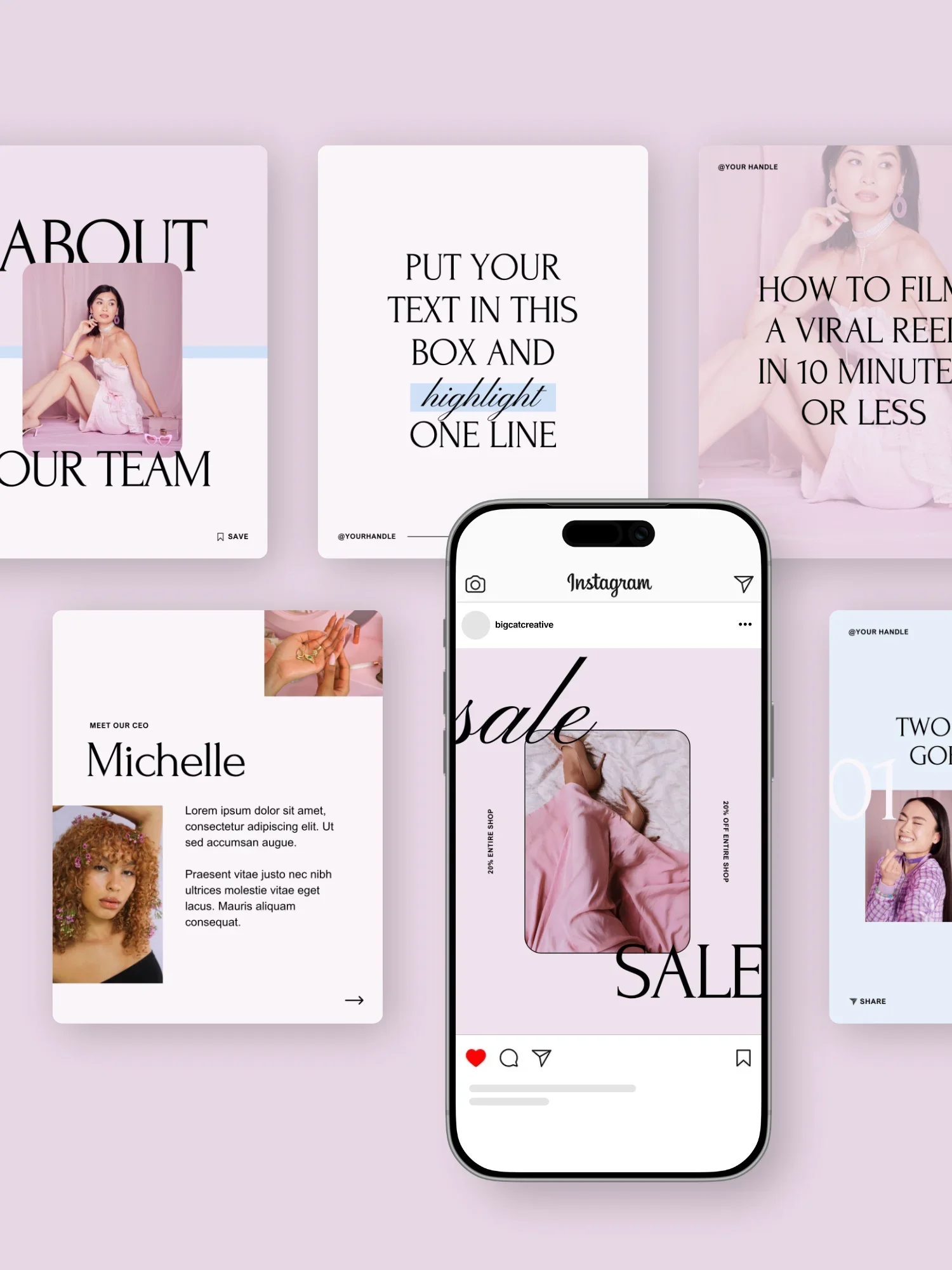
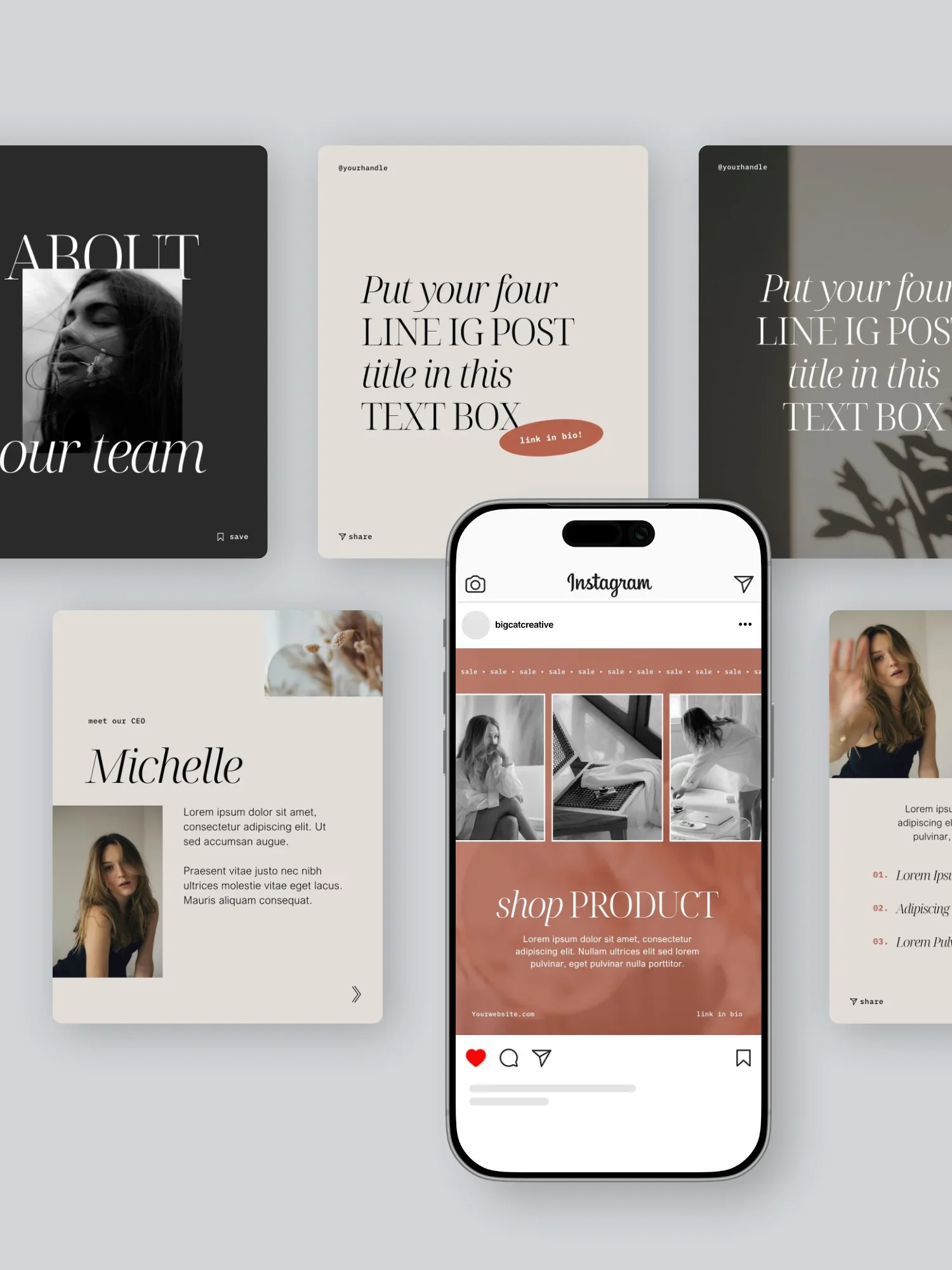
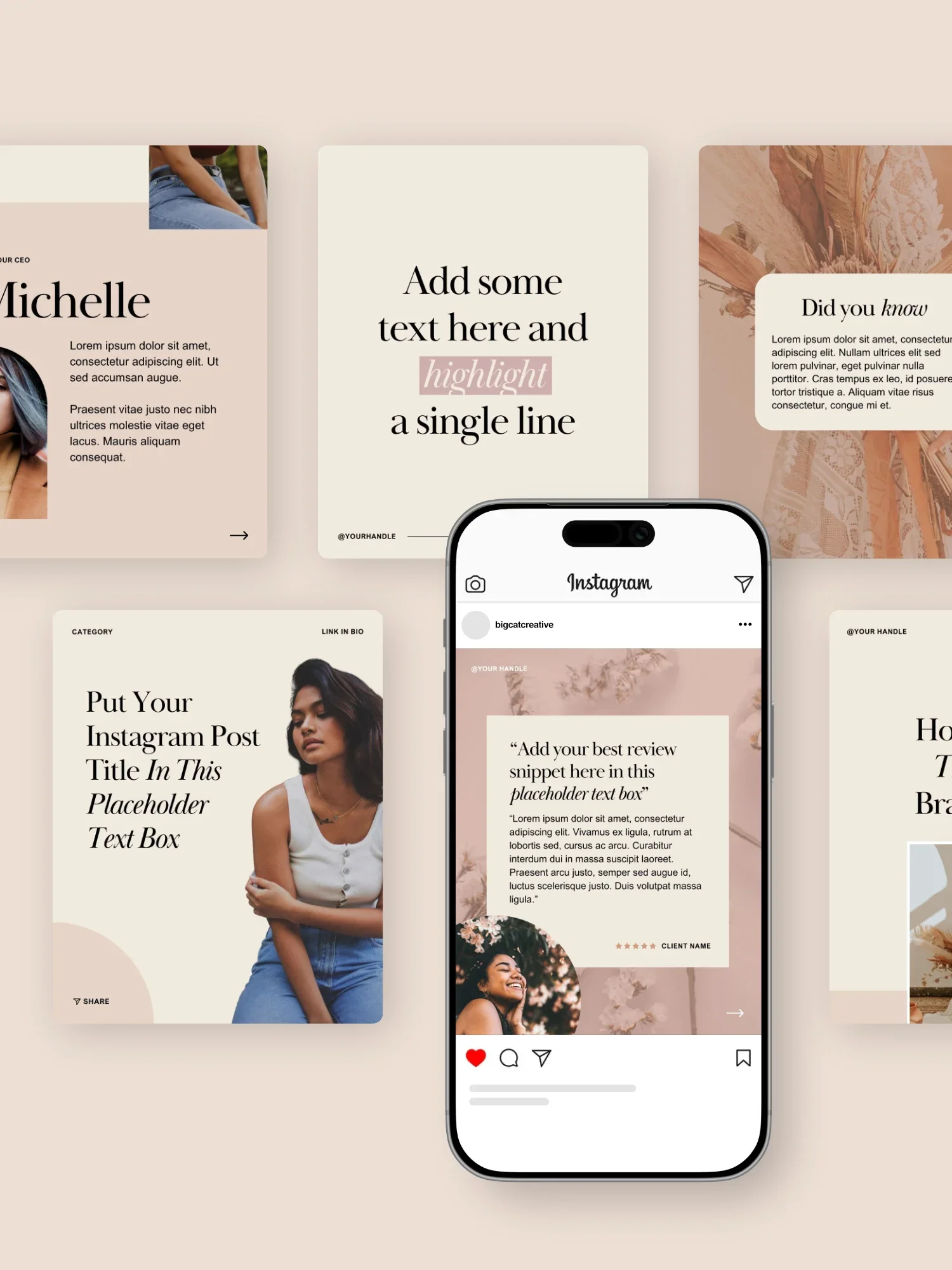
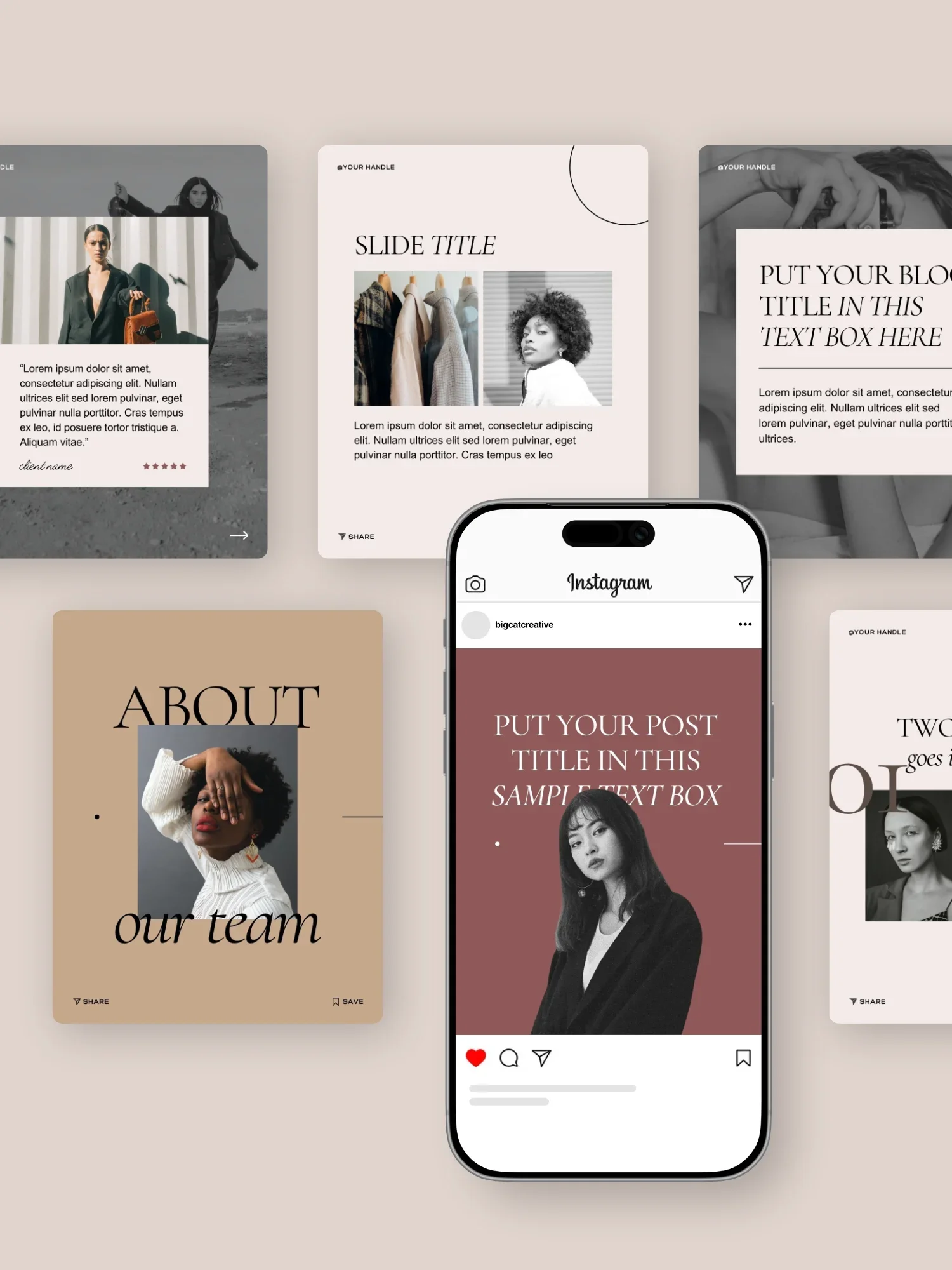
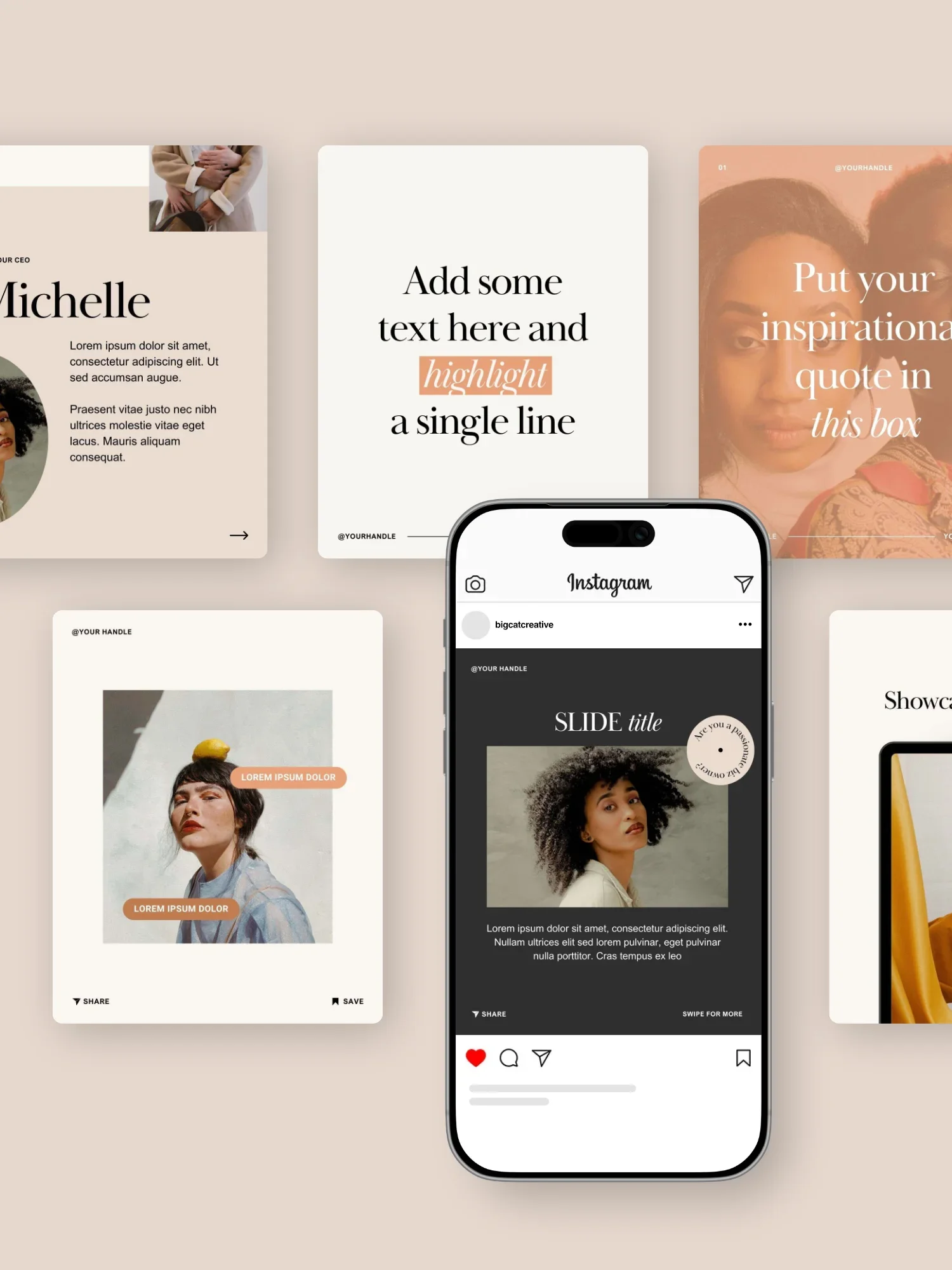
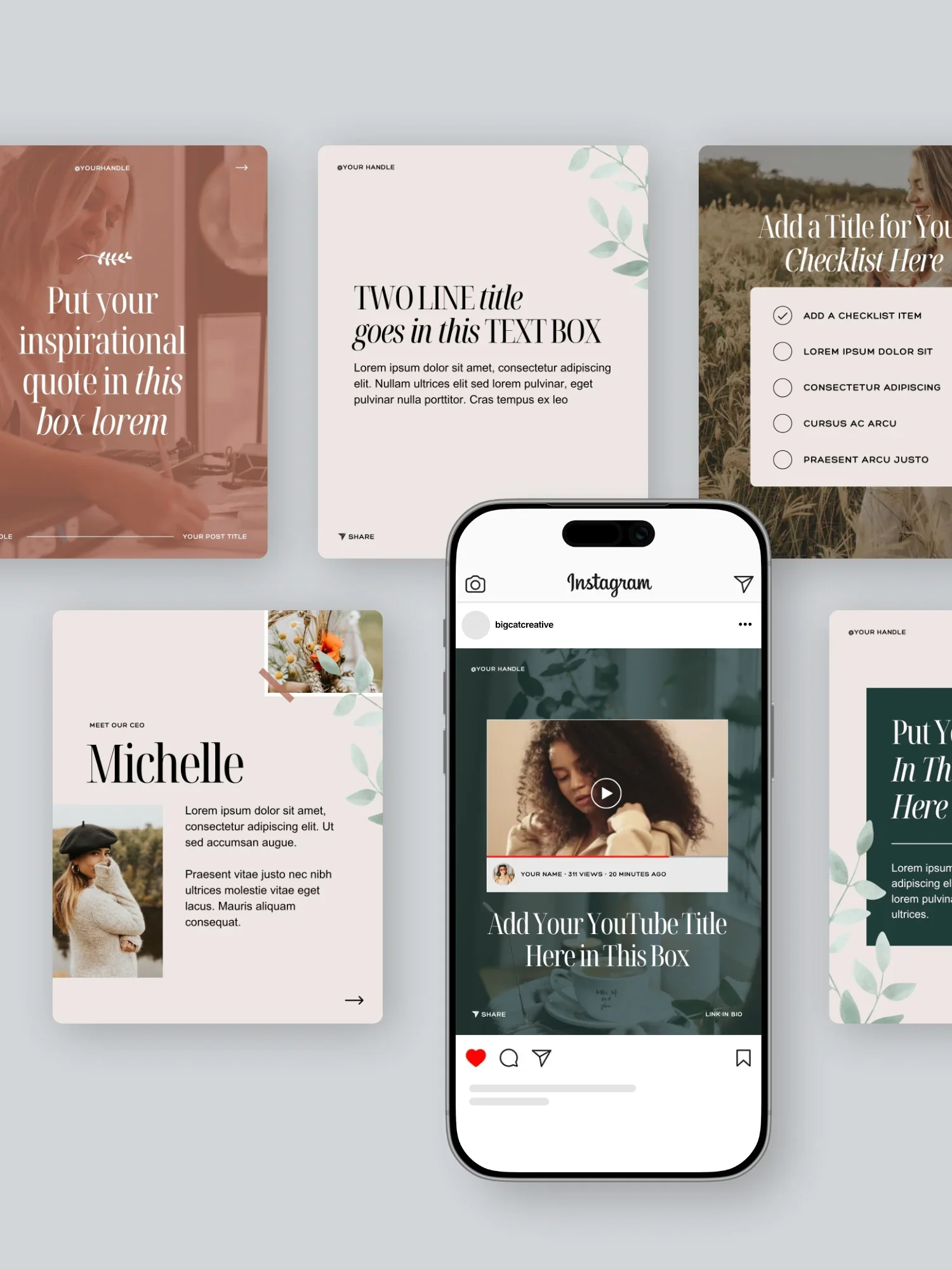


Say hello to your new secret weapon for social! With a few clicks, the Josie Social Media Templates bring a bold, playful energy straight to your feed. With pops of color and fun graphic details, they’re made for creators who want their content to be totally scroll-stopping. Your content + Josie templates = match made in heaven!
What’s included?
81 Portrait Posts (1080x1350)
The perfect designs for Instagram Posts and Carousels. But can also work great for for Facebook Posts and Email graphics!
4 Seamless Carousels (1080x1350)
Specifically for a Instagram Carousels, these designs create a seamless scrolling experience and set a captivating canvas for your content.
84 Stories (1080x1920)
Perfectly crafted for Instagram and Facebook stories, these designs can also be repurposed for Pins, Reels and TikToks.
35 Reel Covers (1080x1920)
Ensuring your design looks good as a Reel Cover and on your Insta feed, these designs are tailor made to make sure you look good across allll of Instagram.
53 Pinterest Pins (1000x1500)
Optimized specifically for Pinterest, you can use these as video, carousel or static Pins.